Adobe's New Color Mode in Premiere Pro Changed How I Think About Video Editing

Adobe's New Color Mode in Premiere Pro Changed How I Think About Video Editing

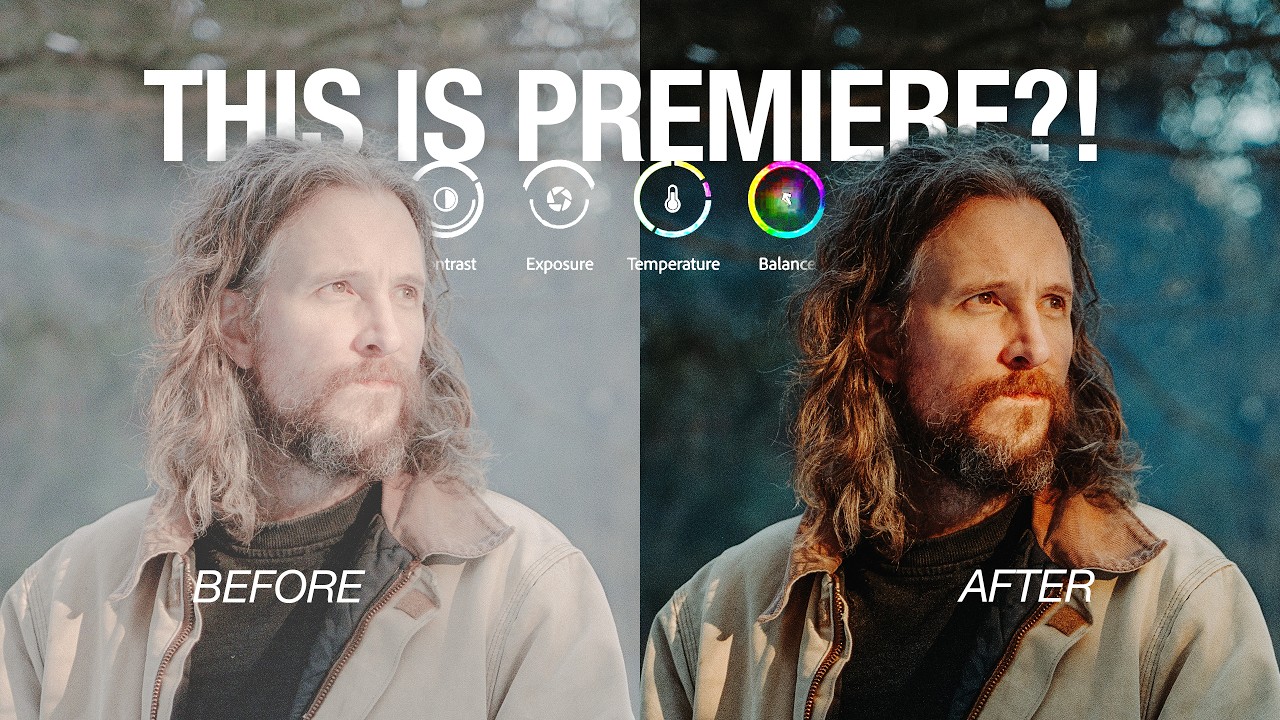
I have a confession that will probably resonate with anyone who edits video in Premiere Pro. My color grading workflow has always been, to put it kindly, a disaster. Adjustment layers stacked on top of adjustment layers, clips mysteriously missing color on export, then hunting through a timeline that looks like it survived an earthquake to figure out which seven clips I forgot. If you shoot travel or lifestyle content and you’re cutting together 40-plus clips from a single shoot day, that chaos compounds fast.
How I Used Claude AI to Turn Raw Footage Into a Polished Video (No Editing Experience Required)

How I Used Claude AI to Turn Raw Footage Into a Polished Video (No Editing Experience Required)

I’ve been putting off video for years. Not because I don’t want to share my work in motion, but because every time I opened a video editor I felt like I’d wandered into someone else’s cockpit. The timelines, the render queues, the color grading panels, all of it. I’m a photographer. I know light. I do not know what a keyframe is, and until recently I didn’t particularly want to.

How to 3D Track Text Onto Any Surface in After Effects (And Why It's Faster Than You Think)

How to 3D Track Text Onto Any Surface in After Effects (And Why It's Faster Than You Think)

Every time I shoot travel content, I run into the same problem: where do I put the title? Slapping text in a corner feels lazy. Animating it over a solid color card feels dated. What I actually want is for the text to feel like it belongs in the scene, like it’s been painted on a wall or resting on a tabletop. That’s exactly what 3D tracking lets you do, and once you try it, you’ll wonder why you ever did it any other way.

Edit Your B-Roll to Music in Minutes: The Premiere Pro Automate-to-Sequence Trick You Need

Edit Your B-Roll to Music in Minutes: The Premiere Pro Automate-to-Sequence Trick You Need

I make playlists for everything. Shooting moods, editing sessions, long exports. So when I’m cutting a travel video and I want the b-roll to sync with the music, it matters to me. What doesn’t feel great is spending forty-five minutes dragging clips one by one onto a timeline, nudging them around, playing it back, nudging again. That workflow kills the creative energy faster than a dead battery at golden hour.

No Slow Motion Mode? Here's How to Fake It Convincingly in Adobe Premiere Pro

No Slow Motion Mode? Here's How to Fake It Convincingly in Adobe Premiere Pro

I have a confession: I spent an embarrassing amount of time on a trip to Iceland trying to capture a waterfall in slow motion, only to realize mid-trip that my backup camera didn’t shoot above 30fps. The footage I needed was already in the can. It was a real “figure it out in post” moment, and it sent me down a rabbit hole of software-based slow motion that I’ve been refining ever since.

How Serge Ramelli Built a Full AI Music Video (And What Photographers Can Learn From His Workflow)

How Serge Ramelli Built a Full AI Music Video (And What Photographers Can Learn From His Workflow)

There’s a version of burnout that doesn’t look like burnout. You’re still shooting. You’re still editing. You’re still posting. But somewhere along the way, the work starts to feel like obligation instead of expression, and you can’t quite remember when that switch flipped. I’ve been there more than once, and I suspect most photographers reading this have too. That’s why I sat up a little straighter when I came across this Serge Ramelli tutorial, Watch the full tutorial on YouTube, and realized it had nothing to do with Lightroom sliders or lens choices.