10 Premiere Pro Tips That Will Actually Change How You Edit (Organized by How Much Time They'll Save You)

10 Premiere Pro Tips That Will Actually Change How You Edit (Organized by How Much Time They'll Save You)

I shoot a lot. Between client work, travel content, and the Sunday photo walks I refuse to give up no matter the Seattle weather, I end up with a genuinely embarrassing amount of footage to sort through. For a long time, my editing workflow was the digital equivalent of throwing clothes on a chair and hoping for the best. Bins named “stuff,” clips in the wrong sequence, color grades applied one painstaking cut at a time.

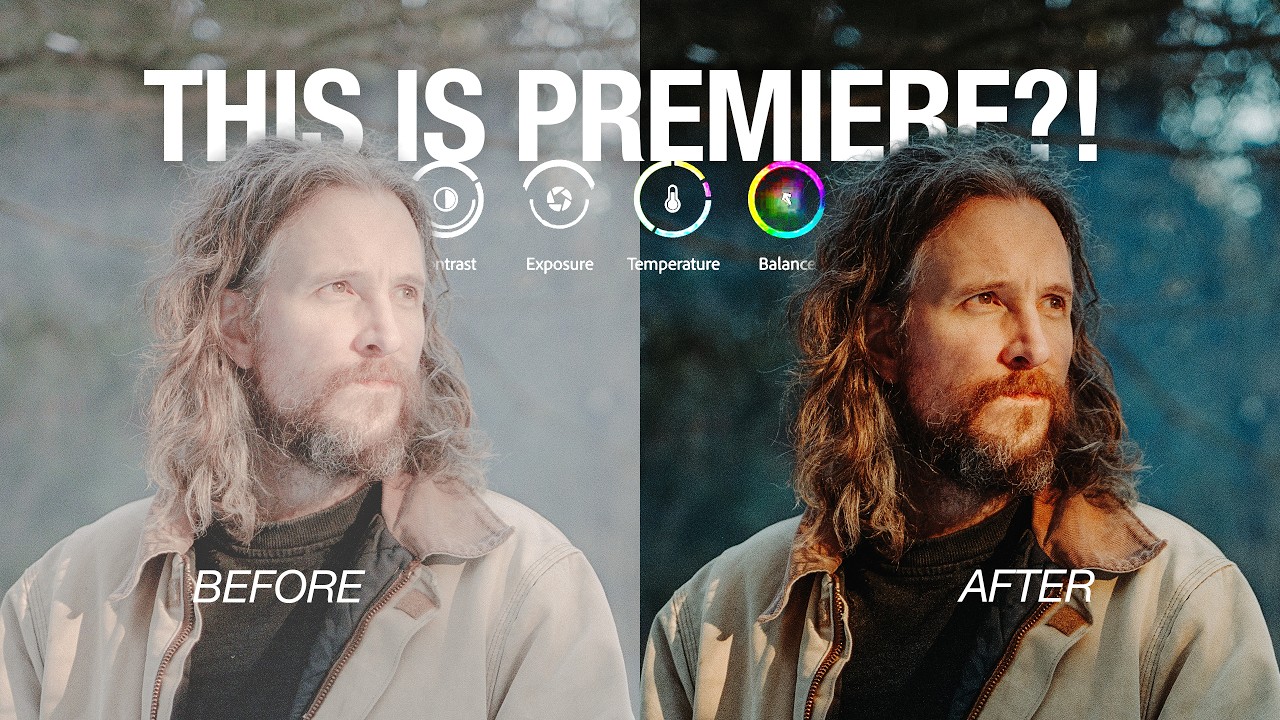
Adobe's New Color Mode in Premiere Pro Changed How I Think About Video Editing

Adobe's New Color Mode in Premiere Pro Changed How I Think About Video Editing

I have a confession that will probably resonate with anyone who edits video in Premiere Pro. My color grading workflow has always been, to put it kindly, a disaster. Adjustment layers stacked on top of adjustment layers, clips mysteriously missing color on export, then hunting through a timeline that looks like it survived an earthquake to figure out which seven clips I forgot. If you shoot travel or lifestyle content and you’re cutting together 40-plus clips from a single shoot day, that chaos compounds fast.

Edit Your B-Roll to Music in Minutes: The Premiere Pro Automate-to-Sequence Trick You Need

Edit Your B-Roll to Music in Minutes: The Premiere Pro Automate-to-Sequence Trick You Need

I make playlists for everything. Shooting moods, editing sessions, long exports. So when I’m cutting a travel video and I want the b-roll to sync with the music, it matters to me. What doesn’t feel great is spending forty-five minutes dragging clips one by one onto a timeline, nudging them around, playing it back, nudging again. That workflow kills the creative energy faster than a dead battery at golden hour.