
There is a particular kind of editing paralysis that hits when you open a new project and realize you have to hunt through the same effects panels, apply the same color grade from memory, and drag over the same transitions you used last week. Every. Single. Time. I used to chalk it up to “just part of the process,” but the more projects I took on, the more I realized I was losing 20 to 30 minutes per video to pure, avoidable repetition. That time adds up fast.
In this Peter McKinnon tutorial, he lays out a deceptively simple system inside Premiere Pro that cuts that friction almost entirely. Watch the full tutorial on YouTube. The core idea is creating a centralized “Favorites” folder inside your Effects panel and populating it with everything you reach for constantly, including saved color grade presets. It sounds almost too small to matter. It isn’t.
What I love about this approach is that it compounds. The first time you set it up, you save maybe five minutes. By your tenth project, it’s baked into your muscle memory and your editing pace genuinely shifts. If you edit video alongside your photography work, even occasionally, this is worth 10 minutes of your Sunday morning.
Step 1: Open the Effects Panel in Premiere Pro
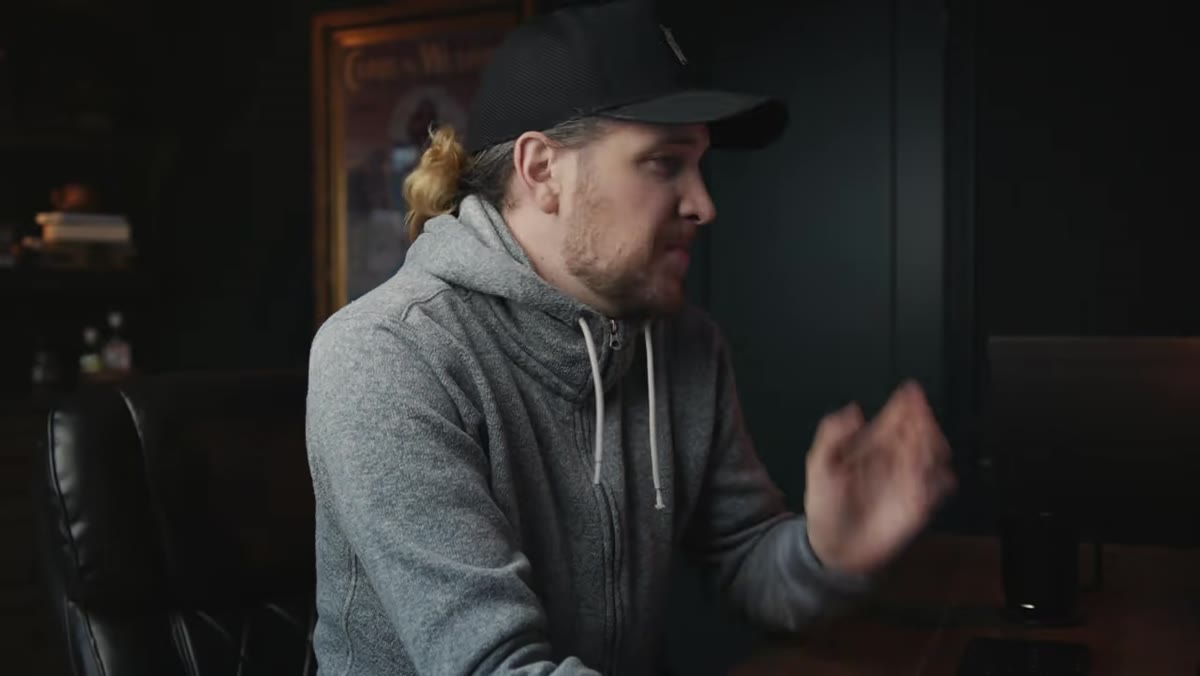 Premiere Pro interface with Effects tab selected
Open Premiere Pro and locate the Effects panel. If you don’t see it, go to Window in the top menu bar and select Effects. This panel is where all of your transitions, audio effects, video effects, and audio transitions live. It’s also where you’re going to build your new organizational home base.
Premiere Pro interface with Effects tab selected
Open Premiere Pro and locate the Effects panel. If you don’t see it, go to Window in the top menu bar and select Effects. This panel is where all of your transitions, audio effects, video effects, and audio transitions live. It’s also where you’re going to build your new organizational home base.
Get familiar with the panel layout before moving on. You’ll notice folders already exist for categories like Audio Effects, Audio Transitions, and Video Transitions. Those are the default bins, and they work fine, but scrolling through them repeatedly during an edit is exactly the kind of micro-friction this system eliminates.
Step 2: Create a New “Favorites” Folder
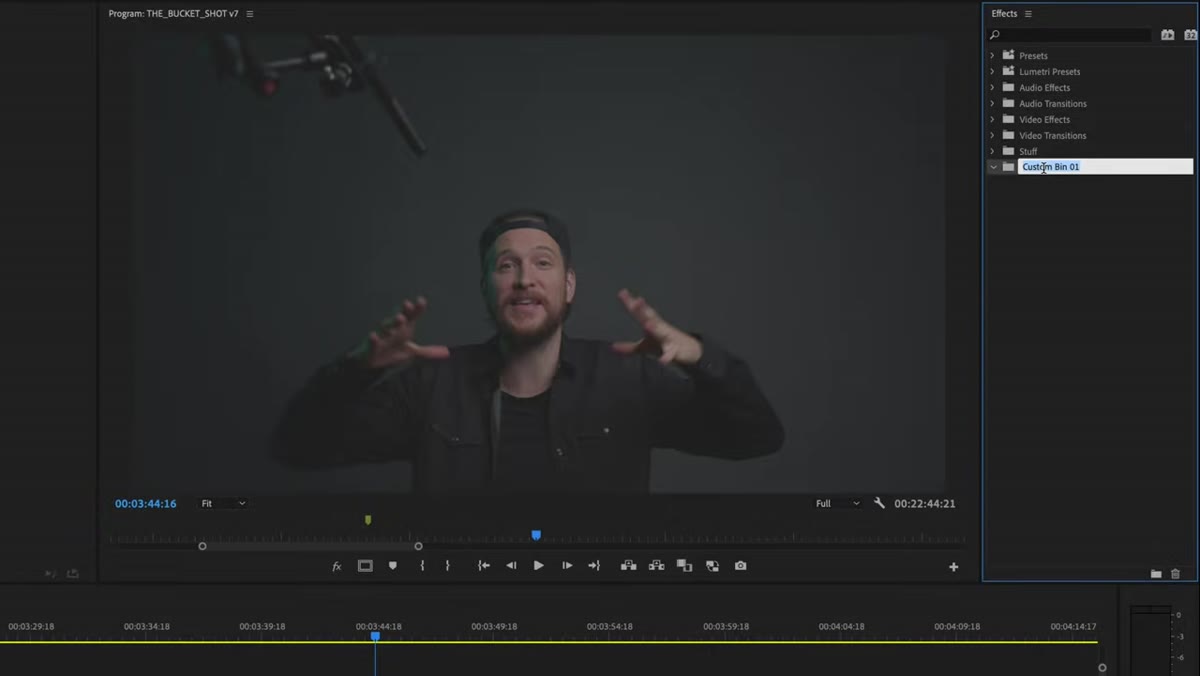 Right-click menu showing New Custom Bin option in Effects panel
Right-click inside the Effects panel and select “New Custom Bin.” Name it “Favorites” (or whatever label makes immediate sense to your brain - I use “Go-To” on my own system). This folder will live at the top level of your Effects panel and become the only place you need to look during an active edit.
Right-click menu showing New Custom Bin option in Effects panel
Right-click inside the Effects panel and select “New Custom Bin.” Name it “Favorites” (or whatever label makes immediate sense to your brain - I use “Go-To” on my own system). This folder will live at the top level of your Effects panel and become the only place you need to look during an active edit.
The folder itself does nothing until you fill it, but creating it first is important. You’re building the container before you collect the tools, which keeps the process intentional rather than chaotic.
Step 3: Add Your Most-Used Effects to the Folder
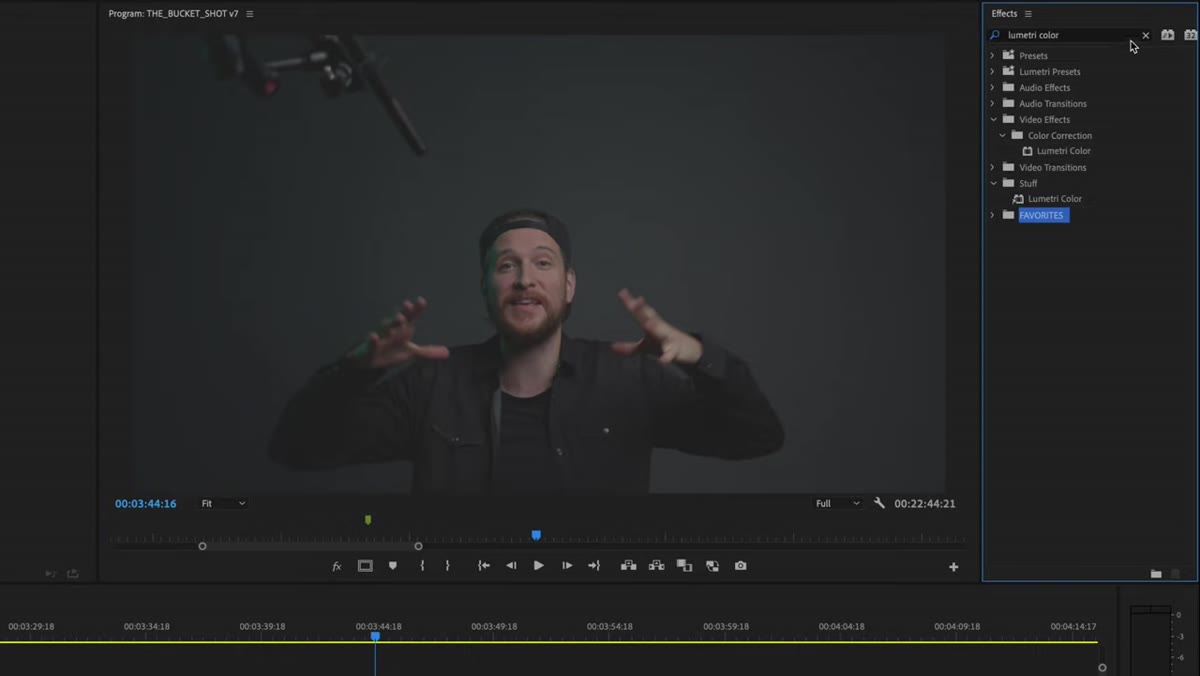 Typing effect name into Effects search bar to locate it
Use the search bar at the top of the Effects panel to locate each effect you use regularly. Peter’s go-to examples are Lumetri Color and Colorista for color grading. Type the effect name, find it in the results, then drag it directly into your new Favorites folder. Repeat for every effect you reach for consistently.
Typing effect name into Effects search bar to locate it
Use the search bar at the top of the Effects panel to locate each effect you use regularly. Peter’s go-to examples are Lumetri Color and Colorista for color grading. Type the effect name, find it in the results, then drag it directly into your new Favorites folder. Repeat for every effect you reach for consistently.
Think about your actual editing habits here, not your aspirational ones. What do you apply in nearly every project? For most editors working on travel or lifestyle content, that list includes at least one color effect, a cross dissolve for video transitions, and a constant power crossfade for smoothing audio cuts between clips. Drag those in. Don’t overthink it. You can always add more later.
Step 4: Add Your Go-To Transitions
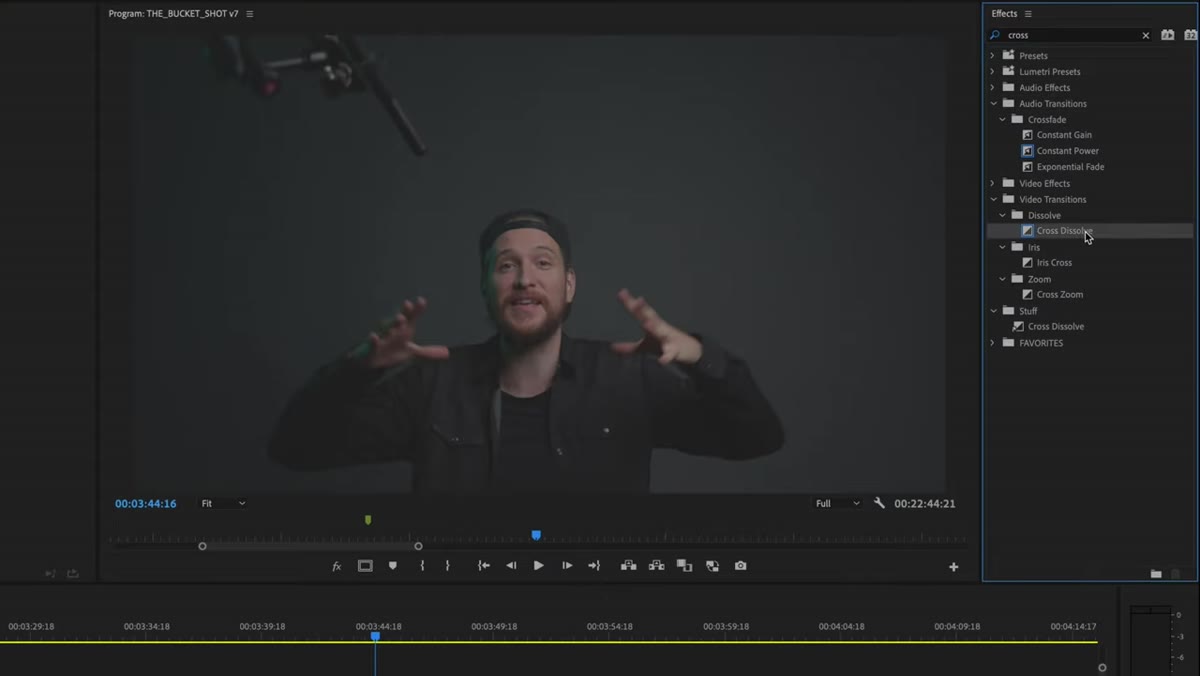 Dragging Cross Dissolve transition into the Favorites folder
Search for “Cross Dissolve” under Video Transitions and drag it into the Favorites folder. Then search for “Constant Power” under Audio Transitions and add that too. These two alone handle the majority of basic transition needs for most video styles.
Dragging Cross Dissolve transition into the Favorites folder
Search for “Cross Dissolve” under Video Transitions and drag it into the Favorites folder. Then search for “Constant Power” under Audio Transitions and add that too. These two alone handle the majority of basic transition needs for most video styles.
Having both video and audio transitions in the same folder means you’re not jumping between sections of the panel mid-edit. You open Favorites, and everything is there. This sounds minor, but context-switching during an edit interrupts your rhythm in ways that are hard to quantify but very easy to feel.
Step 5: Grade One Clip and Save It as a Preset
 Right-clicking on applied effect to access Save Preset option
This is where the system gets genuinely powerful. Apply your color grade to one clip using Lumetri Color (or whichever color tool you prefer). Dial it in until it looks right for that specific shooting environment. Then right-click on the applied effect in the Effect Controls panel and select “Save Preset.” Give it a descriptive name, something like “Office Warm Grade” or “Overcast Outdoor Look.”
Right-clicking on applied effect to access Save Preset option
This is where the system gets genuinely powerful. Apply your color grade to one clip using Lumetri Color (or whichever color tool you prefer). Dial it in until it looks right for that specific shooting environment. Then right-click on the applied effect in the Effect Controls panel and select “Save Preset.” Give it a descriptive name, something like “Office Warm Grade” or “Overcast Outdoor Look.”
The goal is to create presets for your recurring shooting locations or lighting conditions. If you shoot in the same studio regularly, you shouldn’t be rebuilding that grade from scratch every session. Save it once, and it’s repeatable in seconds.
Step 6: Drop the Saved Preset Into Your Favorites Folder
 Dragging saved color preset into the Favorites custom bin
After saving, your new preset will appear in the Presets folder inside the Effects panel. Drag it from there into your Favorites folder. Now your color grade lives alongside your transitions and effects in one place.
Dragging saved color preset into the Favorites custom bin
After saving, your new preset will appear in the Presets folder inside the Effects panel. Drag it from there into your Favorites folder. Now your color grade lives alongside your transitions and effects in one place.
When you start a new project shot in that same environment, import your footage, open Favorites, drag the preset onto the clip, and your color grade is applied instantly. You’re already ahead of where you’d be if you’d started from zero.
A Note on Making This Work for Photography Content, Too
I want to be honest: I came to this tutorial thinking it was mostly for dedicated video creators, and I nearly skipped it. But I make behind-the-scenes content, travel reels, and tutorial videos alongside my photography work, and this system fixed something I didn’t realize was draining me.
The bigger lesson I took is that presets and consolidated toolkits aren’t just a video editing concept. The same logic applies to Lightroom presets organized by shooting condition, Photoshop action sets grouped by output type, and even the way you arrange your folder structure for new client projects. Efficiency systems built once save time indefinitely, and that time is better spent shooting.
One honest caveat: your Favorites folder will need a revisit every few months. Workflows evolve, shooting styles shift, and a folder full of effects you no longer use is just a new version of clutter. Treat it like a living document, not a one-time setup.
The single most important thing Peter demonstrates here is that editing speed isn’t about working faster in the moment. It’s about removing the decisions and hunts that don’t need to happen at all. Build the system once, maintain it occasionally, and let it run quietly in the background of every project going forward.
Watch the full tutorial on YouTube and follow along in Premiere as he builds the folder in real time. Seeing it click together visually makes setup go much faster.
Comments
Leave a Comment