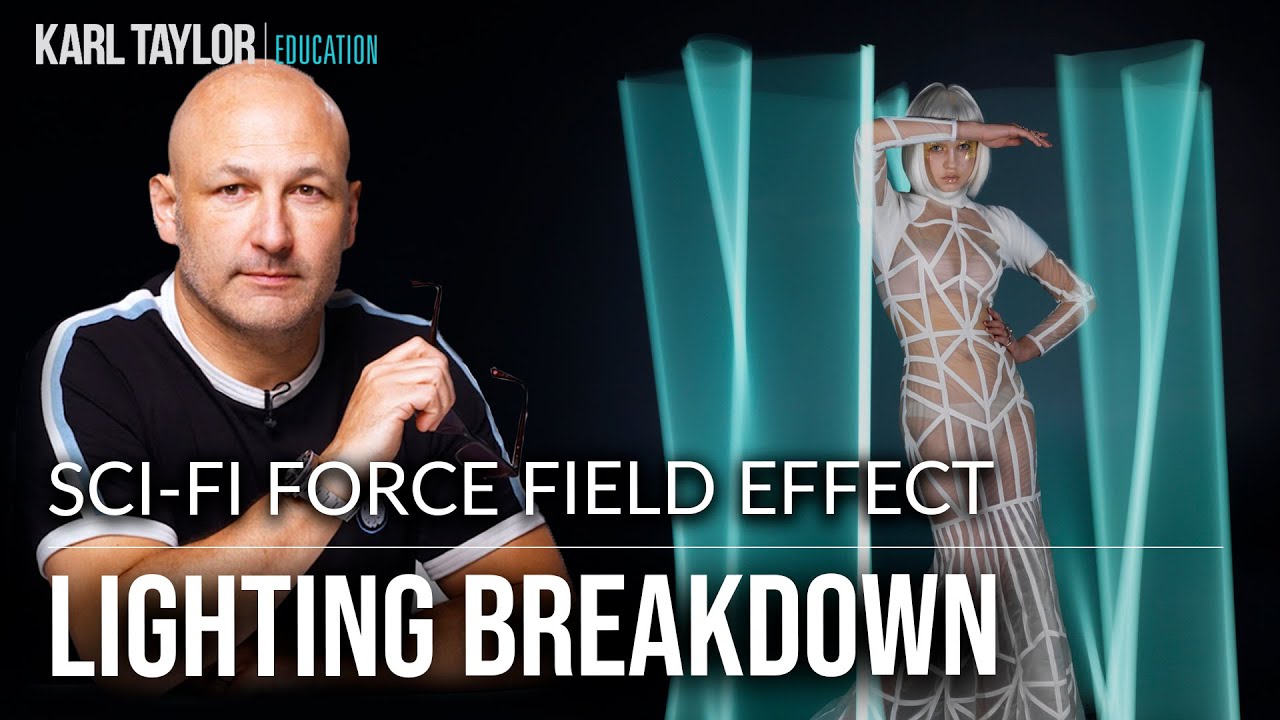
Every time I post something with dramatic, otherworldly light, someone slides into my DMs convinced I spent hours in Photoshop. I get it. I used to assume the same thing about images that looked too cinematic to be real. The truth is, some of the most striking effects in photography happen before you ever open a editing program, and that realization has genuinely changed how I approach studio work.
That’s exactly why this Visual Education tutorial stopped me mid-scroll. In it, the creator walks through how he captured a glowing cyan force field surrounding a model in a futuristic dress, and the effect was achieved almost entirely in camera using long exposure and carefully positioned colored lights. Watch the full tutorial on YouTube before or after reading this breakdown. The final image looks like a movie still. The raw file? Almost identical. That gap between “looks impossible” and “actually straightforward” is exactly the kind of thing I want to help you close.
Here’s the full technique broken down into steps you can follow in your own studio or controlled shooting space.
Step 1: Set Up a Neutral, Seamless Background
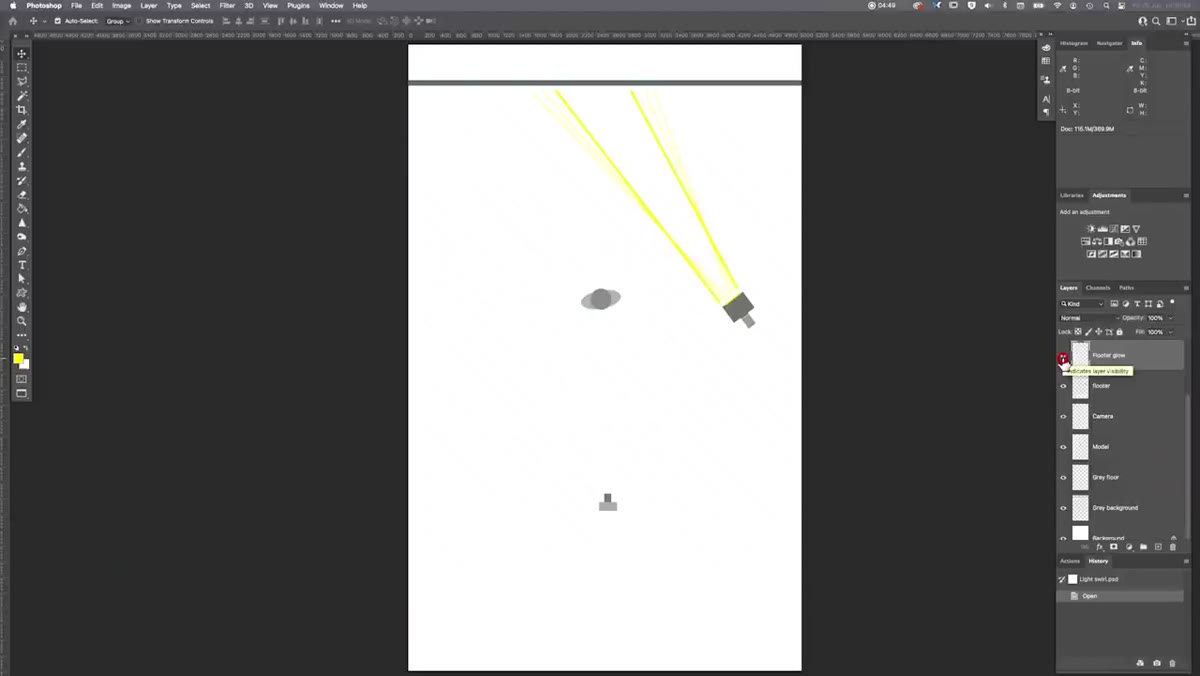
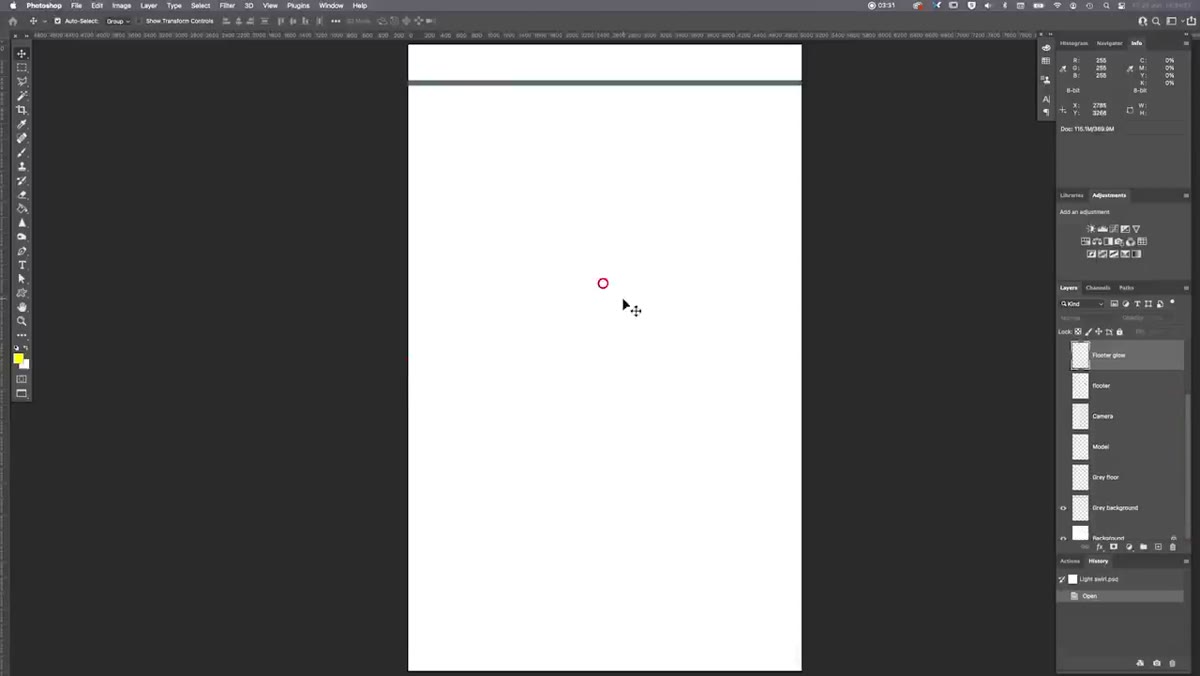 Lighting diagram showing gray infinity cove background
Start with a gray seamless background, ideally an infinity cove or cyclorama where the wall curves into the floor with no visible corner. The key here is that the floor and wall are the same tone, painted or covered in the same neutral gray. This gives you a clean, controllable canvas for the light you’re about to project onto it. If you don’t have access to a full cove, a large gray paper backdrop pulled down and weighted flat on the floor can approximate this for smaller setups.
Lighting diagram showing gray infinity cove background
Start with a gray seamless background, ideally an infinity cove or cyclorama where the wall curves into the floor with no visible corner. The key here is that the floor and wall are the same tone, painted or covered in the same neutral gray. This gives you a clean, controllable canvas for the light you’re about to project onto it. If you don’t have access to a full cove, a large gray paper backdrop pulled down and weighted flat on the floor can approximate this for smaller setups.
The neutral tone matters because it will reflect your colored light accurately without adding unwanted color casts from the surface itself. Bright white can blow out and lose detail; dark gray or black won’t show the glow at all. A mid-tone gray hits the sweet spot.
Step 2: Position Your Subject Far From the Background
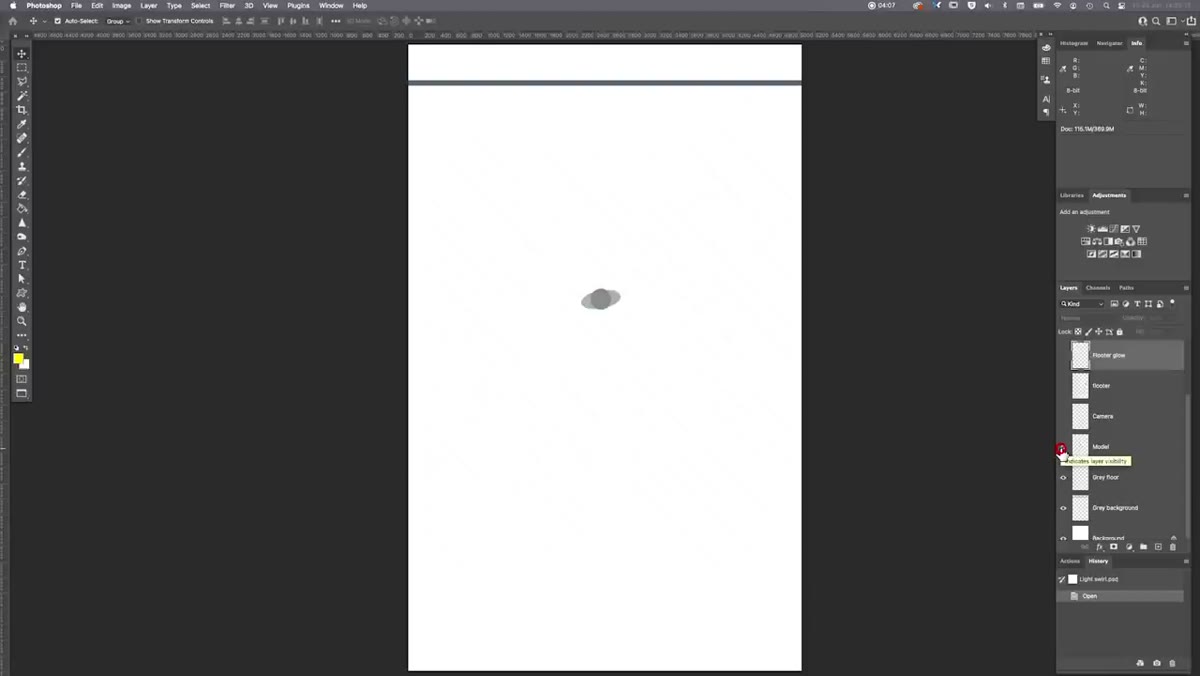 Lighting diagram with model placed several meters from background
Place your model a significant distance from the background, in this case roughly four to five meters. This separation is not just compositional. It’s functional. The gap between subject and background gives you room to build the light effect around the subject without it spilling directly onto them, and it allows the background lighting to create a halo or glow that reads as separate from the subject rather than washing over everything at once.
Lighting diagram with model placed several meters from background
Place your model a significant distance from the background, in this case roughly four to five meters. This separation is not just compositional. It’s functional. The gap between subject and background gives you room to build the light effect around the subject without it spilling directly onto them, and it allows the background lighting to create a halo or glow that reads as separate from the subject rather than washing over everything at once.
If your space is tight, even two to three meters of separation will help. The principle is the same: light behaves differently when it has room to travel and fall off naturally.
Step 3: Add a Fresnel Spot Light to the Background
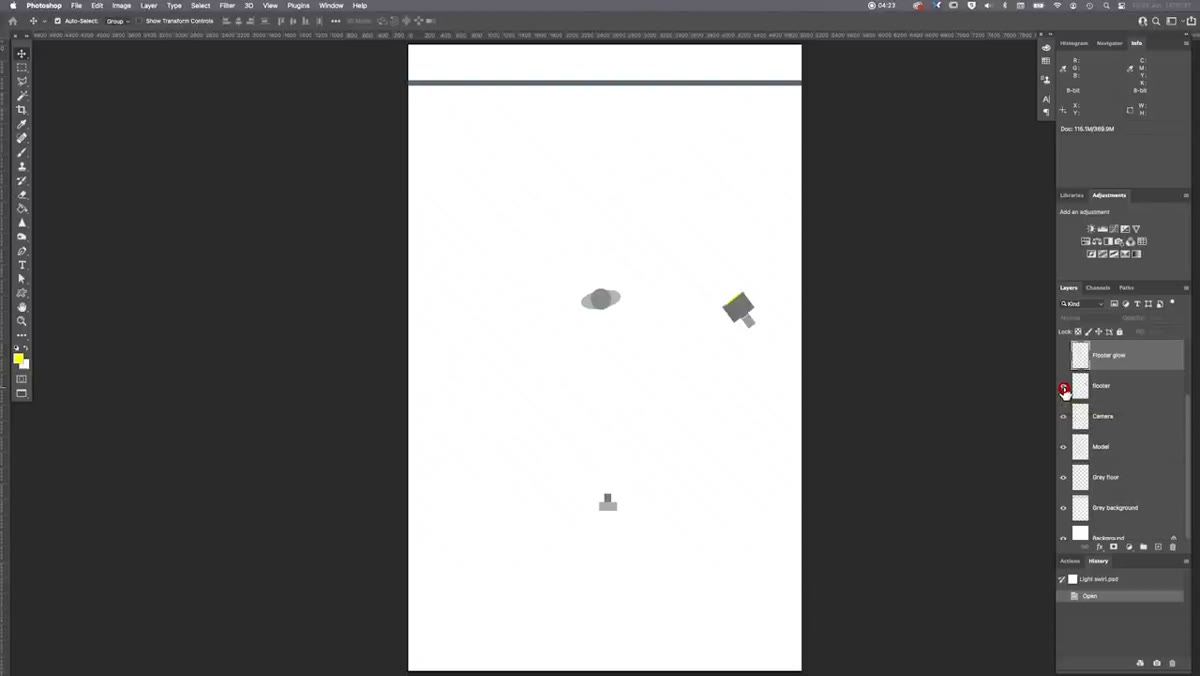 Diagram showing Fluter fresnel light aimed at background wall
A specialized fresnel lens light called a Fluter was used to throw a controlled beam of light onto the background wall. What makes fresnel lights useful here is their ability to collimate light, meaning they direct it into a tight, focused beam similar to a theater spotlight, while still letting you adjust the spread and edge softness. The result is a defined pool of light on the background that glows outward gently behind the subject.
Diagram showing Fluter fresnel light aimed at background wall
A specialized fresnel lens light called a Fluter was used to throw a controlled beam of light onto the background wall. What makes fresnel lights useful here is their ability to collimate light, meaning they direct it into a tight, focused beam similar to a theater spotlight, while still letting you adjust the spread and edge softness. The result is a defined pool of light on the background that glows outward gently behind the subject.
If you don’t have a Fluter specifically, any fresnel spotlight or even a snoot-modified strobe can work as a starting point. The goal is a controlled circle of light on the wall, not a broad flood. Experiment with the zoom and feathering of whatever light you have available to soften the edges of the glow.
Step 4: Gel the Light for Your Sci-Fi Color
 Glow visible behind model in final image, cyan-green tones
This is where the magic of color enters. A cyan or cyan-green gel was placed over the background light to create that signature force field hue. Lighting gels are inexpensive and transformative. A pack of color effect gels from Rosco or Lee Filters gives you dozens of creative options for well under $30.
Glow visible behind model in final image, cyan-green tones
This is where the magic of color enters. A cyan or cyan-green gel was placed over the background light to create that signature force field hue. Lighting gels are inexpensive and transformative. A pack of color effect gels from Rosco or Lee Filters gives you dozens of creative options for well under $30.
Think about the story your color is telling. Cyan and green read as technological, alien, or futuristic. Red and orange feel dangerous or urgent. Deep blue feels cold and isolated. The gel choice is a creative decision, not just a technical one, and it’s worth spending a few test shots trying different options before committing to the final look.
Step 5: Use an 11-Second Long Exposure
 Mention of 11-second exposure for capturing light movement
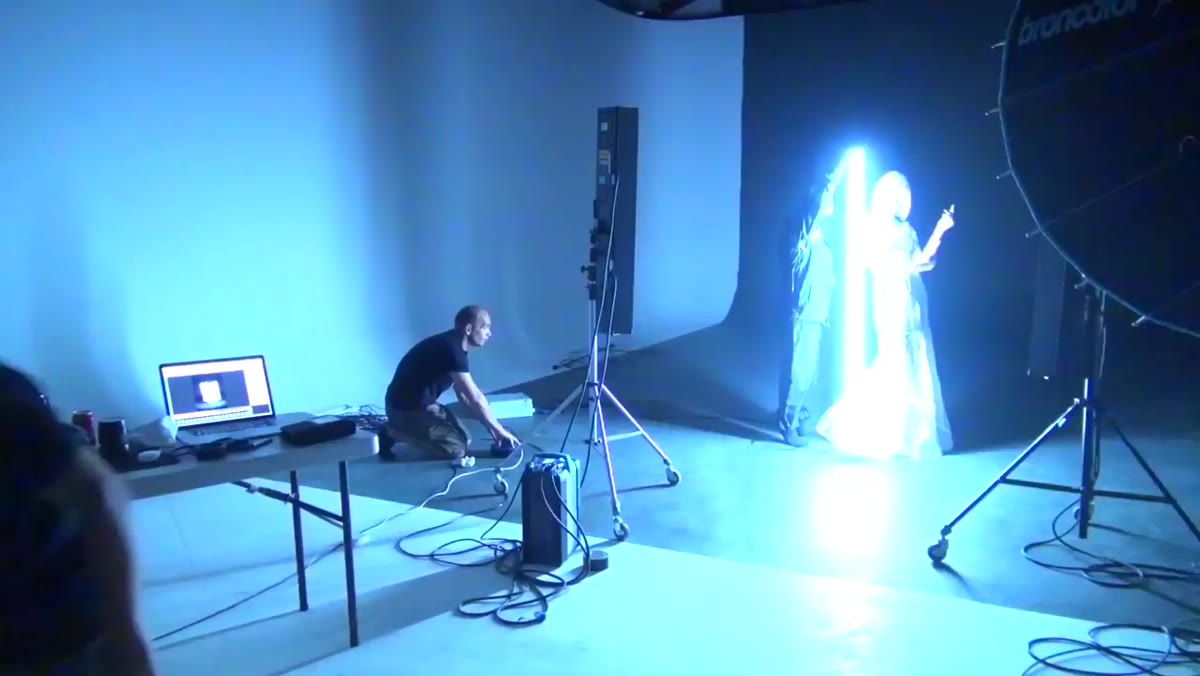
The entire force field effect was captured on a single 11-second exposure. During that time, an assistant dressed in black moved a colored light source around the model, painting the force field effect live on the sensor. The black clothing helps the assistant stay invisible throughout the exposure as long as they keep moving and the ambient light is low enough.
Mention of 11-second exposure for capturing light movement
The entire force field effect was captured on a single 11-second exposure. During that time, an assistant dressed in black moved a colored light source around the model, painting the force field effect live on the sensor. The black clothing helps the assistant stay invisible throughout the exposure as long as they keep moving and the ambient light is low enough.
For your camera settings, you’ll want to be in a darkened studio environment. Start with ISO 100 to 200, a small aperture like f/8 or f/11 for depth, and dial in your shutter speed based on how much time your assistant needs to complete the light painting pass. Do a few rehearsal runs without triggering the shutter so your assistant can nail the movement pattern before it counts.
Step 6: Keep Post-Production Minimal and Targeted
 Side-by-side comparison of raw file and finished retouched image
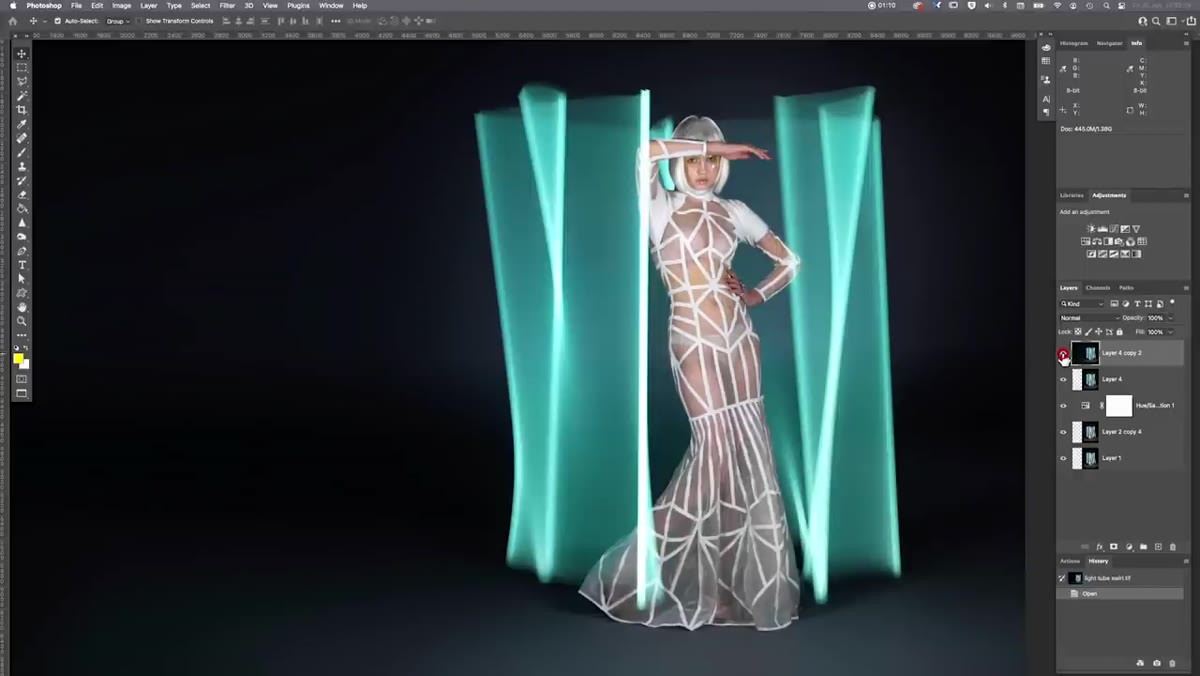
The post-production on this image was honestly pretty humble given how dramatic the final result looks. The raw file already contained the force field effect. Editing involved cleaning up light stands, cable trails, and footprints from the floor, a small amount of liquify on the model, some targeted hue and saturation adjustments to intensify the force field color, and a little burning and dodging for contrast. The image was also extended horizontally to reframe the composition.
Side-by-side comparison of raw file and finished retouched image
The post-production on this image was honestly pretty humble given how dramatic the final result looks. The raw file already contained the force field effect. Editing involved cleaning up light stands, cable trails, and footprints from the floor, a small amount of liquify on the model, some targeted hue and saturation adjustments to intensify the force field color, and a little burning and dodging for contrast. The image was also extended horizontally to reframe the composition.
This is a useful reminder that retouching should serve a capture, not rescue it. When you nail the lighting in camera, you spend your editing time on refinement rather than reconstruction.
What I’d Try Differently in My Own Studio
The tutorial uses a professional infinity cove, which not everyone has access to. When I’ve experimented with light painting in smaller spaces, I’ve found that renting studio time for a single afternoon is often worth it specifically for shots like this. But if that’s not an option, you can approximate the background glow by suspending a large piece of gray seamless paper and lighting it from above and behind with a gelled source. It won’t be as seamless underfoot, but cropping the frame tighter on the subject can hide that limitation entirely.
I’d also suggest shooting tethered if you can so you can review the light painting paths in real time and adjust your assistant’s movement on subsequent takes. The difference between a messy, uneven force field and a clean, radiant one is almost entirely in the consistency of that hand movement.
The single biggest lesson here is one I come back to constantly: don’t assume a stunning effect required a stunning amount of post-production. Invest the creative thinking at the shoot, and the editing takes care of itself.
Watch the full tutorial on YouTube to see the lighting diagram and behind-the-scenes clips that really cement how this comes together visually.
Comments
Leave a Comment