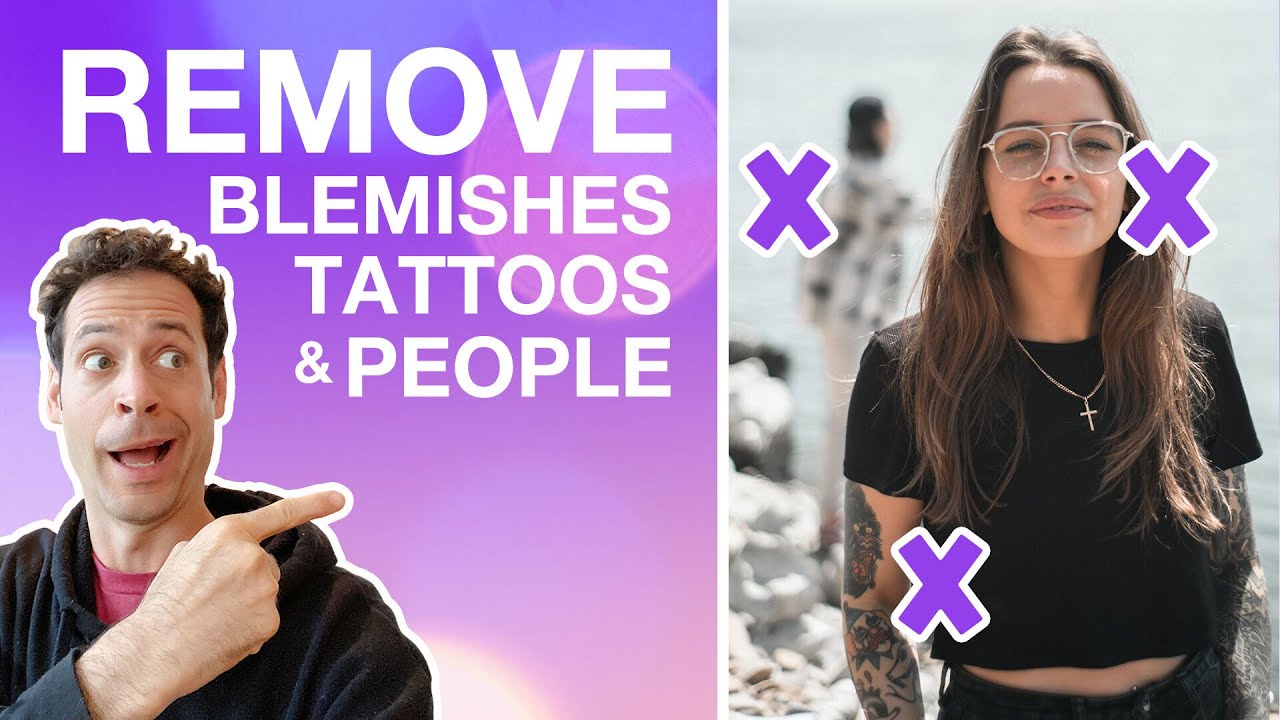
Every portrait I shoot eventually hits the same wall: the location looked great in the moment, but the background is cluttered, the light hit something weird, or there’s a detail in the frame I just can’t leave in. For years I treated Photoshop as a last resort, patching things together and hoping for the best. What changed that for me was watching workflows from photographers who treat post-processing as a real, intentional part of the image-making process rather than a cleanup task.
In this Aaron Nace (PHLEARN) tutorial, Watch the full tutorial on YouTube, Aaron walks through a complete portrait edit from scratch: pulling a subject off a busy background, removing a tattoo and rebuilding the skin underneath, cleaning up reflections in sunglasses, taming blown highlights on the face, and finishing with color toning. It’s a lot, but the order he works in makes everything feel logical rather than overwhelming. I’ve broken it down into the core steps below so you can follow along in Photoshop without constantly scrubbing through the video.
Step 1: Start Background Removal with the Spot Healing Brush
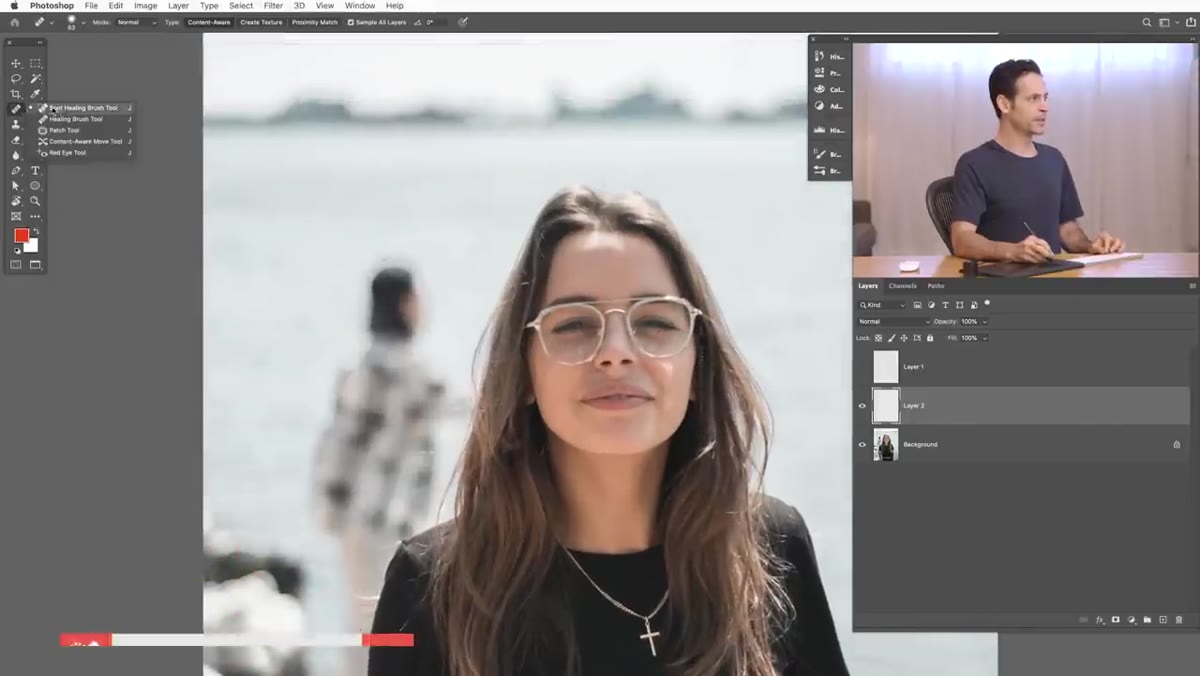 Spot Healing Brush painting over background subject on new layer
Create a new blank layer above your image before you touch anything. This keeps your edits non-destructive and gives you something to throw away if a section goes sideways. Set the Spot Healing Brush to Content-Aware mode and check “Sample All Layers” in the options bar at the top. That second checkbox is critical because without it, the tool only reads the active layer, which is empty, and produces nothing useful.
Spot Healing Brush painting over background subject on new layer
Create a new blank layer above your image before you touch anything. This keeps your edits non-destructive and gives you something to throw away if a section goes sideways. Set the Spot Healing Brush to Content-Aware mode and check “Sample All Layers” in the options bar at the top. That second checkbox is critical because without it, the tool only reads the active layer, which is empty, and produces nothing useful.
Work across the background in broad strokes, moving from the areas farthest from your subject toward the edges of their clothing or hair. In open areas with consistent texture, like water, sky, or a plain wall, the Spot Healing Brush is genuinely impressive. It reads the surrounding pixels and fills in seamlessly. Think of it as your first pass, not your only pass.
Step 2: Switch to the Clone Stamp for Edges Near the Subject
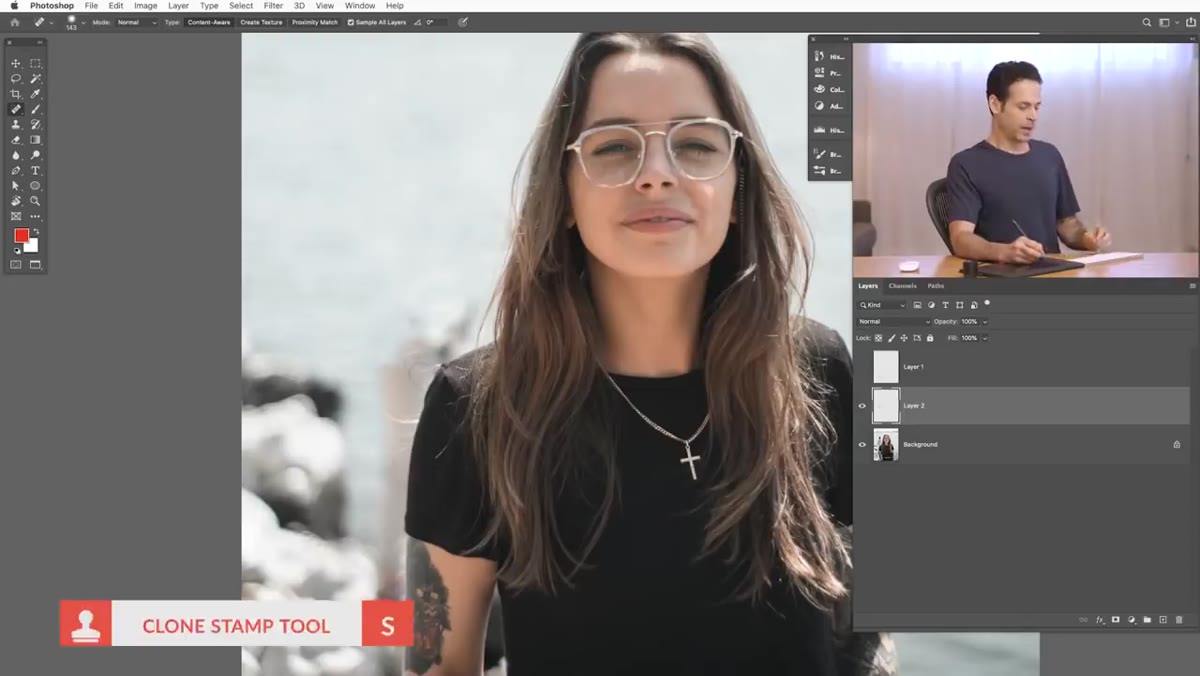 Clone Stamp tool active, painting near subject’s shirt edge
When you get close to the subject’s outline, the Spot Healing Brush starts to struggle. It pulls in pixel information from the wrong areas and creates smearing or color bleed near clothing edges. This is the moment to swap to the Clone Stamp tool. Keep it on a new layer and set sampling to “Current and Below” so it reads the full image stack.
Clone Stamp tool active, painting near subject’s shirt edge
When you get close to the subject’s outline, the Spot Healing Brush starts to struggle. It pulls in pixel information from the wrong areas and creates smearing or color bleed near clothing edges. This is the moment to swap to the Clone Stamp tool. Keep it on a new layer and set sampling to “Current and Below” so it reads the full image stack.
The problem you’ll hit immediately is that the Clone Stamp doesn’t know where your subject ends. It will happily paint right over their shirt. Don’t try to be precise by hand here. The real solution is to make a selection around your subject first, so the Clone Stamp can only affect pixels outside that boundary. That brings you to the next step.
Step 3: Use the Pen Tool to Build a Clean Selection
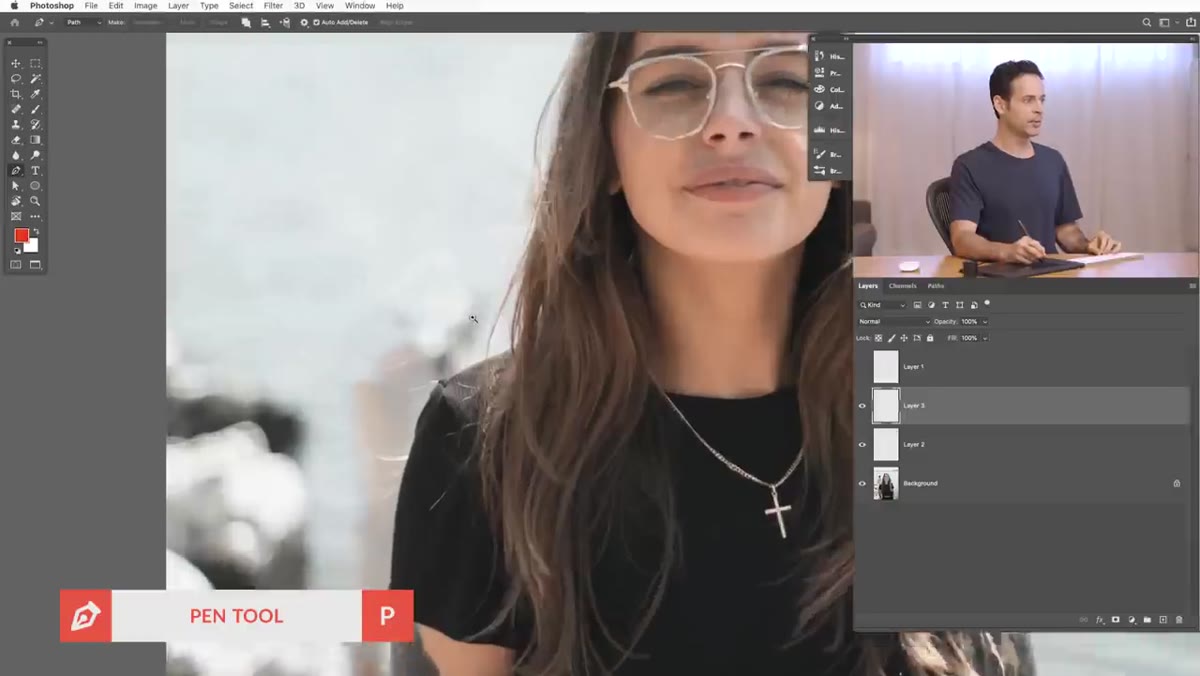 Pen tool active, clicking and dragging along subject’s outline
Press P to grab the Pen Tool and click and drag along the edge of your subject to create a path. The click-and-drag action creates curved anchor points, which follow organic shapes like shoulders and arms far better than straight clicks would. When you need to change direction sharply, hold Alt (Windows) or Option (Mac) and click the last anchor point to break the handle and start a new curve direction.
Pen tool active, clicking and dragging along subject’s outline
Press P to grab the Pen Tool and click and drag along the edge of your subject to create a path. The click-and-drag action creates curved anchor points, which follow organic shapes like shoulders and arms far better than straight clicks would. When you need to change direction sharply, hold Alt (Windows) or Option (Mac) and click the last anchor point to break the handle and start a new curve direction.
Take your time with this. A sloppy path means a sloppy selection, and you’ll see that sloppiness in the final image. Once the path is complete, right-click and choose “Make Selection.” You can then invert the selection so only the background is active, and your Clone Stamp work will stay neatly outside the subject’s edge.
Step 4: Remove the Tattoo and Rebuild Skin Texture
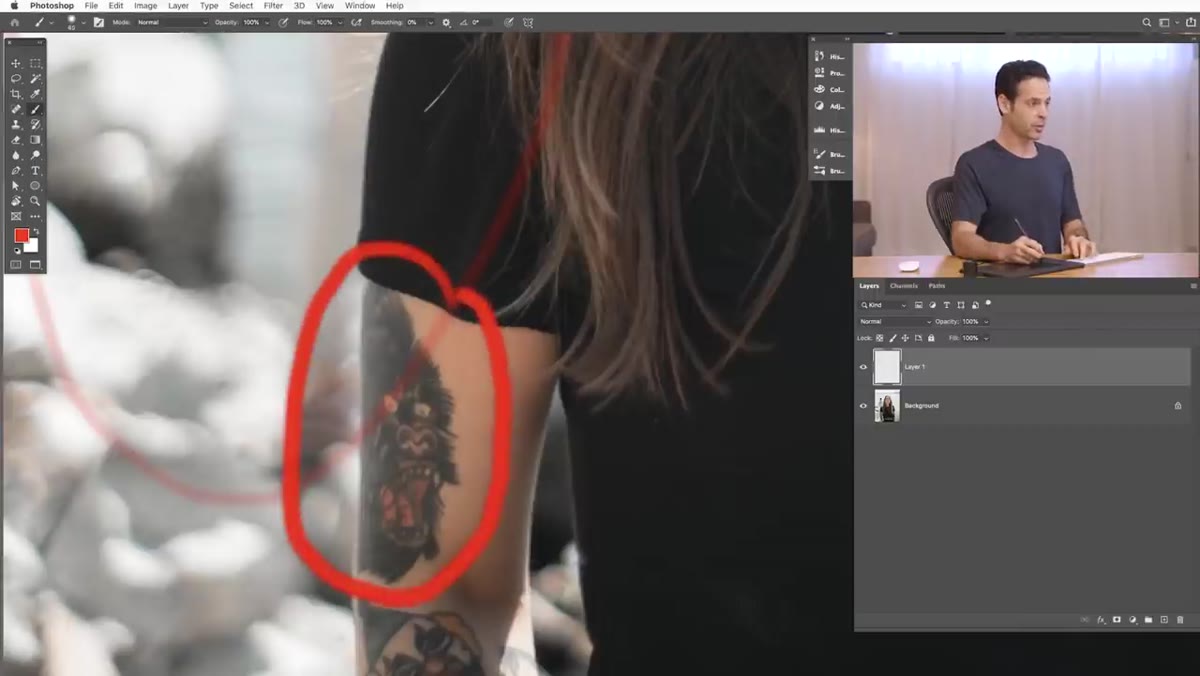 Close-up view of tattoo area on subject’s arm being painted over
This is the step most people skip because it looks intimidating. Aaron’s approach is methodical: start by sampling nearby skin tone with the Healing Brush tool and painting over the tattoo area. The Healing Brush, unlike the Clone Stamp, blends the texture and tone of the source point with the destination, which is exactly what you need when rebuilding skin.
Close-up view of tattoo area on subject’s arm being painted over
This is the step most people skip because it looks intimidating. Aaron’s approach is methodical: start by sampling nearby skin tone with the Healing Brush tool and painting over the tattoo area. The Healing Brush, unlike the Clone Stamp, blends the texture and tone of the source point with the destination, which is exactly what you need when rebuilding skin.
After the base color is down, the challenge is matching the texture. Real skin has pores, micro-shadows, and subtle variation. Aaron rebuilds this by sourcing from nearby skin patches that haven’t been altered. You don’t need to cover every tattoo in one session. Learn the technique on one area and repeat it across the rest. The same tools handle both.
Step 5: Clean Up Reflections and Bright Spots
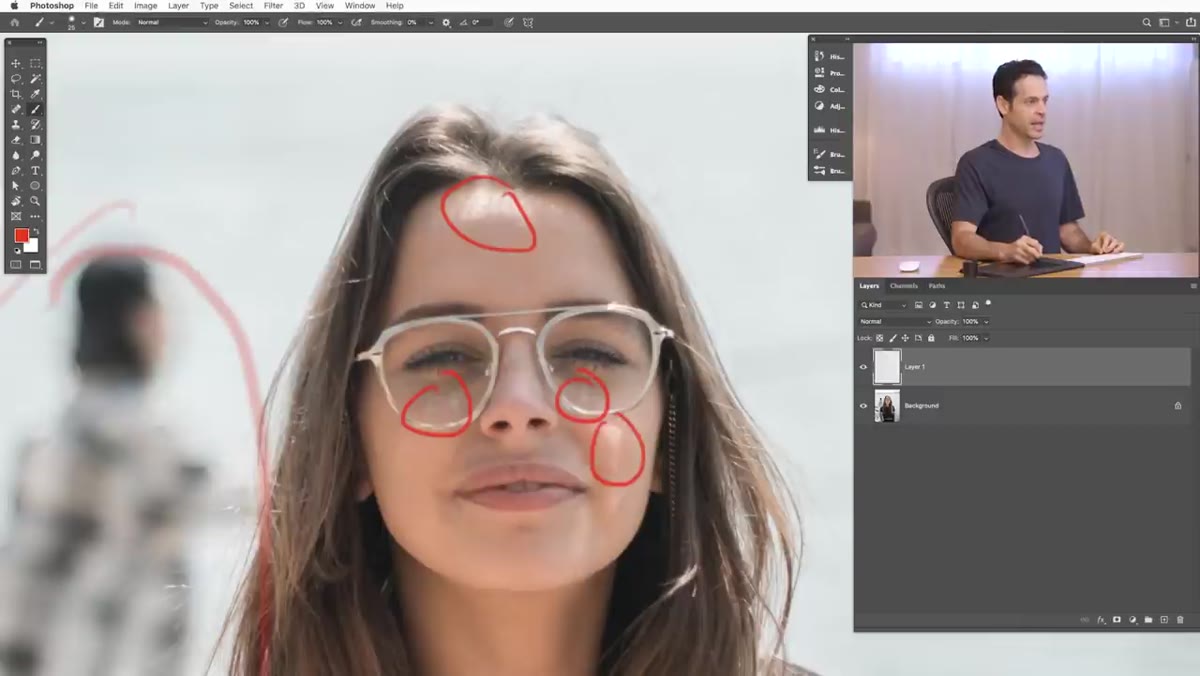 Subject’s sunglasses visible with reflection being addressed
Sunglasses create a specific problem: the reflection inside the lens is often brighter or more colorful than the surrounding areas, and it reads as a distraction in the final image. Use a combination of the Healing Brush and careful cloning from the darker parts of the lens to bring those reflections down. Sample from within the lens itself, not from outside it, or the color won’t match.
Subject’s sunglasses visible with reflection being addressed
Sunglasses create a specific problem: the reflection inside the lens is often brighter or more colorful than the surrounding areas, and it reads as a distraction in the final image. Use a combination of the Healing Brush and careful cloning from the darker parts of the lens to bring those reflections down. Sample from within the lens itself, not from outside it, or the color won’t match.
The same principle applies to blown highlights on the face, especially the forehead, nose bridge, or cheekbones. A Curves adjustment layer with a luminosity mask targeting only the brightest values lets you bring those areas down without flattening the rest of the face. Keep the mask tight so the correction is invisible.
Step 6: Finish with Color Toning
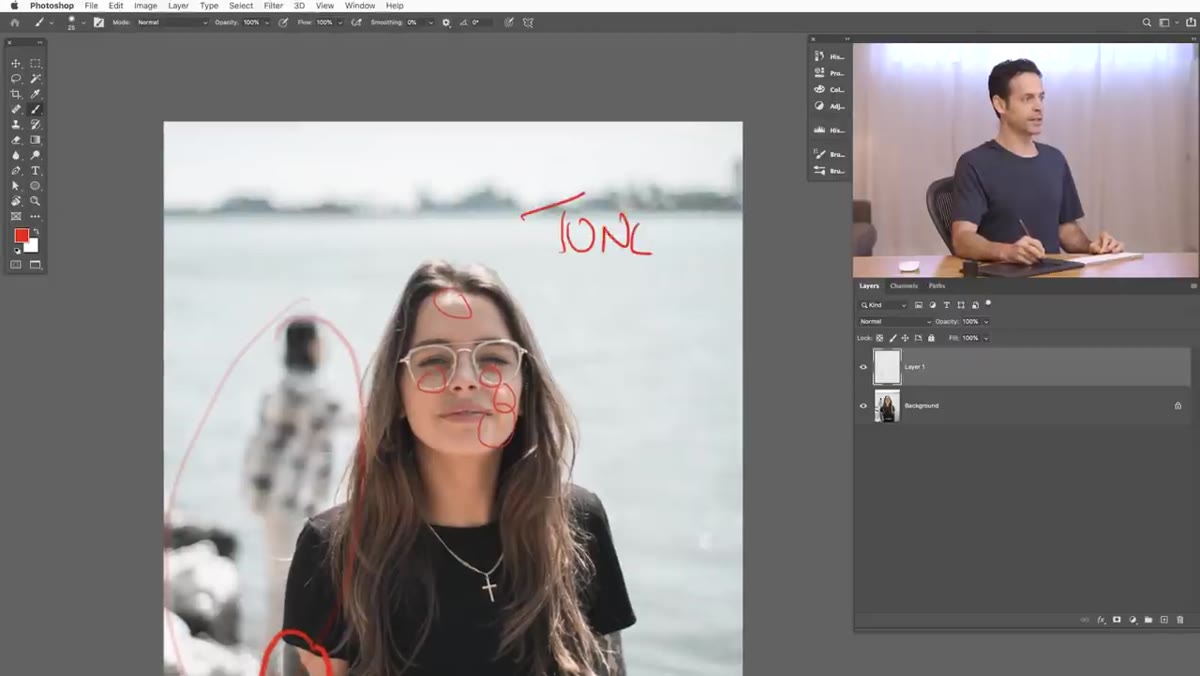 Color toning applied to the final image showing warm-cool shift
Color grading is where a technically solid edit becomes a photo with a mood. Aaron demonstrates a few approaches here, including Curves adjustments targeting individual channels to push the highlights warm and the shadows cool, which is a classic cinematic look. A slight S-curve on the RGB channel first gives you contrast to work with before you touch color.
Color toning applied to the final image showing warm-cool shift
Color grading is where a technically solid edit becomes a photo with a mood. Aaron demonstrates a few approaches here, including Curves adjustments targeting individual channels to push the highlights warm and the shadows cool, which is a classic cinematic look. A slight S-curve on the RGB channel first gives you contrast to work with before you touch color.
Try a Color Balance adjustment layer as a second option. It’s more approachable for beginners because the sliders are labeled intuitively. Midtones, shadows, and highlights each get their own row, and small shifts of 5 to 10 points go a long way. Save larger swings for stylized edits where the color treatment is meant to be noticed.
What I’d Add from My Own Experience
The biggest thing this tutorial reinforced for me is the value of working in the right order. I used to jump straight to color toning because it’s the fun part, and then I’d have to undo half of it after fixing something structural underneath. Background removal and retouching always come first. Color grading is the last thing that touches your file.
I’d also add: save your paths. Once you’ve built a careful Pen Tool selection around a subject, store it in the Paths panel with a descriptive name. If you close the file and come back the next day, or if a client asks for a revision, that path is ready to use again without starting over. It’s a small habit that saves real time.
The single most important thing Aaron demonstrates in this tutorial is that every tool has a job it’s best at, and knowing when to hand off from one tool to the next is what separates a smooth edit from a frustrating one. The Spot Healing Brush gets you most of the way there on backgrounds. The Pen Tool gives you control the automatic tools can’t match. And color toning, done last, ties the whole image together without undoing what came before.
Watch the full tutorial on YouTube to see Aaron work through every stage in real time. The full layered PSD is also available to download from PHLEARN so you can open the finished file and reverse-engineer any step that isn’t clicking for you.
Comments
Leave a Comment