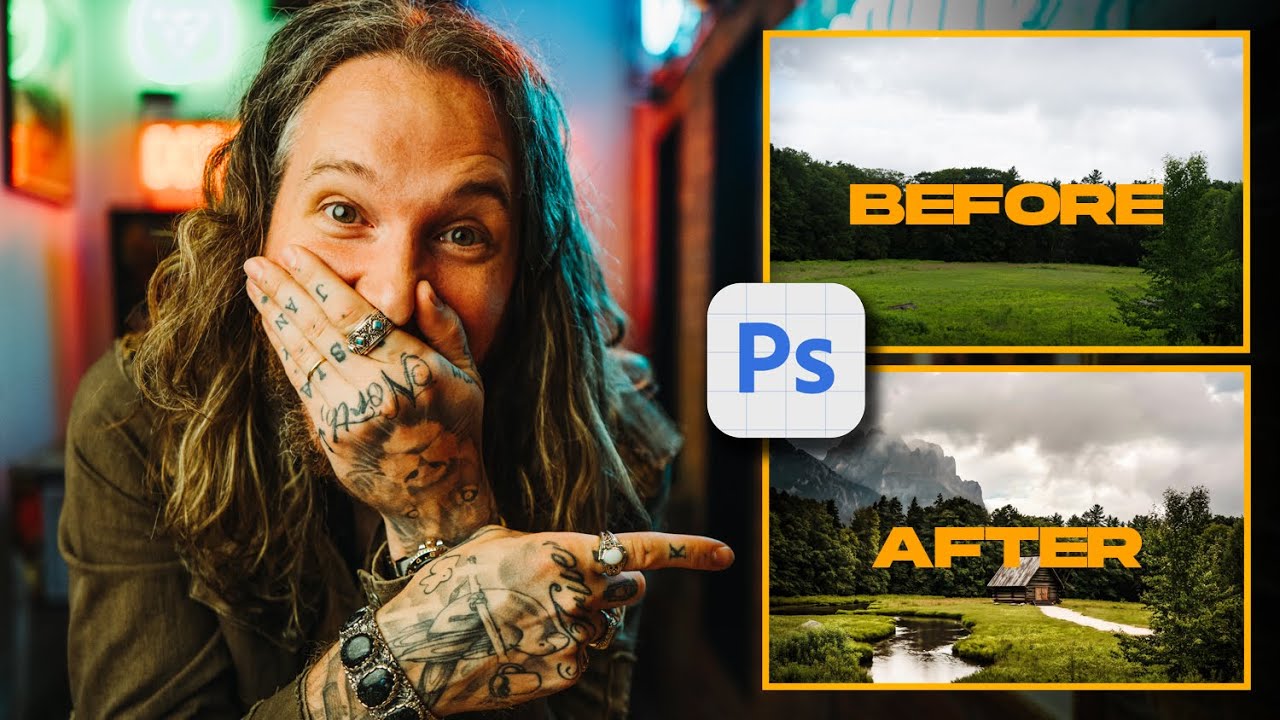
Every few months, a tool comes along that genuinely changes how I think about a finished image. I resisted generative fill longer than I should have. My instinct was the same one I hear from a lot of photographers: “That’s not really photography.” But then I started watching what people were actually doing with it, and my opinion softened fast.
In this Peter McKinnon tutorial, Watch the full tutorial on YouTube, Peter reacts in real time to a batch of community-submitted images where photographers used generative fill to alter or extend their photos. The challenge was simple: fool him. And honestly? It worked more often than not. What struck me watching this wasn’t the party trick of it. It was how many of those edits looked like choices a thoughtful photographer would make on location. Better light, a more compelling background, a subject that finally had room to breathe. These weren’t lazy shortcuts. They were intentional creative decisions, executed with a tool that’s finally good enough to hold up.
If you’ve been curious about generative fill but haven’t committed to really learning it, this video is a useful gut check. Here’s a breakdown of what the challenge reveals, and how you can apply the same thinking to your own editing workflow.
Step 1: Start With a Real, Strong Photo
 Peter introducing the community photo challenge on screen
Generative fill is not a rescue tool for a bad image. Every photo that fooled Peter in this challenge started with real, solid photography. Good light, a clean subject, intentional framing. The AI fill was used to extend or enhance something that was already working, not to fix a fundamental problem.
Peter introducing the community photo challenge on screen
Generative fill is not a rescue tool for a bad image. Every photo that fooled Peter in this challenge started with real, solid photography. Good light, a clean subject, intentional framing. The AI fill was used to extend or enhance something that was already working, not to fix a fundamental problem.
Before you open Photoshop, ask yourself whether your image has at least one element you’re genuinely proud of. A sharp subject, an interesting texture, a moment of real light. That’s your anchor. Everything generative fill does will be judged against that anchor, so the stronger it is, the more convincing the result.
Step 2: Identify What’s Missing, Not What’s Wrong
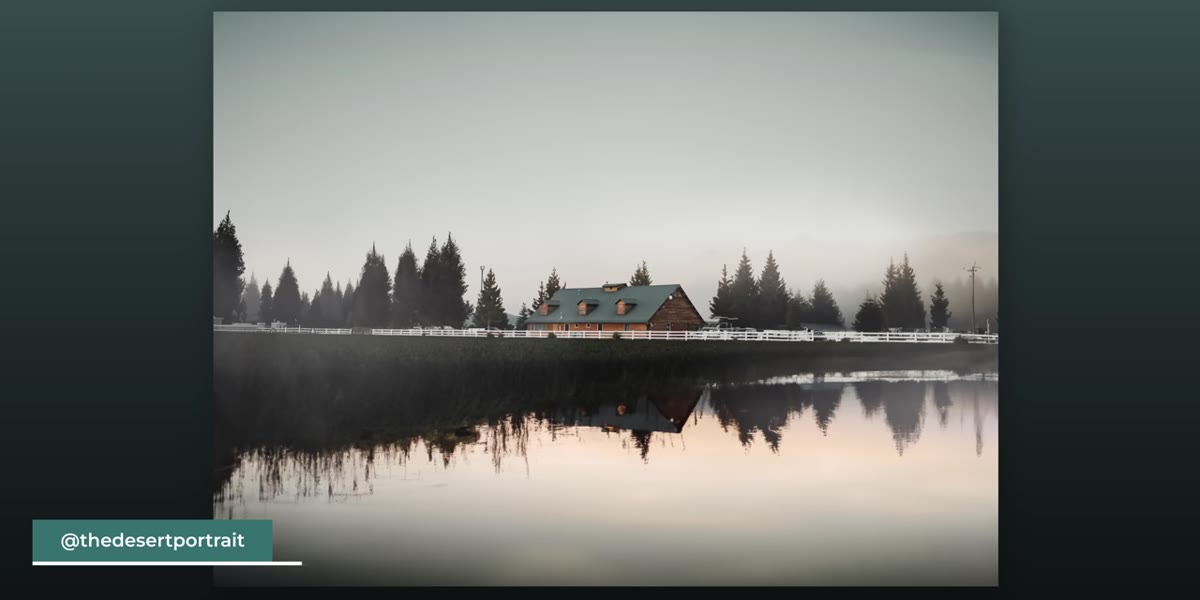 Peter studying the barn and water reflection image
The photographers who impressed Peter most weren’t patching errors. They were solving compositional problems. One image had a strong barn but a flat, uninspiring water reflection. The photographer used generative fill to enhance that reflection and add visual depth. Another had a city skyline but no dramatic landscape to justify the scale of the shot, so they generated an entire mountain valley around it.
Peter studying the barn and water reflection image
The photographers who impressed Peter most weren’t patching errors. They were solving compositional problems. One image had a strong barn but a flat, uninspiring water reflection. The photographer used generative fill to enhance that reflection and add visual depth. Another had a city skyline but no dramatic landscape to justify the scale of the shot, so they generated an entire mountain valley around it.
Think about this the way you’d think about location scouting. What does this scene need that wasn’t available to you on the day? More sky? A background that doesn’t compete with your subject? A foreground element that draws the eye in? Write it down before you start selecting anything. The edit goes faster and looks more intentional when you know what you’re after.
Step 3: Make a Loose, Generous Selection
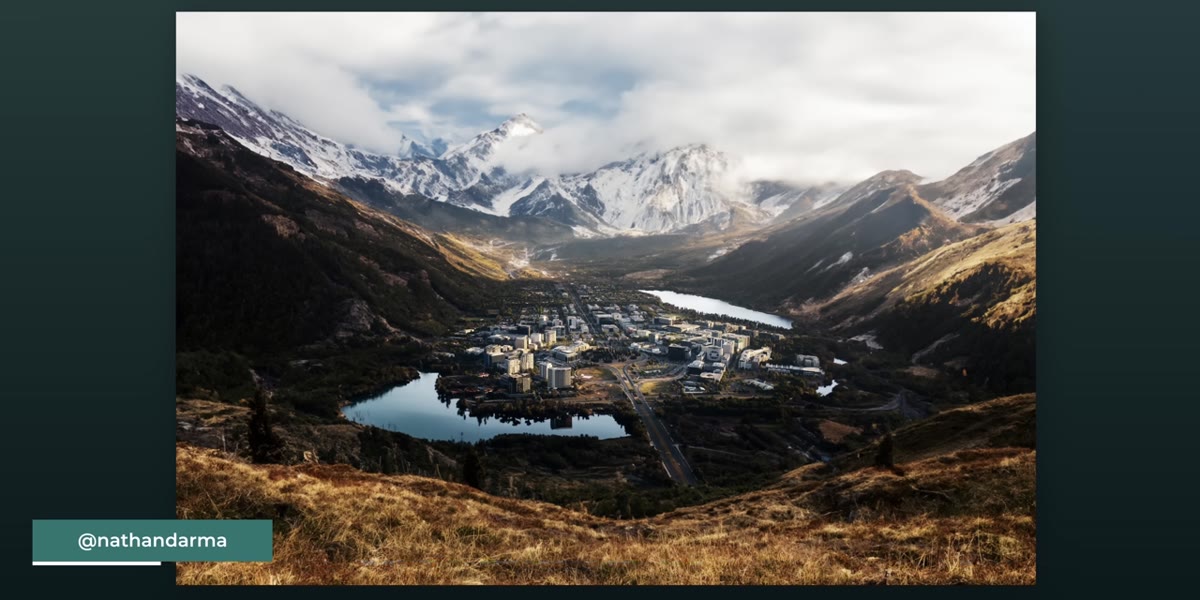 Reacting to the mountain and city valley image
One of the biggest mistakes beginners make with generative fill is making tight, precise selections. The tool needs context to generate something that blends naturally. If you’re extending a sky, select well into the existing sky before you drag into the empty canvas area. If you’re replacing a background, let your selection overlap the edges of your subject slightly.
Reacting to the mountain and city valley image
One of the biggest mistakes beginners make with generative fill is making tight, precise selections. The tool needs context to generate something that blends naturally. If you’re extending a sky, select well into the existing sky before you drag into the empty canvas area. If you’re replacing a background, let your selection overlap the edges of your subject slightly.
In Photoshop, use the Lasso tool or the Rectangular Marquee for broad areas. For anything near a complex edge like hair or foliage, the Object Selection tool or Quick Mask gives you more control. The goal is a selection that tells Photoshop: here is what exists, and here is the direction I want you to continue.
Step 4: Use Descriptive but Simple Prompts
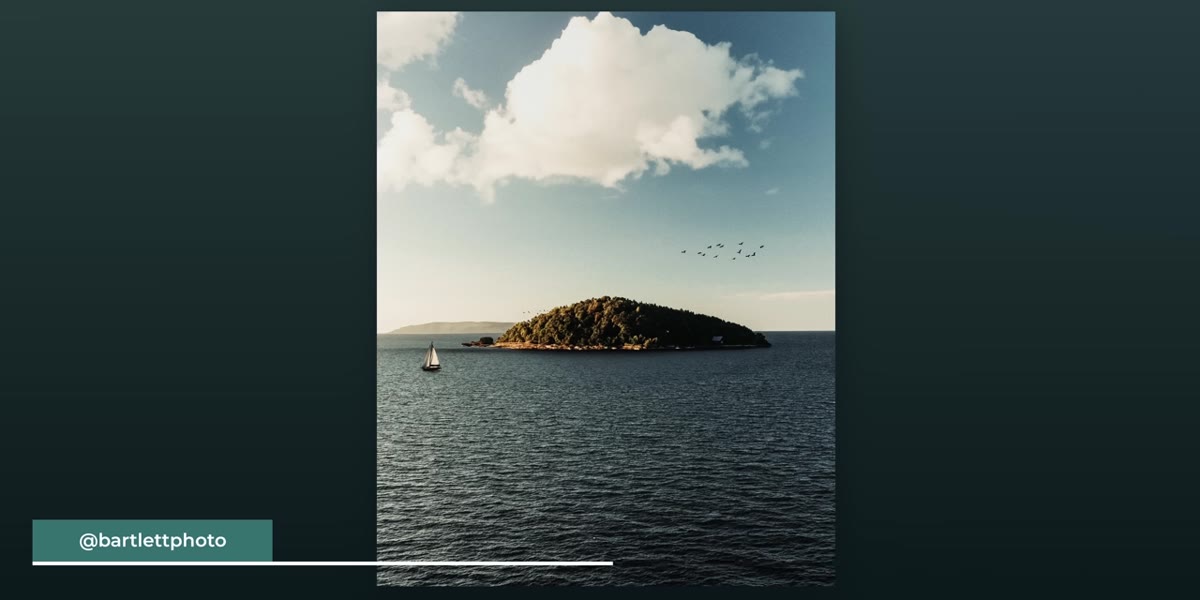 Peter reacting to the island, boats, and sky image
When generative fill works beautifully, it’s often because the prompt was specific without being complicated. “Overcast mountain sky with soft light” will consistently outperform “cool dramatic sky.” You’re not writing a creative brief. You’re giving the model a clear visual category to work within.
Peter reacting to the island, boats, and sky image
When generative fill works beautifully, it’s often because the prompt was specific without being complicated. “Overcast mountain sky with soft light” will consistently outperform “cool dramatic sky.” You’re not writing a creative brief. You’re giving the model a clear visual category to work within.
One image in the challenge replaced almost everything: the island, the boats, the birds, the sky. Peter called it immediately because the sheer scale of the replacement was a giveaway. This is a useful lesson. The more you replace, the harder it is to maintain photographic believability. Keep your prompts grounded in what could realistically exist in that environment, and your results will look like decisions, not hallucinations.
Step 5: Generate Multiple Variations and Compare at Distance
 Scoring tally appearing as Peter keeps track of his guesses
Photoshop generates three variations by default with each fill. Don’t pick the first one that looks passable. Generate the set, then step back from your screen physically or zoom out to 25 percent and look at each option. Details that seem fine at 100 percent can fall apart at print or social media resolution when the viewer’s eye moves naturally across the frame.
Scoring tally appearing as Peter keeps track of his guesses
Photoshop generates three variations by default with each fill. Don’t pick the first one that looks passable. Generate the set, then step back from your screen physically or zoom out to 25 percent and look at each option. Details that seem fine at 100 percent can fall apart at print or social media resolution when the viewer’s eye moves naturally across the frame.
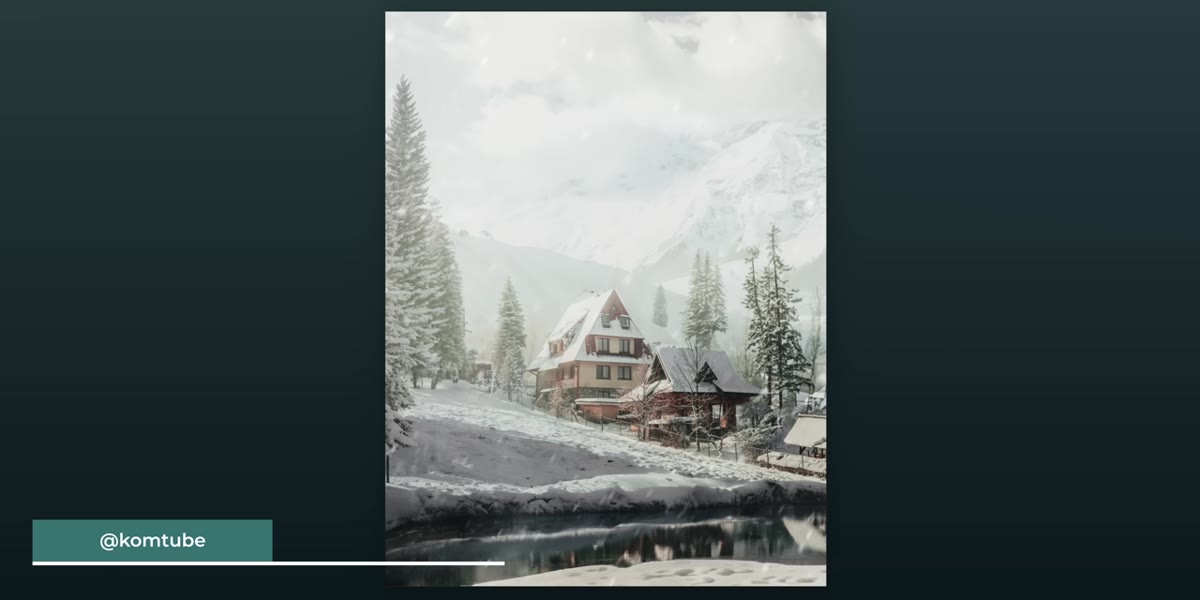
Peter flagged several images because something “looked sus” at a compositional level, not at a pixel level. The elements were technically blended, but the lighting didn’t match, or a tree line was too symmetrical, or the texture of generated snow was too uniform. Train your eye to look at the whole frame first, then zoom in to check the seams.
Step 6: Watch the Lighting and Shadow Consistency
 Reaction to the bear in the stream photo
The image that really stuck with me in this video was the bear in the stream. The bear was generated. The stream was real. Peter knew instantly that the bear was AI, but he was thrown off because the stream itself was so believable. What made the bear readable as fake wasn’t the fur detail. It was that the light hitting the bear didn’t match the directional light on the water.
Reaction to the bear in the stream photo
The image that really stuck with me in this video was the bear in the stream. The bear was generated. The stream was real. Peter knew instantly that the bear was AI, but he was thrown off because the stream itself was so believable. What made the bear readable as fake wasn’t the fur detail. It was that the light hitting the bear didn’t match the directional light on the water.
After you place any generated element, create a new layer and use a soft brush with the eyedropper color sampled from your existing light source. Paint subtle shadows and highlights on the edges of the generated area at low opacity, around 10 to 15 percent. This one step closes the gap between “technically impressive” and “actually convincing.”
What I’d Add From My Own Workflow
I shoot a lot of travel and outdoor work, and the situation I reach for generative fill most often is embarrassingly mundane: a great scene with a cluttered or distracting background. Not dramatic mountain replacements, just a garbage can near a doorway, or a chain-link fence behind a portrait. Generative fill handles those small-area replacements better than almost any other method I’ve used, including content-aware fill.
My rule is that if I would have physically moved to eliminate something on location, I’m comfortable removing it in post. That’s not a moral framework for the whole industry, just a personal line that keeps my editing decisions feeling intentional rather than opportunistic. Your line might sit somewhere different, and that’s fine.
The real takeaway from Peter’s challenge is less about generative fill specifically and more about the standard it raises. When a tool becomes good enough that an experienced photographer can’t reliably distinguish real from generated, you owe it to your own creative development to understand how it works. Not so you can fake images, but so you understand what “convincing” actually looks like at a technical level. That knowledge sharpens the way you shoot, not just the way you edit.
Watch the full tutorial on YouTube to see Peter’s real-time reactions and decide for yourself which images you would have called correctly.
Comments
Leave a Comment