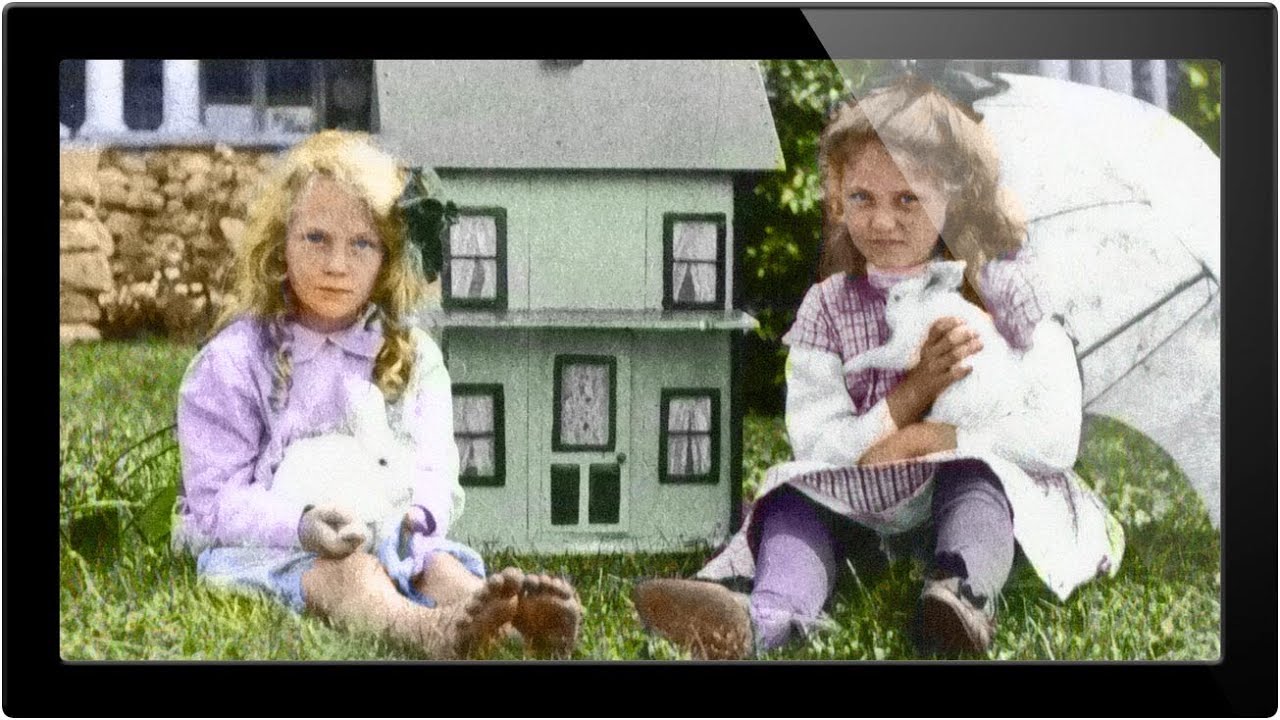
I have a shoebox of my grandmother’s old photographs sitting on a shelf in my Seattle apartment. Black and white, slightly faded, full of people I half-recognize. Every time I look at them I wonder what the colors actually were. The grass, the dresses, the sunlight. For the longest time I assumed bringing that color back required either expensive software or serious artistic skill I didn’t have. Then I came across a technique that changed how I think about the whole problem entirely.
In this Aaron Nace (PHLEARN) tutorial, Watch the full tutorial on YouTube, Aaron walks through colorizing a photograph from 1908 using a surprisingly practical method inside Photoshop. No painting from scratch. No guessing at hex codes. The core idea is to use real photographic color as your source material, which keeps the result grounded and avoids the oversaturated, plastic look that kills most amateur colorization attempts. It’s a workflow I’ve now adapted for my own archival projects, and honestly, for someone who shoots lifestyle and travel on the go, it’s become one of my favorite rainy Sunday techniques.
The honest disclaimer Aaron gives early on is worth repeating here: how good the result looks is almost directly tied to how much time you invest. This tutorial gives you the foundation. What you build on top of it is up to you.
Step 1: Source a Reference Photo for Each Color Region
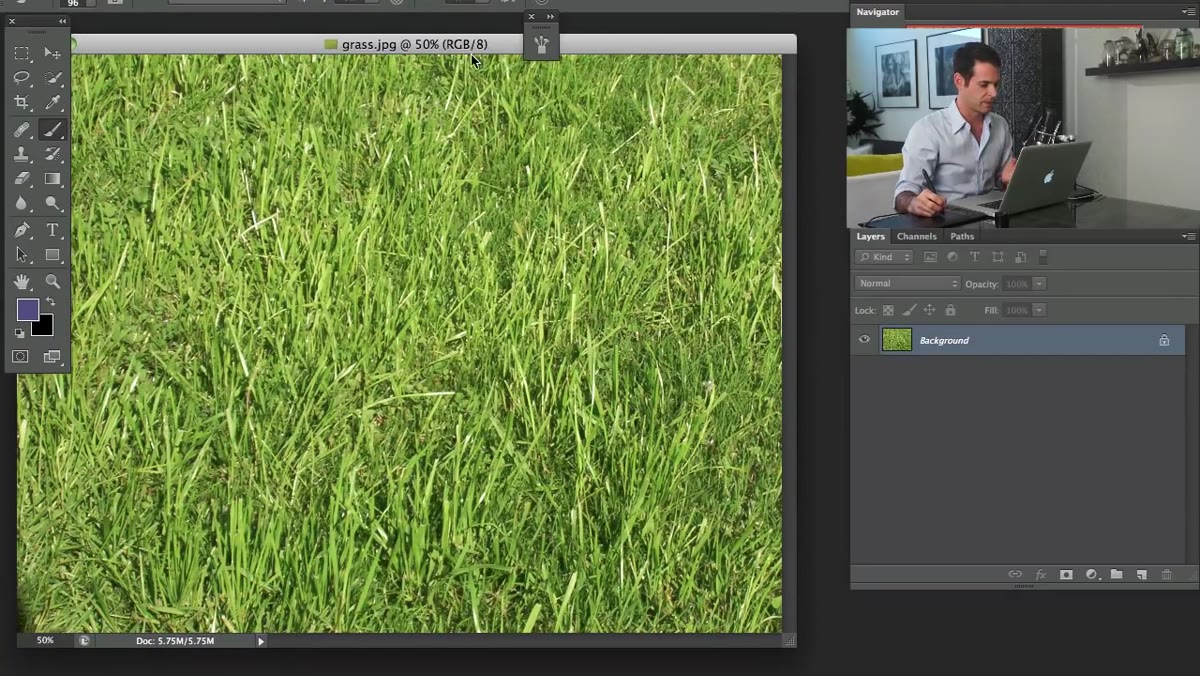 Grass photo being dragged into the working Photoshop document
Before touching the black and white image itself, find real photographs that contain the colors you need. Aaron pulls a photograph of grass from a public domain source to handle all the green tones in the image, including foliage and trees. This is the insight that makes the whole technique work: instead of picking a color swatch and hoping for the best, you’re borrowing actual photographic color data, with all its natural variation in hue and tone. Drag your reference image into the same Photoshop document as your black and white photo using Shift-click to constrain proportions, confirm the dialog, then close the reference file’s original window.
Grass photo being dragged into the working Photoshop document
Before touching the black and white image itself, find real photographs that contain the colors you need. Aaron pulls a photograph of grass from a public domain source to handle all the green tones in the image, including foliage and trees. This is the insight that makes the whole technique work: instead of picking a color swatch and hoping for the best, you’re borrowing actual photographic color data, with all its natural variation in hue and tone. Drag your reference image into the same Photoshop document as your black and white photo using Shift-click to constrain proportions, confirm the dialog, then close the reference file’s original window.
Think of this like color-matching paint at a hardware store. You bring in the real thing and let it do the work rather than trying to approximate it from memory.
Step 2: Set the Reference Layer’s Blending Mode to Color
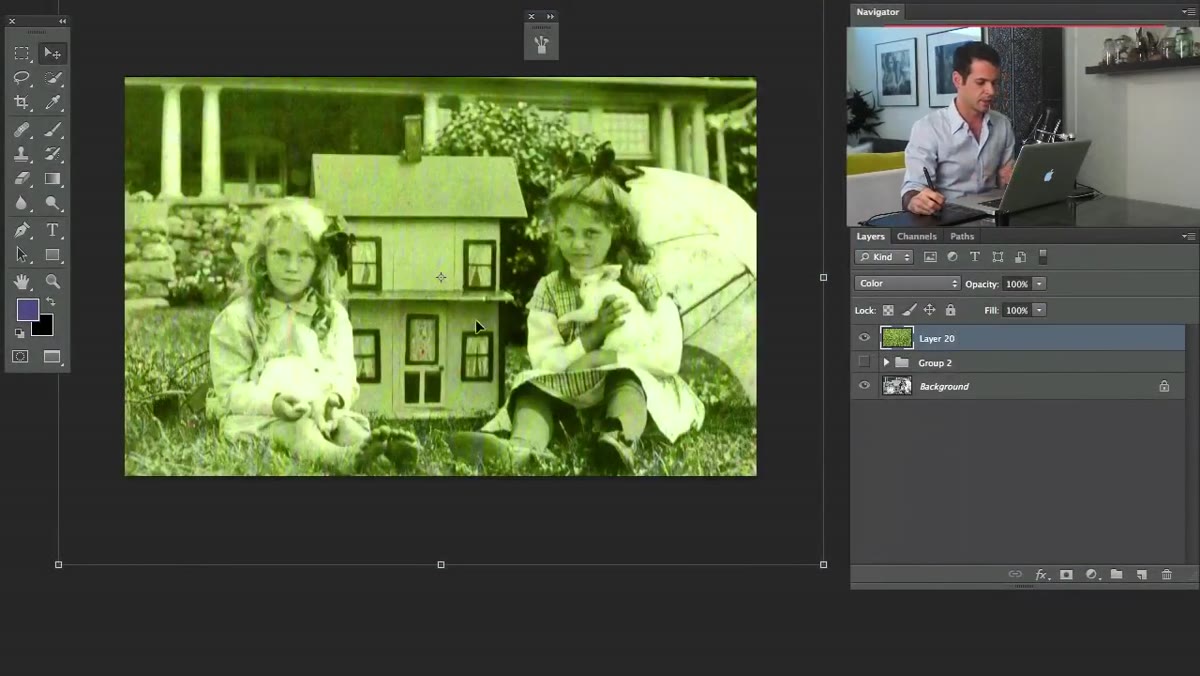 Blending mode dropdown changed from Normal to Color
With your reference layer selected, go to the blending mode dropdown in the Layers panel (it defaults to “Normal”) and change it to “Color.” This is the single most important setting in this entire workflow. The Color blending mode strips out the luminance information from the reference layer and applies only the hue and saturation to whatever is beneath it. That means your black and white photo keeps its original light and shadow information, and the color from the reference image sits on top without flattening the tonal range. Everything Aaron does in this tutorial runs through this one blending mode.
Blending mode dropdown changed from Normal to Color
With your reference layer selected, go to the blending mode dropdown in the Layers panel (it defaults to “Normal”) and change it to “Color.” This is the single most important setting in this entire workflow. The Color blending mode strips out the luminance information from the reference layer and applies only the hue and saturation to whatever is beneath it. That means your black and white photo keeps its original light and shadow information, and the color from the reference image sits on top without flattening the tonal range. Everything Aaron does in this tutorial runs through this one blending mode.
You’ll see the color immediately affect the whole image, which is why the next step is masking it down to only the areas you want.
Step 3: Fill the Layer Mask with Black to Hide Everything
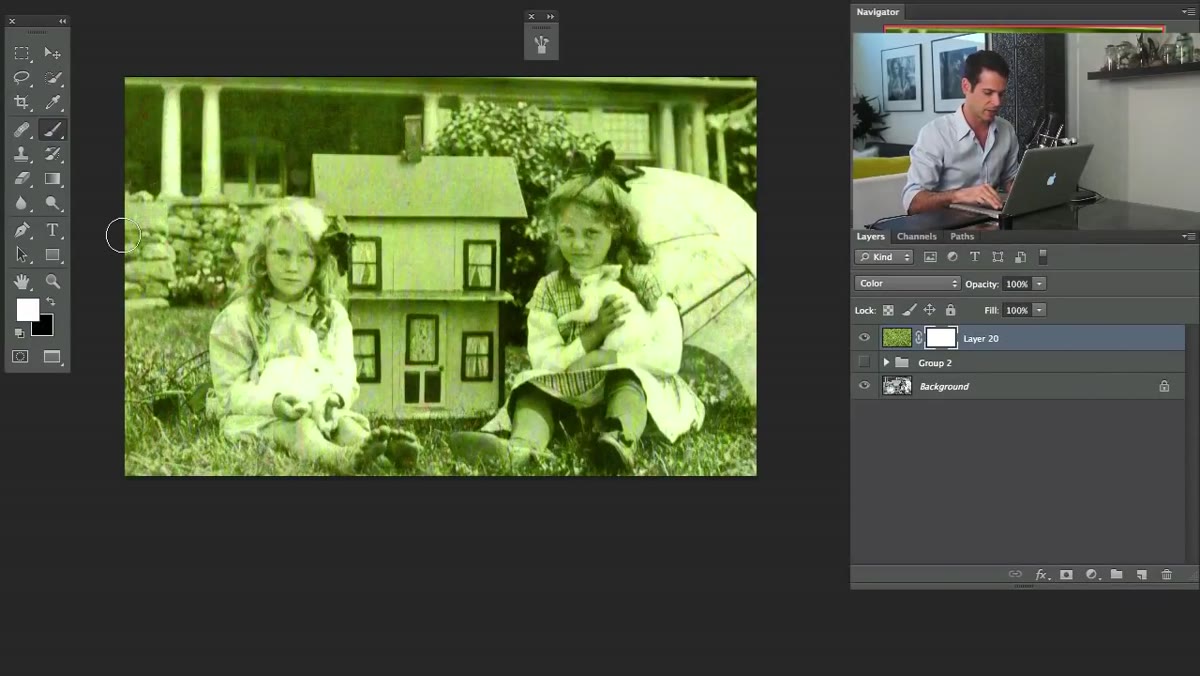 Layer mask filled with black hiding all color from the reference layer
Add a layer mask to your reference layer by clicking the mask icon at the bottom of the Layers panel. Then immediately fill that mask with black: go to Edit, Fill, and choose Black, or use the keyboard shortcut Shift-Delete (Mac) or Shift-Backspace (PC) and select Black from the fill dialog. A black mask hides the layer completely. You’re starting from zero and painting the color back in only where it belongs. This is the cleanest, most controllable way to work, and it protects you from accidentally bleeding color into areas like skin or clothing.
Layer mask filled with black hiding all color from the reference layer
Add a layer mask to your reference layer by clicking the mask icon at the bottom of the Layers panel. Then immediately fill that mask with black: go to Edit, Fill, and choose Black, or use the keyboard shortcut Shift-Delete (Mac) or Shift-Backspace (PC) and select Black from the fill dialog. A black mask hides the layer completely. You’re starting from zero and painting the color back in only where it belongs. This is the cleanest, most controllable way to work, and it protects you from accidentally bleeding color into areas like skin or clothing.
Think of it as painting with light. You decide exactly where the color lives.
Step 4: Paint White on the Mask to Reveal Color in Specific Areas
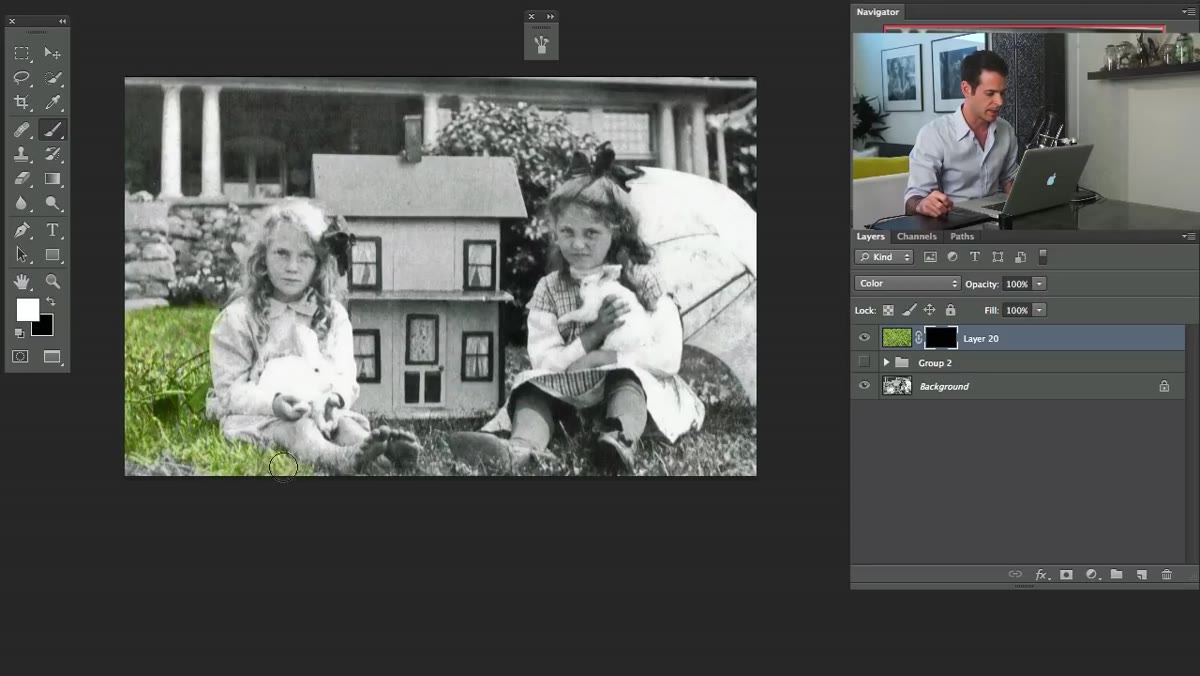 Brush painting white onto mask revealing green grass tones below
Set your foreground color to white, grab the Brush tool, and start painting over the areas of the black and white photo that should take this reference color. For the grass layer, that means the lawn, hedges, any foliage in the background, and trees. Aaron uses a brush flow of around 50% rather than 100%. That lower flow is important because it builds color up gradually, which lets you control intensity and avoid harsh edges where the color meets uncolored areas. A sudden jump from full color to no color is the fastest way to make a colorized photo look fake.
Brush painting white onto mask revealing green grass tones below
Set your foreground color to white, grab the Brush tool, and start painting over the areas of the black and white photo that should take this reference color. For the grass layer, that means the lawn, hedges, any foliage in the background, and trees. Aaron uses a brush flow of around 50% rather than 100%. That lower flow is important because it builds color up gradually, which lets you control intensity and avoid harsh edges where the color meets uncolored areas. A sudden jump from full color to no color is the fastest way to make a colorized photo look fake.
For brush sizing, the keyboard shortcut Ctrl-Option drag (Mac) or Alt-right-click drag (PC) lets you resize on the fly without breaking your rhythm. Smaller brush for edges, larger for open areas. Keep your hardness in a mid range, slightly soft, so edges blend rather than cut.
Step 5: Repeat the Process for Each Separate Color Region
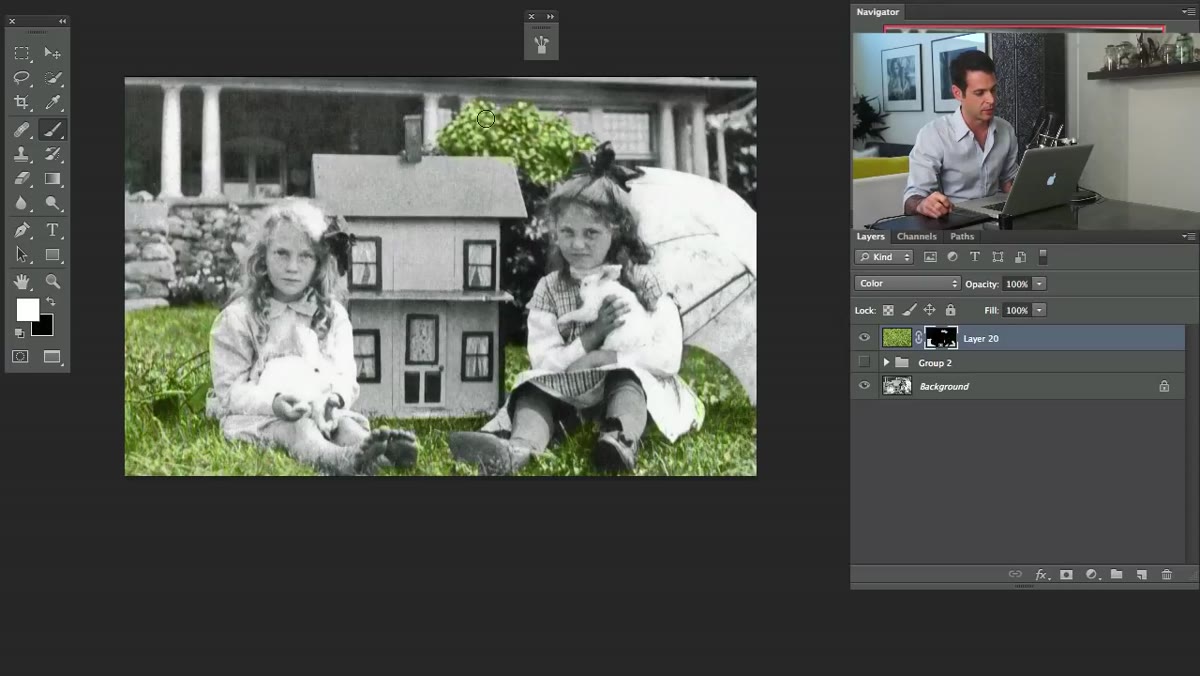 Continuing to paint mask over tree and foliage regions
Each distinct color in the photograph gets its own layer with its own reference image. Skin tones, fabric, sky, wood - each one is a new layer, a new reference photo, the same Color blending mode, the same black mask, the same painting workflow. Aaron is working fast in the tutorial to show what ten minutes of effort looks like, but the principle scales to as much refinement as you want to give it. A quick pass gets you somewhere believable. A careful pass, with separate layers for highlights and shadows on skin, for example, gets you somewhere genuinely impressive.
Continuing to paint mask over tree and foliage regions
Each distinct color in the photograph gets its own layer with its own reference image. Skin tones, fabric, sky, wood - each one is a new layer, a new reference photo, the same Color blending mode, the same black mask, the same painting workflow. Aaron is working fast in the tutorial to show what ten minutes of effort looks like, but the principle scales to as much refinement as you want to give it. A quick pass gets you somewhere believable. A careful pass, with separate layers for highlights and shadows on skin, for example, gets you somewhere genuinely impressive.
Label your layers as you go. Future you will be grateful.
A Note on Managing Expectations (and Why That’s Actually Good News)
One thing Aaron says that I think about every time I do this: even a face contains thousands of distinct color variations based on light, blood flow, and shadow. You are not going to perfectly reconstruct what was there. What you can do is create something emotionally true, something that makes an old photograph feel present rather than distant. I’ve found that setting that intention upfront actually frees you up to enjoy the process. It’s interpretive work. It’s a little like hand-tinting, which photographers were doing to portraits long before Photoshop existed.
The other thing I’d add from my own experience: spend extra time sourcing your skin tone reference images. That’s the region people look at first, and it’s also the most variable. Find a reference that matches the approximate lighting in your original photo, warm sun versus overcast, for example, and your results will look significantly more natural.
The single most useful thing to take from this technique is the logic of using real photographic color as source material. That one decision prevents a dozen common mistakes. It keeps saturation realistic, keeps hue variation natural, and keeps you from spending an hour tweaking color pickers when a free image from a public domain library can do the job in thirty seconds.
Dig out those old family photos. They deserve to be seen in full color.
Watch the full tutorial on YouTube to see Aaron walk through the complete colorization from start to finish.
Comments
Leave a Comment