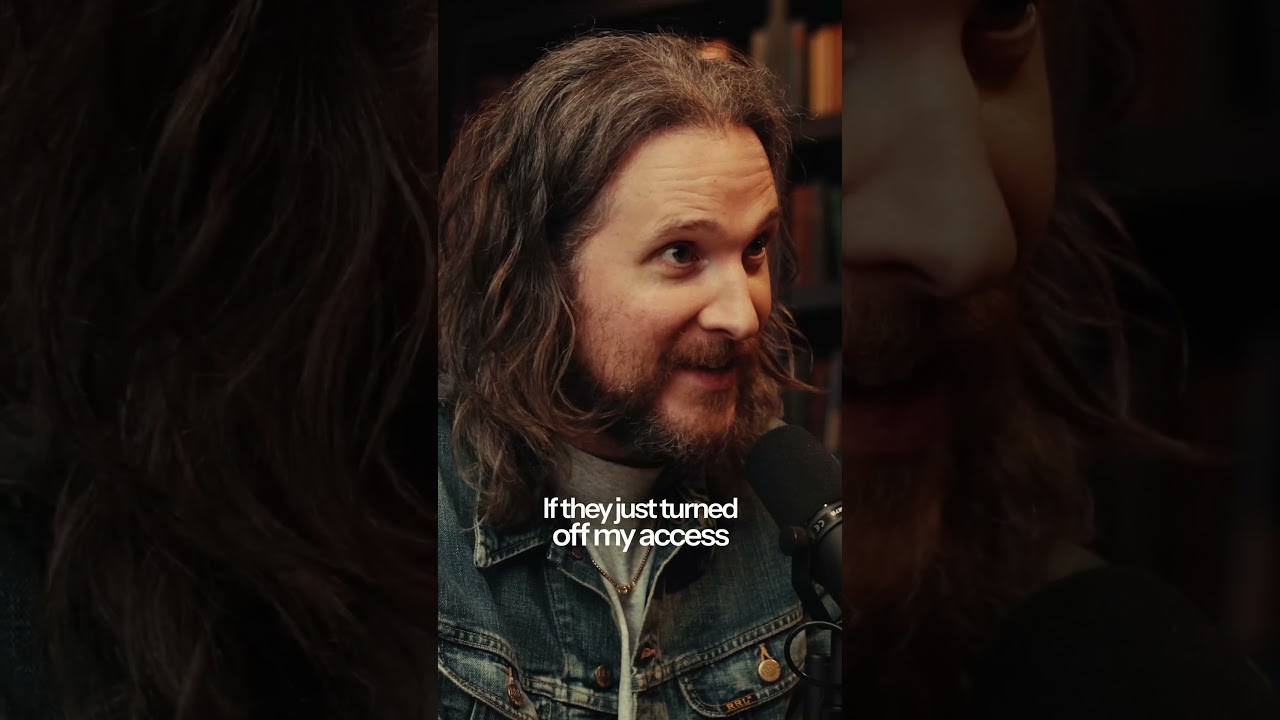
There’s a conversation I keep having with photographer friends, usually over coffee, that goes something like this: “Where do you actually keep your photos?” The answer is almost always some version of “in Lightroom” - and that answer has started to genuinely worry me. Not because Lightroom is bad software, but because most of us have quietly handed over custody of our entire creative life to a subscription service without thinking too hard about what that means.
Watch the full tutorial on YouTube
In this Peter McKinnon tutorial, Peter and a collaborator dig into a question that sounds almost philosophical but has very real practical teeth: do you own your photography, or does Lightroom? The conversation starts with printing - whether making physical prints is what separates photographers from content creators - and then takes a sharp turn into something more urgent. What happens to years of your catalog if your access to Lightroom gets cut off tomorrow? It’s the kind of thought that, once it lands, you can’t un-think. I’ve been shooting and teaching photography for years, and I still had to sit with that question for a minute before I felt good about my own answer.
This article walks through the core ideas from that conversation and turns them into a practical checklist you can actually work through this weekend.
Step 1: Understand the Difference Between Your Photos and Your Catalog
 Peter describing all his photos living inside Lightroom
The first thing to get clear on is that your photo files and your Lightroom catalog are two separate things. Your RAW or JPEG files are the actual images - pixels on a drive. Your Lightroom catalog is a database that stores all your edits, ratings, keywords, and organizational work. If you lose access to Lightroom, you can still technically have your files. But all those hours of editing, sorting, and culling? That lives in the catalog, and depending on how you’ve set things up, it might only exist in one place.
Peter describing all his photos living inside Lightroom
The first thing to get clear on is that your photo files and your Lightroom catalog are two separate things. Your RAW or JPEG files are the actual images - pixels on a drive. Your Lightroom catalog is a database that stores all your edits, ratings, keywords, and organizational work. If you lose access to Lightroom, you can still technically have your files. But all those hours of editing, sorting, and culling? That lives in the catalog, and depending on how you’ve set things up, it might only exist in one place.
Open Lightroom, go to Edit (Windows) or Lightroom (Mac) in the top menu, and click Catalog Settings. The General tab will show you exactly where your catalog file lives on your computer. Write that path down. You need to know it.
Step 2: Locate and Back Up Your Catalog File Manually
 The moment of realization about losing years of catalog access
Lightroom has a built-in catalog backup option, but its default setting often isn’t frequent enough - and it backs up to the same drive your catalog already lives on, which defeats the purpose. A drive failure would take both copies at once.
The moment of realization about losing years of catalog access
Lightroom has a built-in catalog backup option, but its default setting often isn’t frequent enough - and it backs up to the same drive your catalog already lives on, which defeats the purpose. A drive failure would take both copies at once.
Go back into Catalog Settings, click the General tab, and change the “Back up catalog” dropdown to “Every time Lightroom starts.” Then change the backup destination to an external drive or a separate folder that syncs to cloud storage you control - not just Adobe’s cloud. Do this now, before you do anything else in this list.
Step 3: Export Your Original Files to a Location You Own
 Discussion about everything being stored in the cloud
This is the step most photographers skip because it feels redundant. It isn’t. Your original image files should live in at least two places that have nothing to do with Adobe. That means a folder structure on your computer AND a copy on an external hard drive, a NAS, or a cloud service like Backblaze or Google Drive.
Discussion about everything being stored in the cloud
This is the step most photographers skip because it feels redundant. It isn’t. Your original image files should live in at least two places that have nothing to do with Adobe. That means a folder structure on your computer AND a copy on an external hard drive, a NAS, or a cloud service like Backblaze or Google Drive.
If you imported photos directly into Lightroom without copying them to a designated folder first, go to the Library module, select a folder, and check the file path shown at the top of the Folders panel. If files are scattered across downloads folders or desktop locations, now is the time to consolidate them into a single organized folder structure - organized by year and month works well - and then re-link them inside Lightroom.
Step 4: Consider What a Platform Shutdown Would Actually Cost You
 The Instagram disappearing scenario and what happens to your work
Peter raises the Instagram angle in the video, and it’s worth sitting with. If Instagram disappeared tomorrow, would your favorite images still exist somewhere in full resolution? Or have you only ever exported small, compressed versions for social media and let the originals pile up in a catalog you haven’t backed up in six months?
The Instagram disappearing scenario and what happens to your work
Peter raises the Instagram angle in the video, and it’s worth sitting with. If Instagram disappeared tomorrow, would your favorite images still exist somewhere in full resolution? Or have you only ever exported small, compressed versions for social media and let the originals pile up in a catalog you haven’t backed up in six months?
Make a list of your ten most important images. Trace where they live right now - not where you think they live, but where they actually are on disk. If that exercise is stressful, that’s useful information. Those files deserve better than “probably in the cloud somewhere.”
Step 5: Build a Physical Print Practice as a Backup Strategy
 Opening conversation about printing photos and what it means
This one might sound old-fashioned, but hear it out. Printing your best work is actually a form of archiving that doesn’t depend on any software, any subscription, or any server staying online. A print in a box in your closet outlasts a hard drive. It outlasts a platform. It outlasts a company.
Opening conversation about printing photos and what it means
This one might sound old-fashioned, but hear it out. Printing your best work is actually a form of archiving that doesn’t depend on any software, any subscription, or any server staying online. A print in a box in your closet outlasts a hard drive. It outlasts a platform. It outlasts a company.
You don’t need to print everything. Start small - pick five to ten images a year that matter to you and order physical prints. Services like Mpix, Artifact Uprising, or even a local print shop will work. If you want to go further, printing a small photo book once a year is one of the most satisfying things I do with my work, and it doubles as a portfolio that needs no password.
Step 6: Set a Monthly Backup Reminder and Actually Keep It
 The “heebie-jeebies” moment about losing catalog access
None of the steps above matter if you do them once and forget about them. Build a recurring monthly reminder - phone calendar, paper calendar, whatever works for you - that prompts you to run a manual catalog backup, confirm your file copies are current, and check that your cloud backup service actually ran without errors.
The “heebie-jeebies” moment about losing catalog access
None of the steps above matter if you do them once and forget about them. Build a recurring monthly reminder - phone calendar, paper calendar, whatever works for you - that prompts you to run a manual catalog backup, confirm your file copies are current, and check that your cloud backup service actually ran without errors.
This takes about ten minutes once everything is set up. The first time you do it, it might take an hour. That hour is one of the best investments you’ll make in your photography practice.
A Note From My Own Workflow
I shoot a lot in Seattle, mostly on Sunday mornings when the light is doing interesting things and the streets are quiet. For years I was casual about backups because nothing had ever gone wrong. Then a hard drive started clicking during an edit session, and I spent three days sick to my stomach while a recovery service tried to pull my files. They succeeded - barely, and expensively. Now I run a three-location backup rule: internal drive, external drive, and off-site cloud. The catalog gets backed up every single time Lightroom opens. It sounds paranoid until it isn’t.
One thing Peter’s conversation clarified for me is that this isn’t really about being a pessimist. It’s about deciding that your creative work has value that deserves protecting. The photographers whose work survives decades aren’t the ones who were the most talented. They’re the ones who were the most careful.
The single most important thing you can take from this tutorial is simple: right now, before you close this tab, find out exactly where your Lightroom catalog lives and move a copy of it somewhere safe. Everything else builds from there.
Watch the full tutorial on YouTube - Peter McKinnon’s conversation goes further into the printing and legacy side of this topic, and it’s worth your full attention.
Comments (1)
Printing this out and pinning it next to my monitor. That good.
Leave a Comment