Every photographer I know has had this experience: you see a stunning image online, you assume the photographer has some kind of magical eye or expensive gear you’ll never afford, and you quietly feel a little defeated. I spent years doing this before I started paying closer attention to what RAW files actually look like before editing. Turns out, even the pros are working from flat, underwhelming captures. The magic isn’t entirely in the moment the shutter fires.
That realization shifted everything for me. So when I came across Watch the full tutorial on YouTube this Thomas Heaton tutorial where he takes his most popular edited images and reverts them back to their unprocessed RAW files, I watched it twice in one sitting. Heaton was inspired by landscape photographer Adam Gibbs, who does something similar in his own videos. The premise is simple and a little humbling: here is the finished photo, and here is what the camera actually recorded. Watching someone walk through that gap, step by step, is one of the most useful things a developing photographer can do.
What follows is my breakdown of the core techniques Heaton demonstrates, rewritten as a workflow you can apply in Lightroom today.
Step 1: Compare the Edited Image and the RAW Side by Side Before Touching Anything
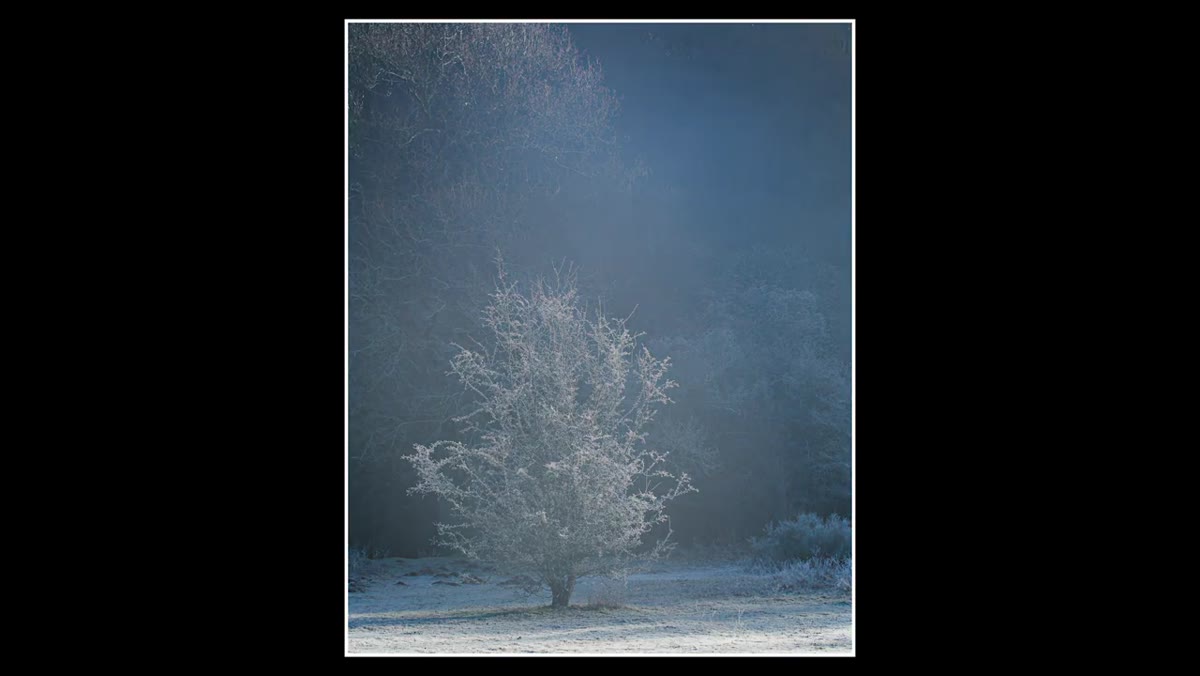 Edited frost and tree image displayed next to raw version
Before you start pulling sliders around, Heaton’s approach asks you to actually study what the edit accomplished. Open your finished image and then reset all sliders to zero (or look at an unedited export) so you can see where you started and where you landed. This conscious comparison trains your eye to recognize what editing actually does rather than just doing it on autopilot.
Edited frost and tree image displayed next to raw version
Before you start pulling sliders around, Heaton’s approach asks you to actually study what the edit accomplished. Open your finished image and then reset all sliders to zero (or look at an unedited export) so you can see where you started and where you landed. This conscious comparison trains your eye to recognize what editing actually does rather than just doing it on autopilot.
One practical note: Heaton keeps the crop consistent between the RAW and edited views so the comparison is clean. Do the same. Crop first, then reset your develop settings, so you’re comparing tone and color, not composition.
Step 2: Identify Whether the Mood Came from Light or from Editing
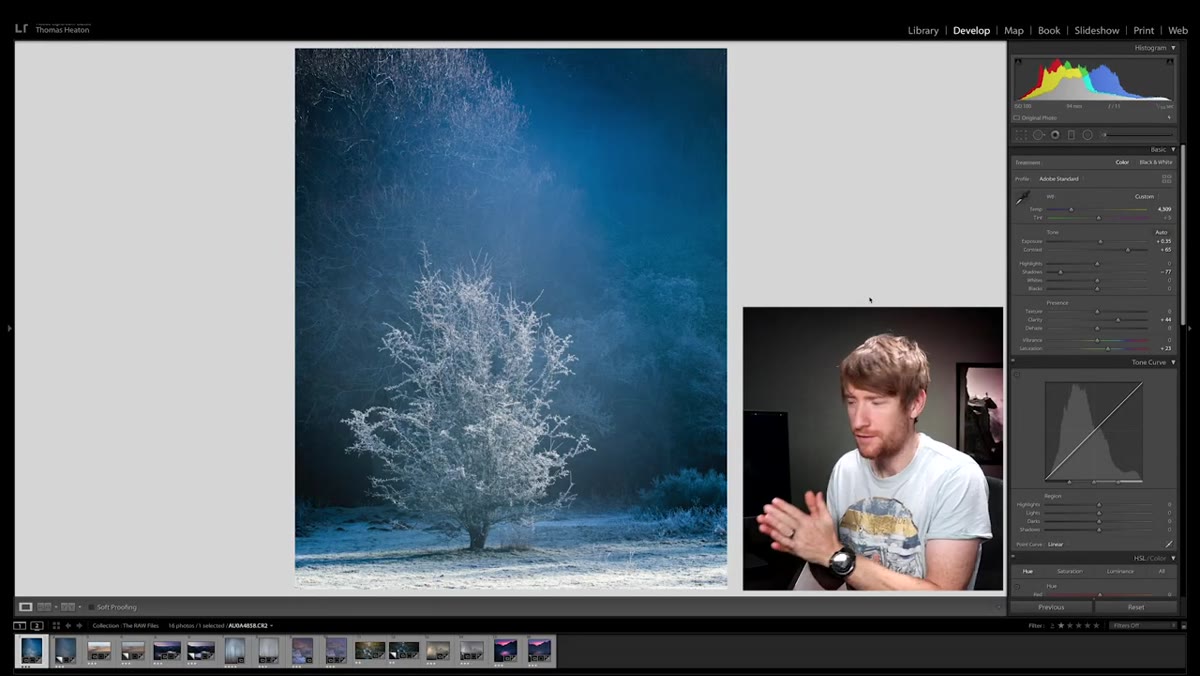 Raw file of backlit frost tree with flat, neutral tones
This is the most important diagnostic question you can ask about any image. For Heaton’s frost-covered tree shot, the cool blue color of the final image is mostly real. The white balance in the edited file matches the RAW exactly. The mood was already there in the light. What editing did was amplify it slightly, not invent it.
Raw file of backlit frost tree with flat, neutral tones
This is the most important diagnostic question you can ask about any image. For Heaton’s frost-covered tree shot, the cool blue color of the final image is mostly real. The white balance in the edited file matches the RAW exactly. The mood was already there in the light. What editing did was amplify it slightly, not invent it.
Compare that to images where the color is almost entirely a product of post-processing choices. Before you edit, ask yourself: “Is this a light problem or an editing opportunity?” If the quality of light just isn’t there, no amount of saturation is going to save the image. But if the light is genuinely beautiful and your RAW looks flat, that’s a processing problem you can solve.
Step 3: Use Saturation Carefully to Enhance What the Camera Underrecorded
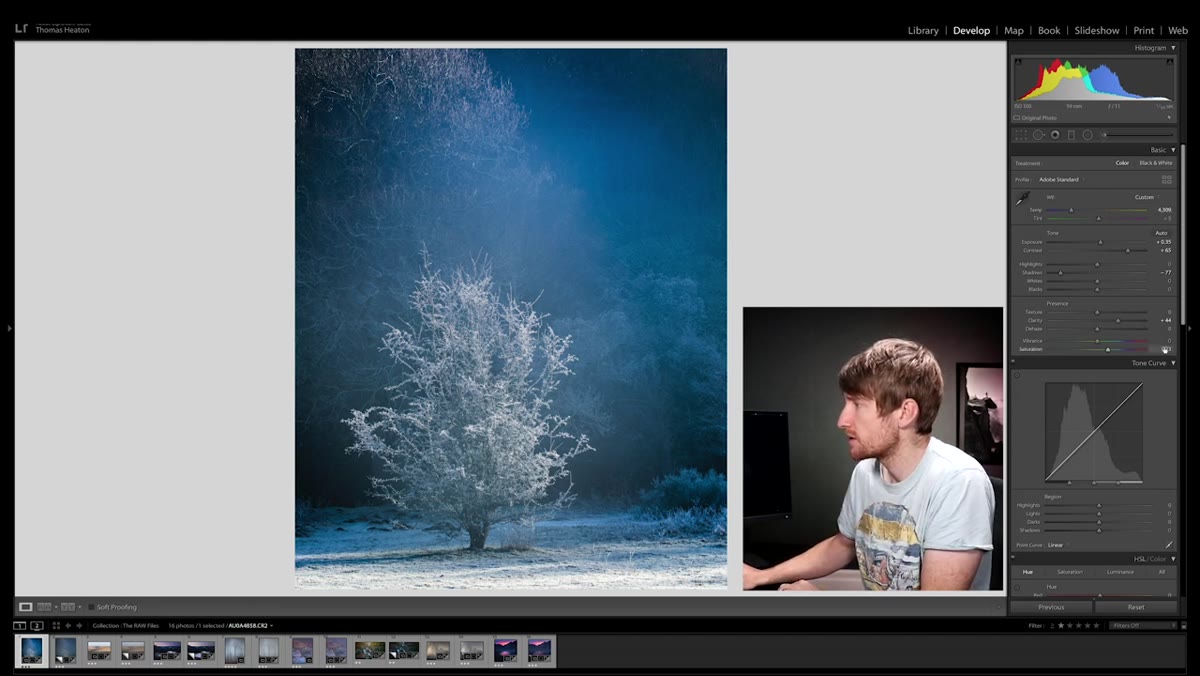 Lightroom saturation slider set to plus 23 in the edit panel
RAW files are deliberately conservative with color. The camera doesn’t know what mood you’re going for, so it plays it safe. In the frost tree image, Heaton added roughly 23 points of global saturation to bring the blue tones up to what the scene actually felt like in person. That’s not a dramatic move. It’s a corrective one.
Lightroom saturation slider set to plus 23 in the edit panel
RAW files are deliberately conservative with color. The camera doesn’t know what mood you’re going for, so it plays it safe. In the frost tree image, Heaton added roughly 23 points of global saturation to bring the blue tones up to what the scene actually felt like in person. That’s not a dramatic move. It’s a corrective one.
The key is “global” here. Saturation in Lightroom’s basic panel lifts all colors equally. Before you push it past 30, check what it’s doing to skin tones, highlights, and any reds or oranges in the frame. If things start looking plasticky, back off and use the HSL panel to target only the hues you care about.
Step 4: Reduce Shadows and Boost Contrast to Add Dimension
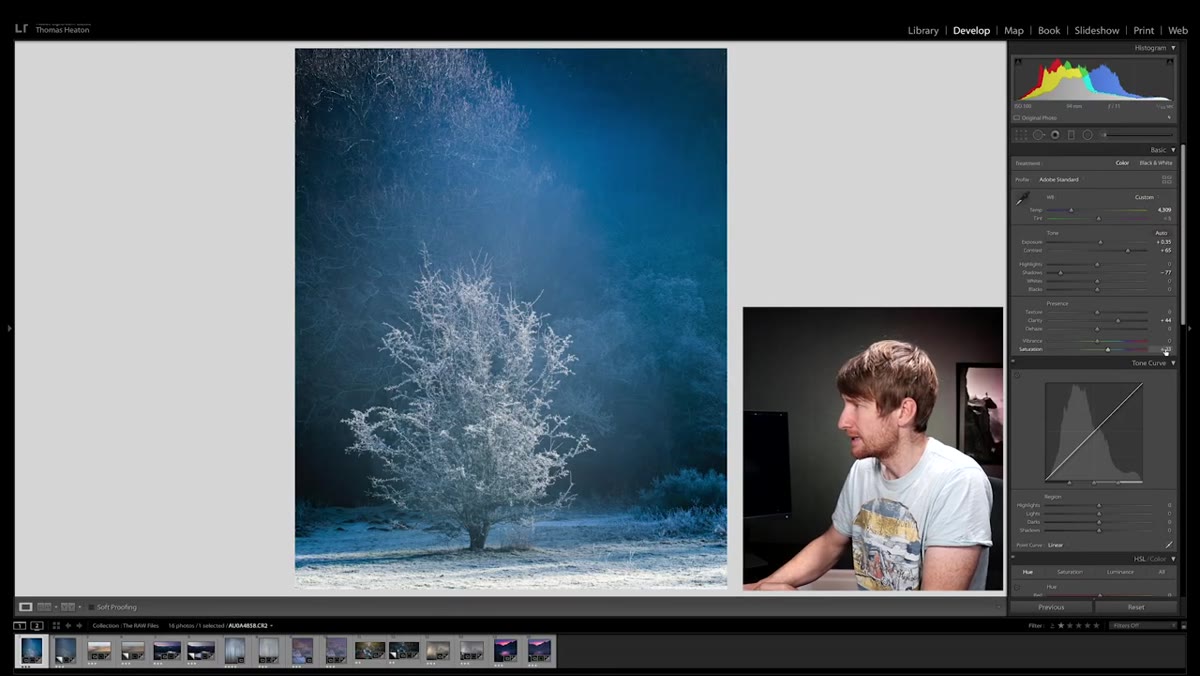 Shadows slider pulled down, contrast increased in basic panel
In the same frost image, Heaton pulls the shadows down while boosting contrast. These two moves together are worth understanding as a pair. Reducing shadows deepens the darker parts of your image without blowing out the highlights. Boosting contrast increases the separation between your tones overall. Used together, they give a flat RAW file a sense of depth and weight.
Shadows slider pulled down, contrast increased in basic panel
In the same frost image, Heaton pulls the shadows down while boosting contrast. These two moves together are worth understanding as a pair. Reducing shadows deepens the darker parts of your image without blowing out the highlights. Boosting contrast increases the separation between your tones overall. Used together, they give a flat RAW file a sense of depth and weight.
Be careful not to crush your blacks completely. Hold Alt (or Option on Mac) while dragging the blacks slider in Lightroom, and the screen will show you exactly where clipping begins. Stop just before it.
Step 5: Check the HSL Panel Before Assuming You Need to Change Hues
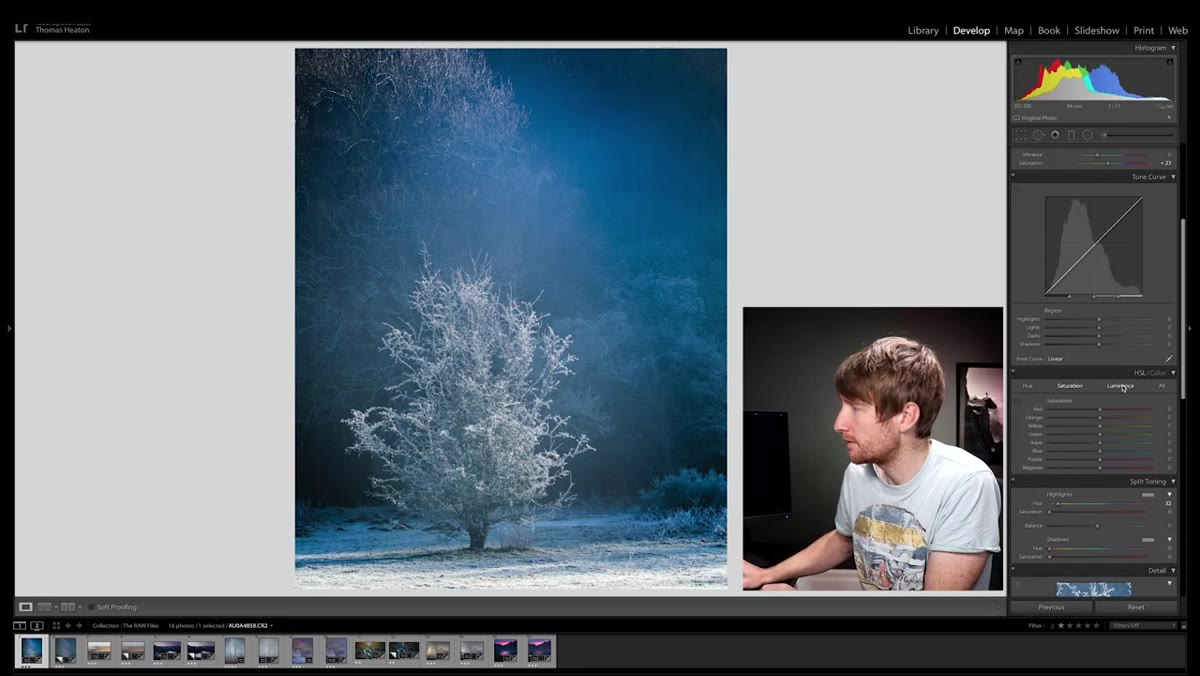 HSL panel open showing all sliders untouched at zero
Here’s something Heaton admits surprised even him when he was reviewing his own edits: in several of his most dramatic-looking images, the HSL (Hue, Saturation, Luminance) panel was completely untouched. All sliders at zero. The colors looked extraordinary not because of targeted color work, but because of strong light and minor global adjustments.
HSL panel open showing all sliders untouched at zero
Here’s something Heaton admits surprised even him when he was reviewing his own edits: in several of his most dramatic-looking images, the HSL (Hue, Saturation, Luminance) panel was completely untouched. All sliders at zero. The colors looked extraordinary not because of targeted color work, but because of strong light and minor global adjustments.
This is worth sitting with. A lot of beginner tutorials jump straight to HSL panel tricks, and those tools are genuinely powerful. But check whether you actually need them first. Sometimes the light did the work for you and you’re about to overcomplicate a good thing.
Step 6: Recognize When Conditions Did the Heavy Lifting
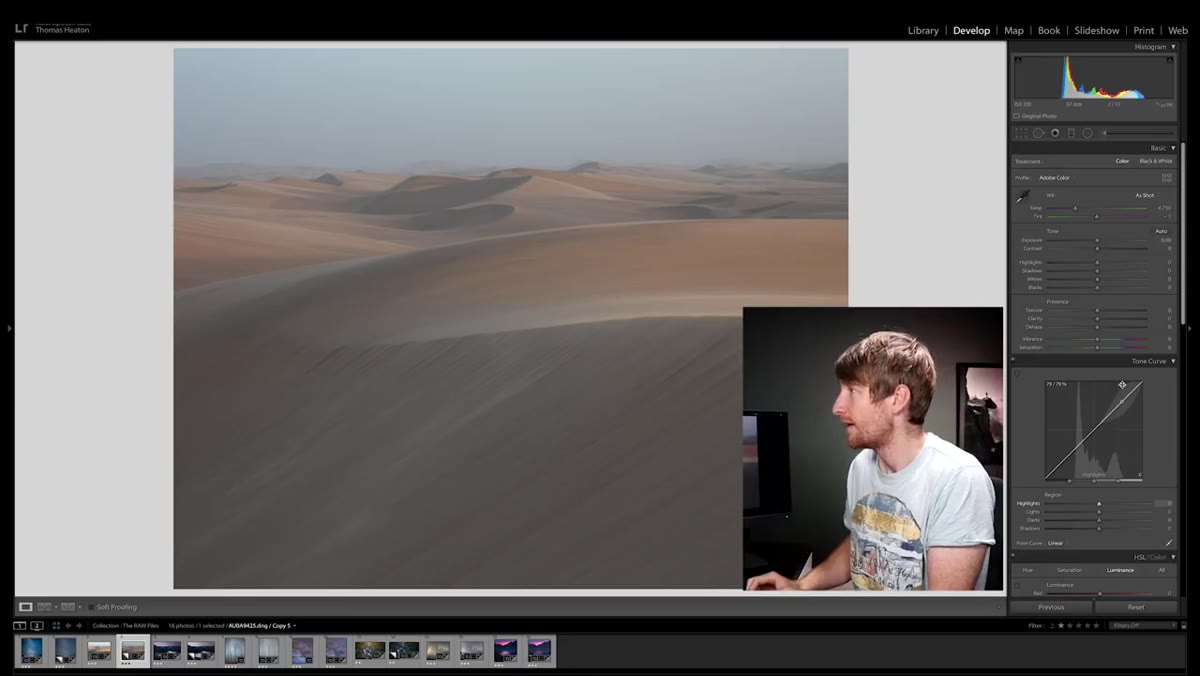 Sand dune raw file showing soft warm light and motion in sand
Heaton’s second example image looks almost like a watercolor painting. Lots of people assume that effect came from heavy Photoshop work. It didn’t. It came from shooting coastal sand dunes at golden hour when a 20-mile-per-hour wind was whipping sand into the air. The motion in the sand, combined with the sun sitting just above the horizon, created naturally soft light and a dreamy quality that the camera recorded faithfully.
Sand dune raw file showing soft warm light and motion in sand
Heaton’s second example image looks almost like a watercolor painting. Lots of people assume that effect came from heavy Photoshop work. It didn’t. It came from shooting coastal sand dunes at golden hour when a 20-mile-per-hour wind was whipping sand into the air. The motion in the sand, combined with the sun sitting just above the horizon, created naturally soft light and a dreamy quality that the camera recorded faithfully.
This is the part of landscape photography that can’t be faked in post. Heaton’s editing on this image was fairly minimal. He lifted vibrance and saturation to reinforce what was already there. The lesson: do the field work. Unusual conditions produce unusual images. Your post-processing job gets a lot easier when the light was doing something interesting to begin with.
What I’d Add From My Own Experience
Heaton’s series is specifically about landscape photography, but I use this same RAW-reveal exercise with travel and street photos and it holds up. What changed my own editing was making it a habit to export a flat, zero-edit version of every keeper image and put it next to my finished edit in a Lightroom collection I call “Before/After.” Reviewing that collection once a month shows me patterns I wouldn’t otherwise notice. Am I over-saturating everything? Am I crushing shadows out of habit? That collection tells me more about my editing instincts than any tutorial does.
If you shoot JPEG right now and you’re reading this wondering whether it applies to you, it still does conceptually. But this is also the strongest argument I know for switching to RAW. When you shoot JPEG, the camera makes all these decisions for you and locks them in. When you shoot RAW, you stay in the driver’s seat.
The single biggest thing I take from Heaton’s tutorial is this: dramatic, beautiful images almost always start with something ordinary-looking in the RAW file. The gap between that flat capture and the finished image is your craft as an editor, and it’s a learnable skill. You’re not behind. You’re just at the beginning of a process everyone else is also working through.
Watch the full tutorial on YouTube to see Heaton walk through each image himself. Watching him click between the edited and unedited files in real time adds a layer of clarity that’s hard to replicate in text.
Comments
Leave a Comment