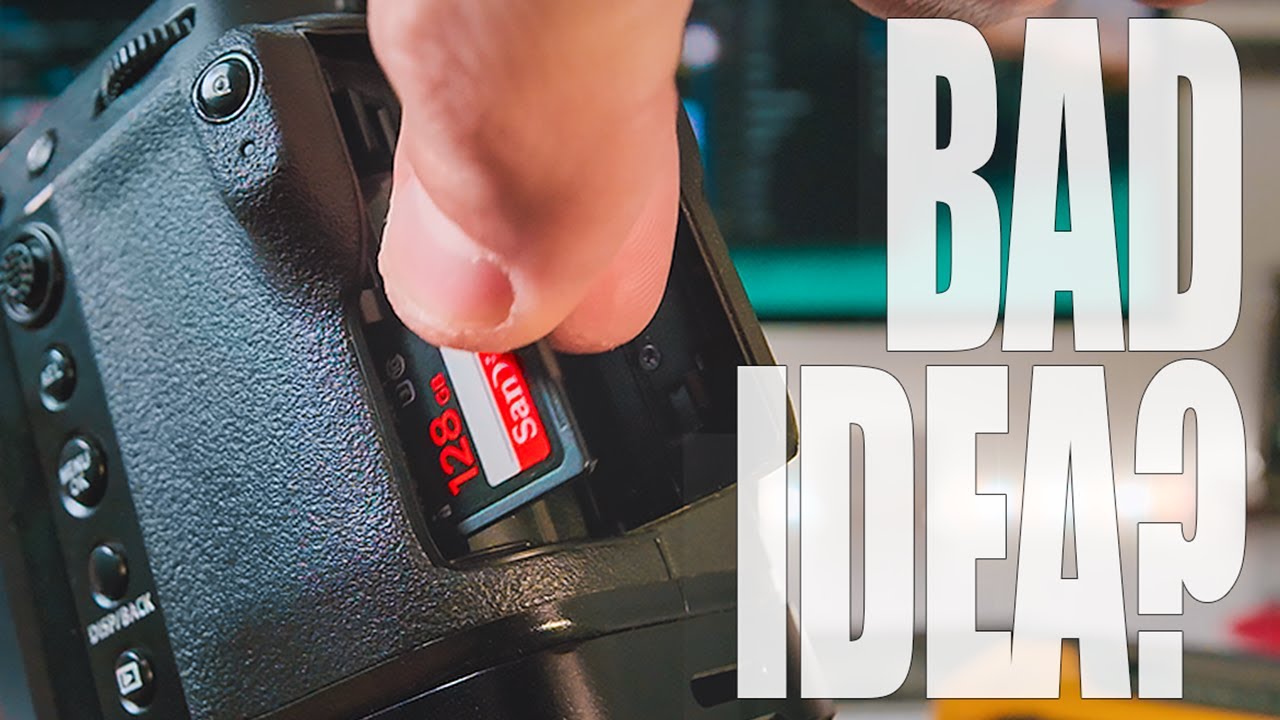
I’ll be honest: I didn’t think much about how I deleted photos until the habit started costing me time. Early on, I’d stand in the field after a shoot and tap through my camera’s delete button one frame at a time, convinced I was being responsible about storage. Spoiler: I was not being responsible. I was just slow. It wasn’t until I started paying closer attention to how working photographers handle their cards between shoots that I realized there’s a real skill buried in this mundane-sounding task, and doing it carelessly can mean corrupted cards, lost files, or a very messy desktop at midnight.
In this Mark Denney tutorial, he walks through all four methods photographers commonly use to clear their SD cards, compares the risks and trade-offs of each, and lands firmly on one approach as the safest and most reliable. Watch the full tutorial on YouTube if you want to follow along visually. For everyone who wants the breakdown they can reference while actually sitting at their desk with a card in hand, here’s what you need to know.
Step 1: Understand Why Deleting In-Camera Is a Last Resort
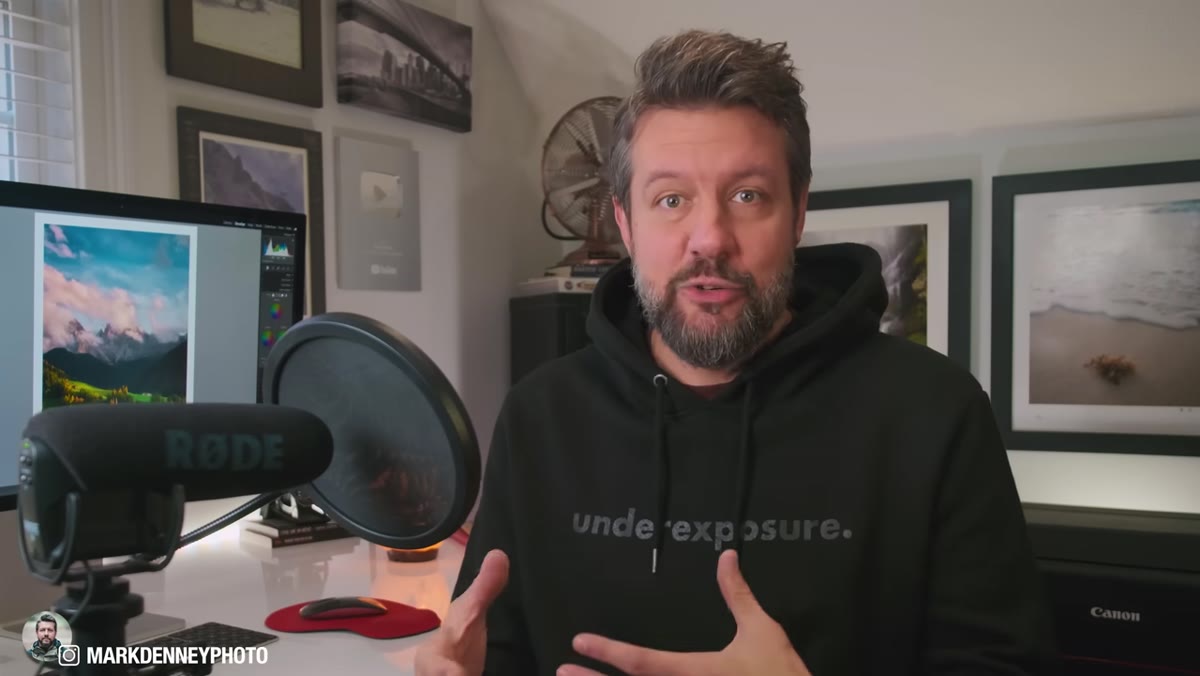 Photographer pressing trash can button on camera body
Most cameras have a dedicated delete button, usually marked with a small trash can icon, that lets you erase individual files while reviewing your shots. It works, and there are moments where it’s genuinely useful, like clearing an accidental test shot before a session. But using it as your primary clearing method is inefficient for a reason that goes beyond just taking forever.
Photographer pressing trash can button on camera body
Most cameras have a dedicated delete button, usually marked with a small trash can icon, that lets you erase individual files while reviewing your shots. It works, and there are moments where it’s genuinely useful, like clearing an accidental test shot before a session. But using it as your primary clearing method is inefficient for a reason that goes beyond just taking forever.
When you’re reviewing images on your camera’s LCD, you’re looking at a compressed, backlit preview that can make an underexposed shot look worse than it is or hide beautiful detail in the shadows. I’ve deleted frames in the field that I later wished I had, simply because the 3-inch screen didn’t tell the full story. Save the in-camera delete button for true accidents, not for culling.
Step 2: Transfer All Files to Your Computer First, Always
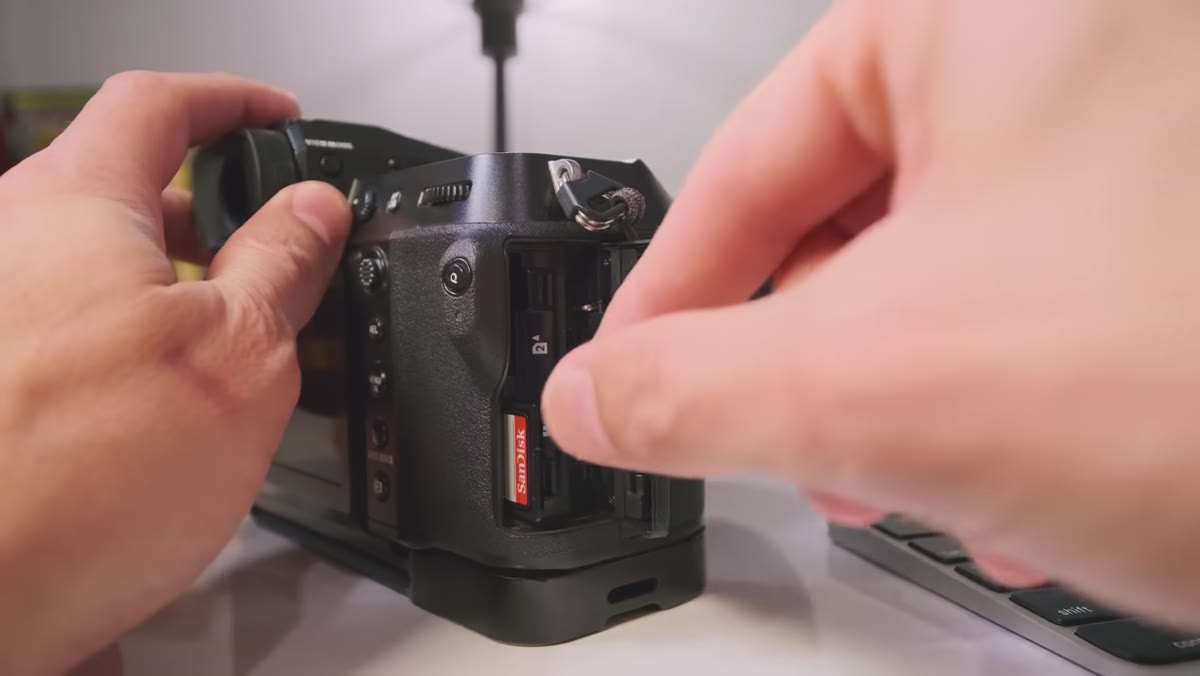 SD card being inserted into a laptop card reader
Whatever deletion method you choose, this step is non-negotiable: remove the SD card from your camera, place it in your computer’s card reader, and copy every file off it before you do anything else. Don’t pre-sort on the card. Don’t skip the blurry ones. Move everything.
SD card being inserted into a laptop card reader
Whatever deletion method you choose, this step is non-negotiable: remove the SD card from your camera, place it in your computer’s card reader, and copy every file off it before you do anything else. Don’t pre-sort on the card. Don’t skip the blurry ones. Move everything.
Once the transfer is complete, take a moment to verify the files actually landed correctly. Open the destination folder, spot-check a few images, make sure the file count roughly matches what you expected. Only after you’re confident the data is safe should you think about clearing the card. Rushing past this step is how photographers lose irreplaceable shots.
Step 3: Use Your Camera’s In-Menu Delete Function (Method Two)
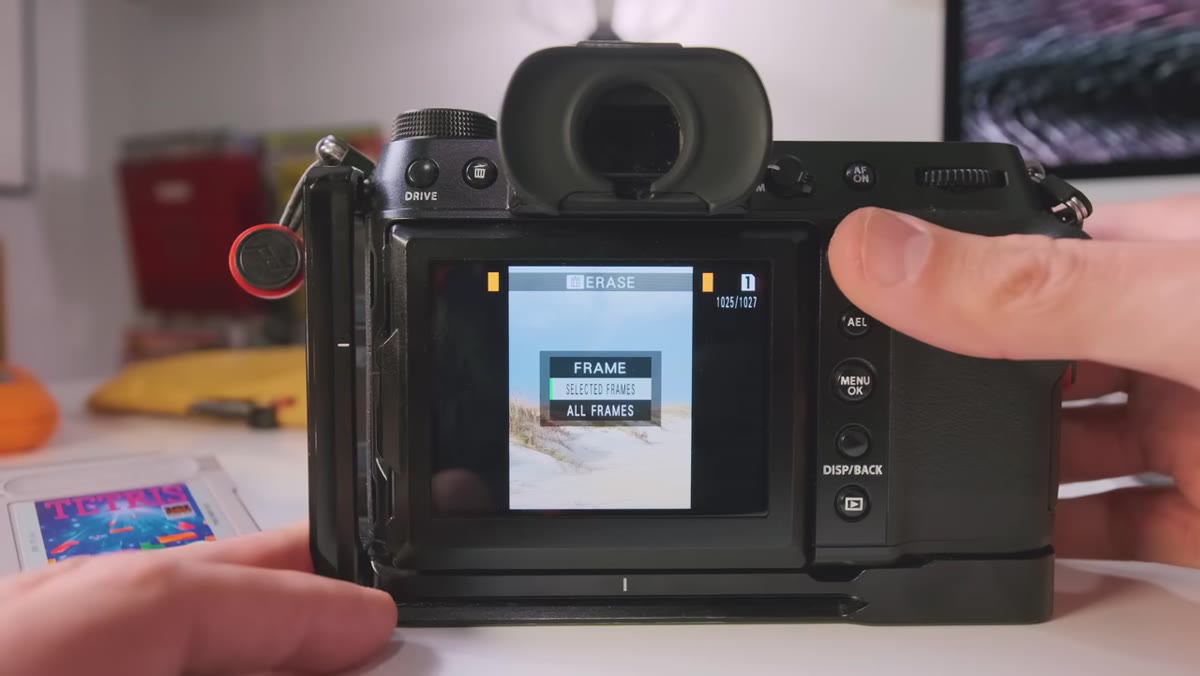 Camera menu showing delete all or format option
The second method Denney covers involves re-inserting the SD card into your camera after your transfer is complete and using the camera’s own menu system to delete all files. Most cameras bury this in a playback or setup menu rather than a dedicated button, so you may need to dig around, but it’s there. Look for options labeled “Delete All,” “Erase All,” or similar.
Camera menu showing delete all or format option
The second method Denney covers involves re-inserting the SD card into your camera after your transfer is complete and using the camera’s own menu system to delete all files. Most cameras bury this in a playback or setup menu rather than a dedicated button, so you may need to dig around, but it’s there. Look for options labeled “Delete All,” “Erase All,” or similar.
The advantage here is that the camera handles the file removal natively, which reduces the risk of any file system conflicts that can sometimes occur when a computer and a camera format a card differently. It’s a cleaner handoff than dragging files around a desktop.
Step 4: Skip the Drag-to-Trash Method on Your Desktop
 Computer desktop with SD card files visible in finder window
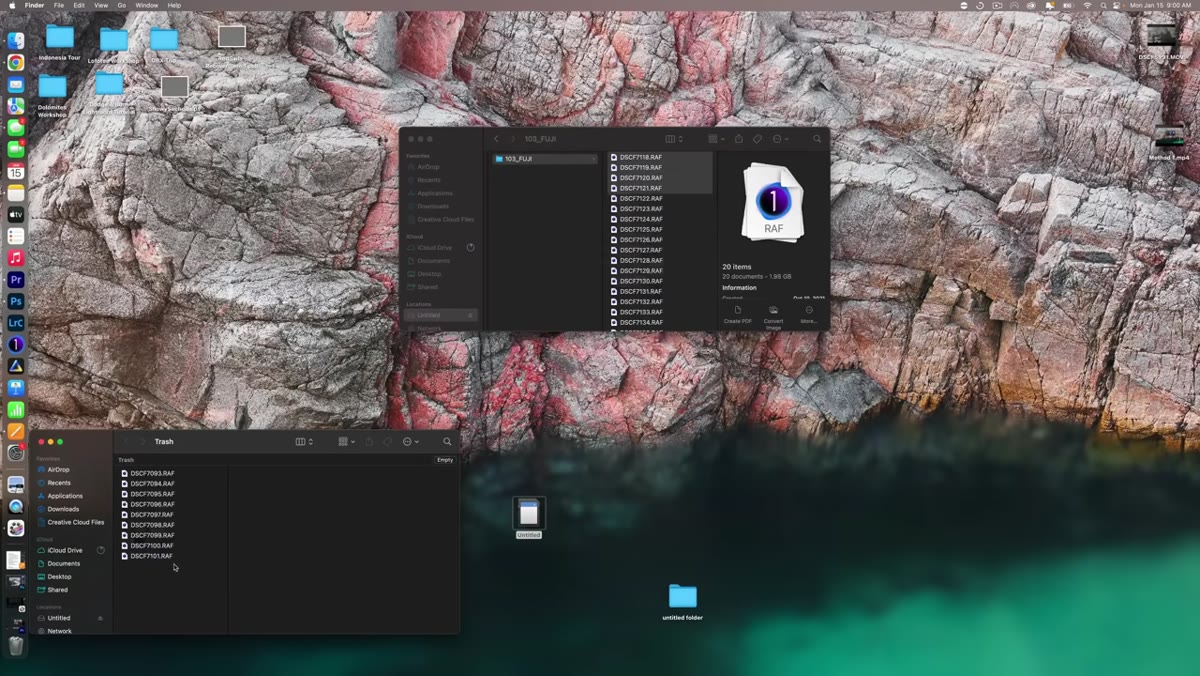
Method three is the one most beginners default to without thinking: transfer your files, then select everything on the SD card in your file browser and drag it to the Trash or Recycle Bin. It feels intuitive. It’s also where things can go sideways in small, annoying ways.
Computer desktop with SD card files visible in finder window
Method three is the one most beginners default to without thinking: transfer your files, then select everything on the SD card in your file browser and drag it to the Trash or Recycle Bin. It feels intuitive. It’s also where things can go sideways in small, annoying ways.
Denney shares a story about returning from a trip with thousands of photos, successfully transferring them, and then accidentally missing the Trash icon while dragging, ending up with files scattered all over his desktop. I laughed because I’ve done something similar. Beyond the mess, there’s also the issue that dragging to trash on some systems can leave behind hidden system files or folder structures on the card, which can occasionally cause read errors later. It’s not catastrophic, but it’s sloppy, and there’s a better option.
Step 5: Format the Card In-Camera. This Is the Move.
 Camera format SD card confirmation screen
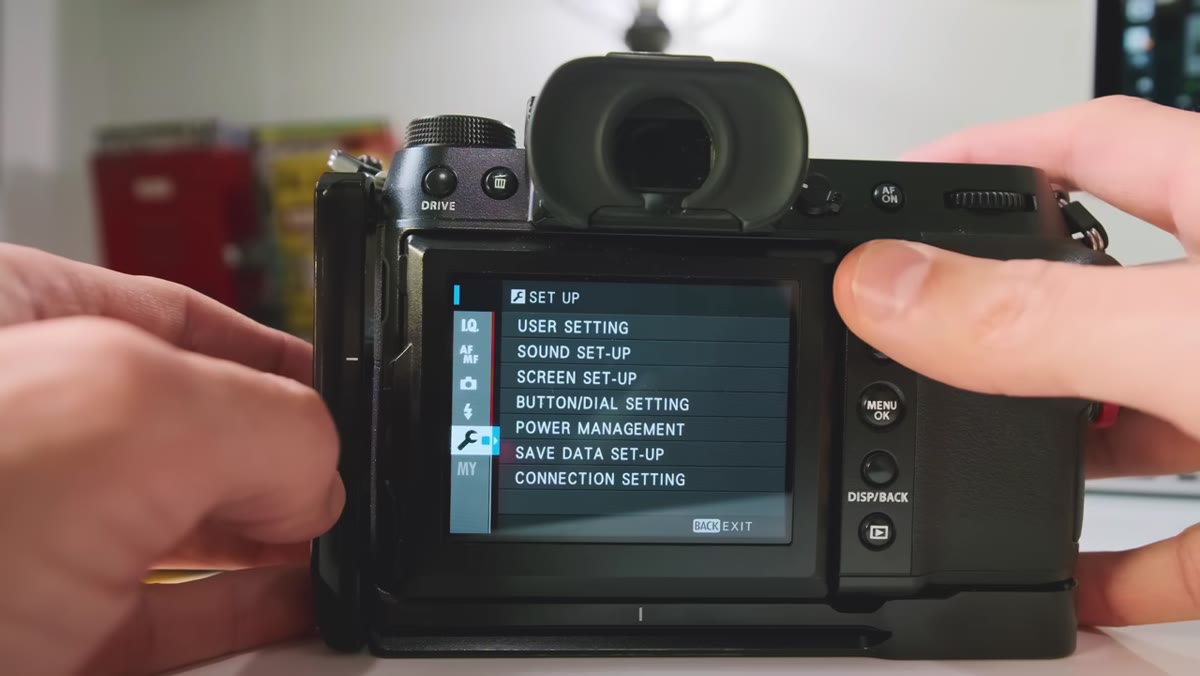
The fourth method is the one Denney recommends, and it’s the one I’ve used for years. After transferring all your files and confirming they’re safe on your computer, pop the SD card back into your camera and format it directly from the camera’s menu. On most cameras you’ll find this under Setup or Tools, labeled “Format Card” or “Format Memory Card.”
Camera format SD card confirmation screen
The fourth method is the one Denney recommends, and it’s the one I’ve used for years. After transferring all your files and confirming they’re safe on your computer, pop the SD card back into your camera and format it directly from the camera’s menu. On most cameras you’ll find this under Setup or Tools, labeled “Format Card” or “Format Memory Card.”
Formatting does more than delete. It rewrites the card’s file system from scratch, which is exactly what the camera expects when it starts writing new data. This keeps the card healthy over time and prevents the kind of fragmentation that can slow write speeds or, in worse cases, cause the card to behave unpredictably mid-shoot. Make formatting a ritual after every single download, and your cards will thank you.
A Note from My Own Workflow
I organize my transfers before I ever touch the delete or format option. When I get home from a shoot, I create a named folder on my desktop right away. If I was shooting at Golden Gardens on Sunday morning, that folder gets named exactly that, with the date. Every file from the card goes into that folder before I do anything else.
This habit came from losing track of files once when I was rushing between back-to-back shoots. Nothing was truly lost, but it took me 20 minutes to figure out which batch had gone where, and that kind of friction kills your editing momentum. Named folders cost you ten seconds. Finding mystery files costs you much more.
One more thing worth noting: if you shoot to two cards simultaneously for backup (which many mirrorless bodies support), format both cards before your next shoot, not just the primary. I’ve seen photographers format one card and then show up to a shoot with a full backup card from three sessions ago, which makes post-shoot organization a headache.
The single most important habit to take from all of this: never format or delete from a card until you have verified that your files are safely on your computer. Everything else is just choosing which safe method fits your workflow. Format in-camera, stay consistent, and you’ll avoid the kind of data loss story that makes photographers go quiet at the table.
Watch the full tutorial on YouTube to hear Denney walk through each method in his own words. It’s a short watch and worth it.
Comments
Leave a Comment