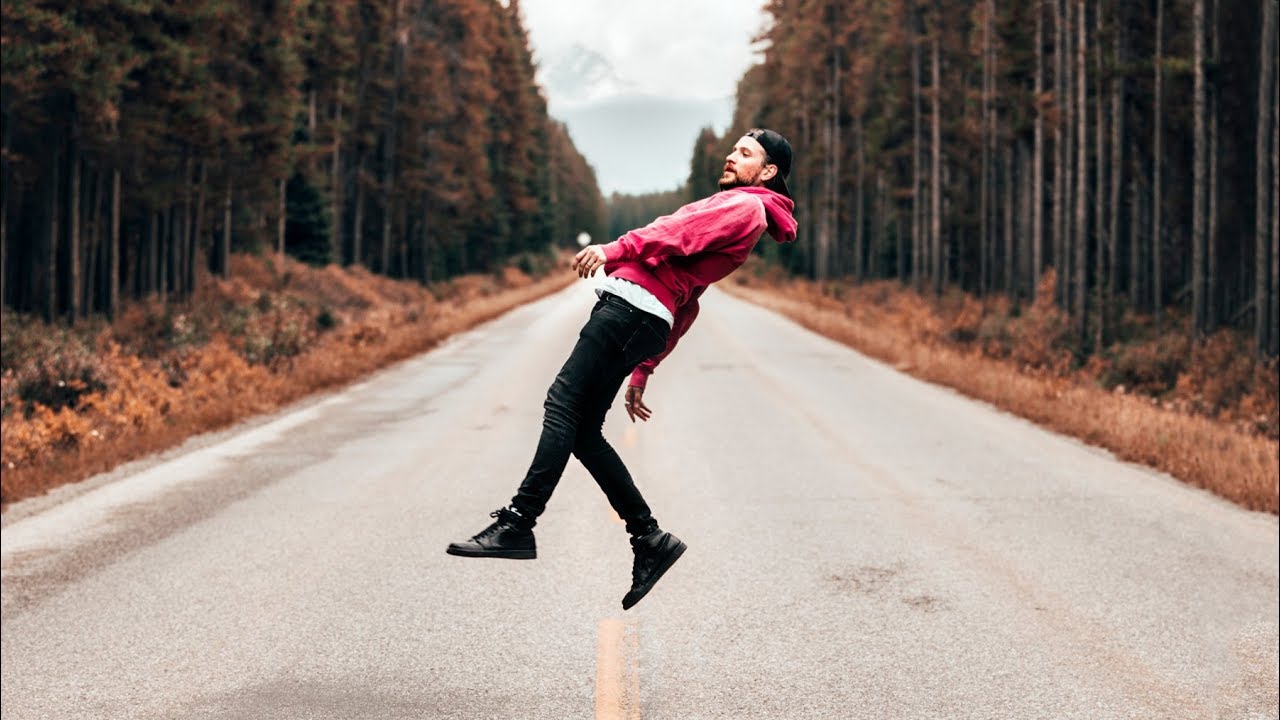
I still cringe at my edits from about four years ago. We’re talking blown-out highlights, skin tones that looked vaguely radioactive, and a clarity slider that had clearly never met a boundary it respected. The photos weren’t bad to begin with. The editing just buried them. If you’ve ever gone back through an old Lightroom catalog and quietly deleted things you were once proud of, you already know what I mean.
That’s exactly why I keep coming back to this kind of content. Watch the full tutorial on YouTube - it’s Peter McKinnon walking through the most common editing mistakes photographers make in post-production, and it’s the kind of honest, been-there-done-that breakdown I genuinely wish existed when I was starting out. He’s not prescriptive about style. He’s practical about process, which is a much more useful place to learn from.
What I love about this tutorial is that Peter admits upfront he’s been guilty of every single mistake he covers. That’s not a disclaimer, that’s a credential. These aren’t theoretical pitfalls. They’re the actual habits that form when you’re excited about editing and not yet calibrated to what “too much” actually looks like on screen.
Step 1: Recognize the Signs of Over-Editing
 Lightroom panel with saturation, contrast, clarity sliders pushed to extremes
The first mistake Peter addresses is over-editing, and it’s the one that gets almost everyone. When you’re new to Lightroom, the sliders feel like magic. Saturation makes colors pop. Clarity adds that punchy, textured look. Contrast gives everything weight. So you push them. And then you push them a little more. And in the moment, it looks incredible.
Lightroom panel with saturation, contrast, clarity sliders pushed to extremes
The first mistake Peter addresses is over-editing, and it’s the one that gets almost everyone. When you’re new to Lightroom, the sliders feel like magic. Saturation makes colors pop. Clarity adds that punchy, textured look. Contrast gives everything weight. So you push them. And then you push them a little more. And in the moment, it looks incredible.
The problem is that your eyes adjust to what’s in front of them. Spend twenty minutes staring at an over-saturated image and it starts to look normal. That’s why Peter’s advice here is practical rather than aesthetic: step away. Take five minutes. Make a coffee. Come back and look at the photo fresh. If your first thought is “wow,” great. If your first thought is “oh no,” trust that instinct. A photo that’s been over-processed stops communicating the subject and starts communicating the processing itself, which means whatever was compelling about the original shot gets completely lost.
Step 2: Understand What Clarity Actually Does to Your Image
 Lightroom clarity slider being moved with visible color shift in photo
This is the detail that most beginners don’t know, and it quietly ruins a lot of edits. When you push the clarity slider up in Lightroom, it doesn’t just add texture and definition. It also pulls color out of the image. The more clarity you add, the more desaturated the photo becomes in the midtones. This means if you’ve already boosted saturation and then you crank clarity, you’re essentially fighting against yourself and the image is going to look muddy and confused.
Lightroom clarity slider being moved with visible color shift in photo
This is the detail that most beginners don’t know, and it quietly ruins a lot of edits. When you push the clarity slider up in Lightroom, it doesn’t just add texture and definition. It also pulls color out of the image. The more clarity you add, the more desaturated the photo becomes in the midtones. This means if you’ve already boosted saturation and then you crank clarity, you’re essentially fighting against yourself and the image is going to look muddy and confused.
The fix is to think about your sliders as a system, not as independent controls. If you’re adding clarity, keep an eye on your colors and be prepared to nudge saturation back up slightly to compensate. Or better yet, use a lighter hand with clarity from the start. A small amount, somewhere in the 10-20 range, usually adds the definition you’re looking for without stripping the warmth from the image.
Step 3: Watch How Contrast Affects Saturation
 Contrast slider adjustment showing increased color saturation as a side effect
Here’s the flip side of the clarity problem: contrast does the opposite. When you increase contrast in Lightroom, you’re also effectively increasing saturation. The darks get deeper and richer, the lights get brighter, and the colors in between intensify. This is why photos can start looking oversaturated even when you haven’t touched the saturation slider at all.
Contrast slider adjustment showing increased color saturation as a side effect
Here’s the flip side of the clarity problem: contrast does the opposite. When you increase contrast in Lightroom, you’re also effectively increasing saturation. The darks get deeper and richer, the lights get brighter, and the colors in between intensify. This is why photos can start looking oversaturated even when you haven’t touched the saturation slider at all.
Peter’s point here is about understanding the relationships between your tools before you reach for them. If you’re adding contrast and then also adding saturation on top of that, you’re doubling up on an effect that’s already happening. Try adding your contrast first, then evaluate whether the colors actually need any additional boosting before you touch saturation. A lot of the time, you’ll find they don’t.
Step 4: Build in a Cooling-Off Period Before You Export
 Editor stepping back from screen to evaluate photo after adjustments
This one sounds simple and it is, but very few beginners actually do it consistently. After you finish editing a photo, don’t export it immediately. Give it at least a few minutes. Ideally, give it a day. When you come back to a photo with fresh eyes, you’ll catch things that were completely invisible when you were deep in the session: highlights that are slightly too bright, a color cast you didn’t notice, shadows that are crushed just a little too far.
Editor stepping back from screen to evaluate photo after adjustments
This one sounds simple and it is, but very few beginners actually do it consistently. After you finish editing a photo, don’t export it immediately. Give it at least a few minutes. Ideally, give it a day. When you come back to a photo with fresh eyes, you’ll catch things that were completely invisible when you were deep in the session: highlights that are slightly too bright, a color cast you didn’t notice, shadows that are crushed just a little too far.
I started keeping a “pending export” folder in Lightroom specifically for this reason. Photos go in there when I think I’m done, and I revisit them the next morning before I actually send anything out. It’s added maybe ten minutes to my workflow and has probably saved me from posting something I’d regret at least a dozen times.
Step 5: Set Soft Limits for Your Key Sliders
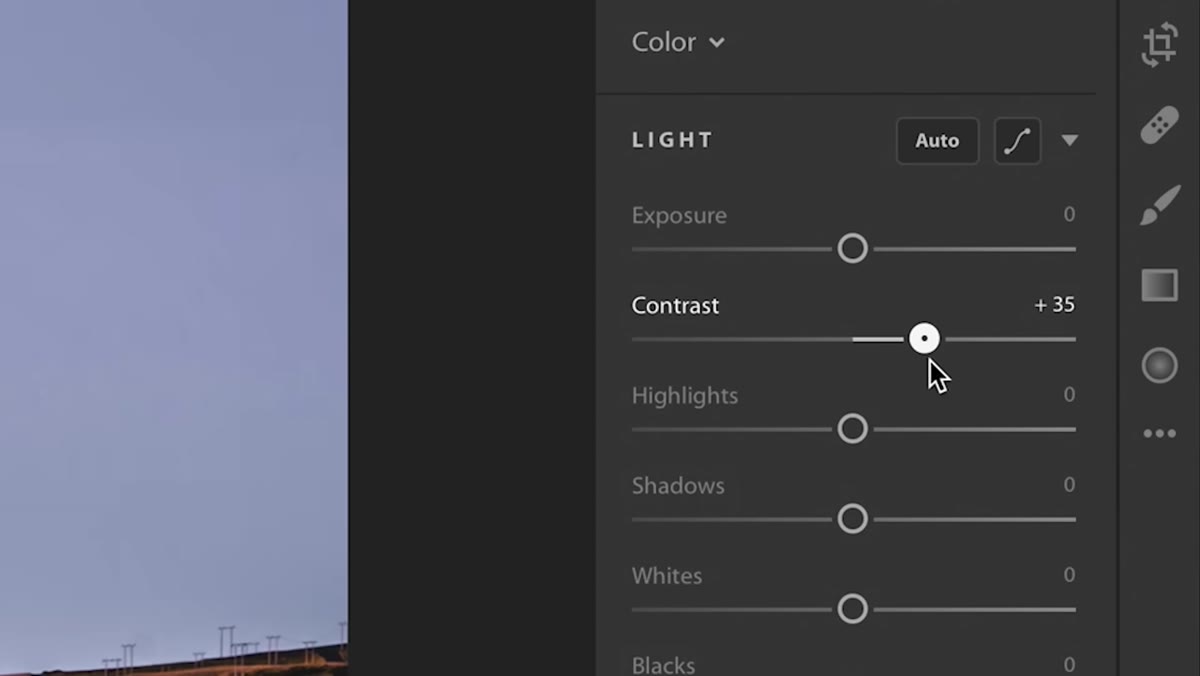 Lightroom sliders shown at moderate, controlled values rather than extremes
Peter doesn’t give exact numbers in the tutorial, but the underlying lesson is worth turning into a concrete habit. Give yourself soft ceilings for the sliders that are easiest to push too far. Saturation rarely needs to be above 25-30 for most images. Clarity generally doesn’t need to exceed 30 unless you’re going for a deliberately textured, graphic look. Contrast is most effective in smaller doses, often under 30, because it compounds with other adjustments.
Lightroom sliders shown at moderate, controlled values rather than extremes
Peter doesn’t give exact numbers in the tutorial, but the underlying lesson is worth turning into a concrete habit. Give yourself soft ceilings for the sliders that are easiest to push too far. Saturation rarely needs to be above 25-30 for most images. Clarity generally doesn’t need to exceed 30 unless you’re going for a deliberately textured, graphic look. Contrast is most effective in smaller doses, often under 30, because it compounds with other adjustments.
These aren’t rules. They’re guardrails. The point isn’t to cap your creativity, it’s to make sure you’re making intentional choices rather than just following the slider wherever it goes. When you hit one of your self-imposed limits, pause and ask whether the photo actually needs more or whether you’ve just gotten used to looking at it.
What I’d Add From My Own Editing Sessions
The thing Peter’s tutorial gestures at but doesn’t spell out directly is this: over-editing is often a symptom of under-shooting. When I only have one or two usable frames from a session, I tend to over-edit them, trying to squeeze more out of the image than was ever really there. When I’ve shot well and have options, I edit with a lighter hand because the photo is already doing the work.
The best check I’ve found is comparing my heavily edited version against a simple, lightly corrected version side by side using Lightroom’s before-and-after view. If I can’t articulate what each specific adjustment is contributing, I undo it. This single habit has done more for my editing than any preset or plugin I’ve ever tried.
The single most important thing to take from this tutorial is that restraint is a skill, and it takes just as much practice as knowing where the sliders are. Your goal in editing is to serve the photo, not to prove you know how to use the software. Watch Peter break this down in his own words here: Watch the full tutorial on YouTube
Comments
Leave a Comment