
Every few months I go through a phase where my photos start feeling flat to me. The exposure is right, the composition is solid, the colors are good - and I’m still bored looking at them. Usually what’s missing isn’t a new location or a better lens. It’s surface. That quality where a photo feels like it has weight, like it was pulled from somewhere physical rather than rendered on a screen.
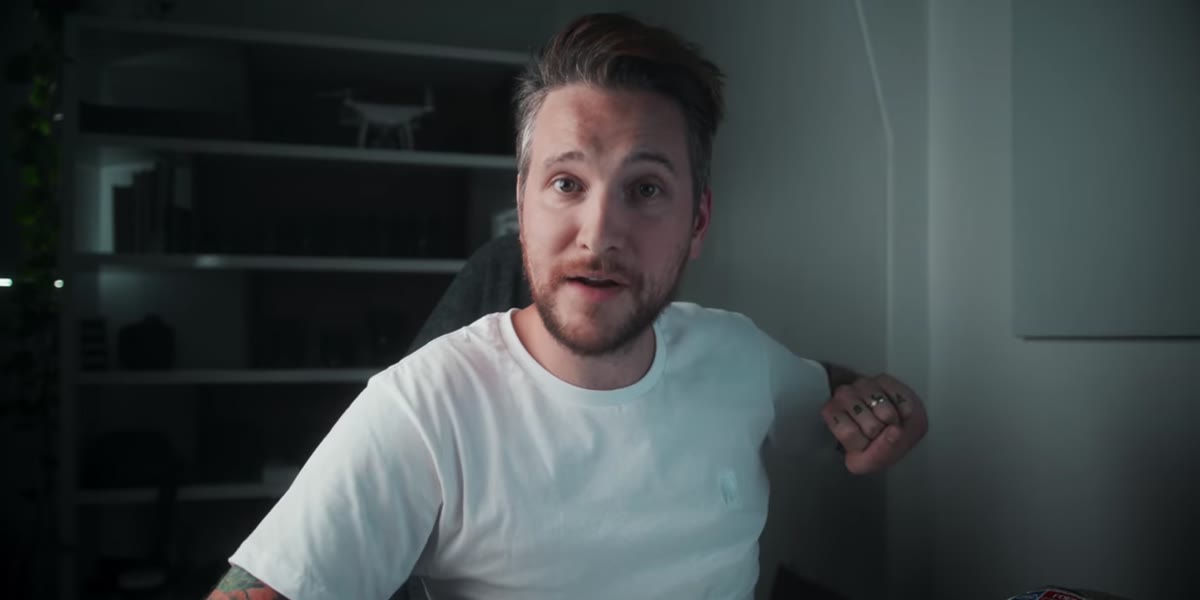
I fell down a rabbit hole recently watching Peter McKinnon experiment with a grunge texture technique on his channel, and it stopped that restless feeling cold. Watch the full tutorial on YouTube - but if you want the breakdown before you commit to the video, I’ve got you here. In this Peter McKinnon tutorial, the whole premise is beautifully simple: you photograph real-world textures yourself, convert them, and blend them onto your existing images in Photoshop. No stock asset packs, no presets you paid $40 for. Just your camera and whatever wall, window, or surface is within arm’s reach right now.
What I love about this approach - and why it immediately went into my regular workflow - is that it produces textures that actually match your gear and your light. They feel native to your photos because they were shot in the same environment, sometimes on the same day. Here’s exactly how to do it.
Step 1: Look for Textures in Your Immediate Environment
 Sound panel, window grime, and plaster wall shown as texture examples
You do not need to go anywhere special for this. McKinnon makes the point that you could do this entire technique from one room, and I believe him - I’ve shot usable textures in my kitchen, in a parking garage stairwell, and yes, once in an airport terminal while waiting for a delayed flight. Look for surfaces with natural variation: rough plaster walls, dusty or streaky windows, aged wood, concrete, foam panels. The imperfections are the point. Grime, water residue, uneven paint - all of it becomes raw material.
Sound panel, window grime, and plaster wall shown as texture examples
You do not need to go anywhere special for this. McKinnon makes the point that you could do this entire technique from one room, and I believe him - I’ve shot usable textures in my kitchen, in a parking garage stairwell, and yes, once in an airport terminal while waiting for a delayed flight. Look for surfaces with natural variation: rough plaster walls, dusty or streaky windows, aged wood, concrete, foam panels. The imperfections are the point. Grime, water residue, uneven paint - all of it becomes raw material.
The goal is to find something with enough visual noise to add interest when layered, but not so much structure that it competes with your subject. A window with light dust reads subtle on a portrait. A heavily cracked sidewalk might overpower a delicate shot. Start subtle and build from there.
Step 2: Shoot the Texture Close
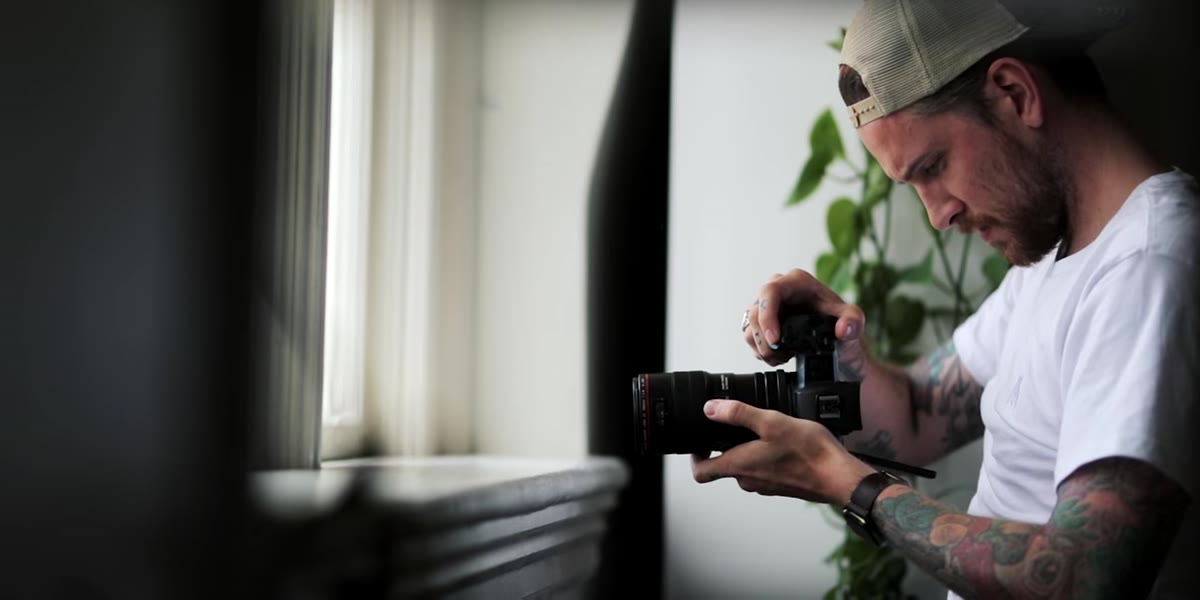 Macro shot of sound panel filling the frame with texture detail
Get close. McKinnon recommends a macro lens as the ideal tool here, and if you have one, absolutely use it - the level of detail you pull from ordinary surfaces is genuinely surprising. But don’t let not having a macro lens stop you. A telephoto lens, a kit lens at its closest focus distance, or even your phone camera pressed up near a surface will all get you something workable. Fill the frame with the texture. You want the texture itself to be the entire image, not a detail within a larger scene.
Macro shot of sound panel filling the frame with texture detail
Get close. McKinnon recommends a macro lens as the ideal tool here, and if you have one, absolutely use it - the level of detail you pull from ordinary surfaces is genuinely surprising. But don’t let not having a macro lens stop you. A telephoto lens, a kit lens at its closest focus distance, or even your phone camera pressed up near a surface will all get you something workable. Fill the frame with the texture. You want the texture itself to be the entire image, not a detail within a larger scene.
Shoot in good light so you can keep your ISO low and your image clean. The texture’s character should come from the surface itself, not from digital noise added by a high ISO. A sharp, well-exposed close-up of something genuinely rough will always beat a noisy shot of something smooth.
Step 3: Convert the Texture to Black and White in Lightroom
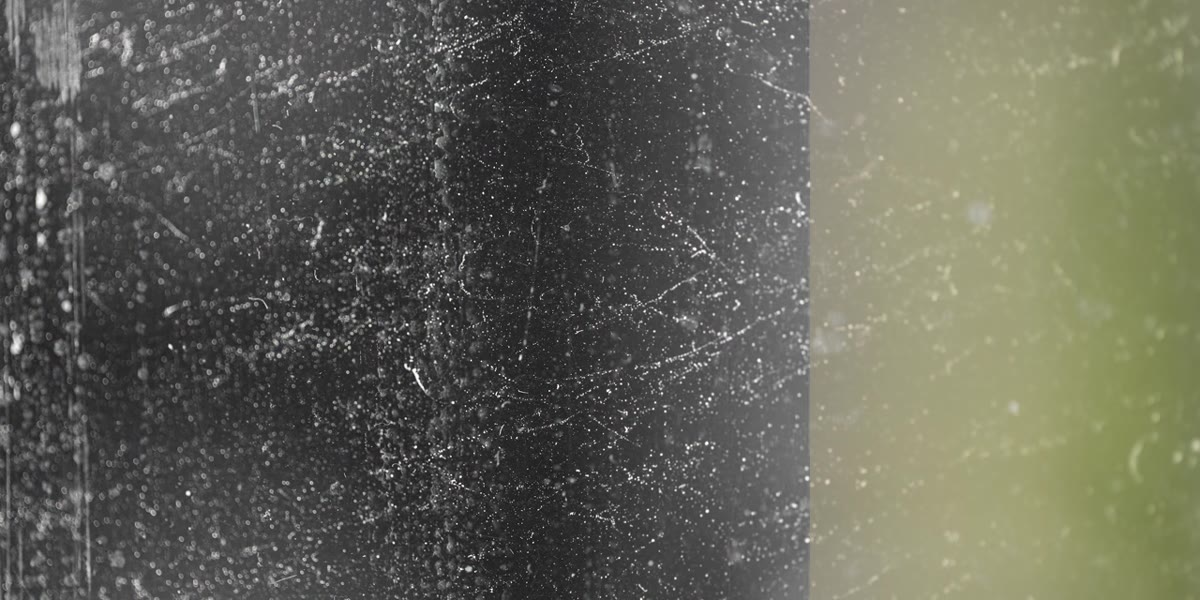 Texture image converted to black and white in Lightroom
Before you bring your texture into Photoshop, convert it to black and white. McKinnon does this step in Lightroom, and it’s worth understanding why: when you apply a blending mode in Photoshop, the color information in your texture layer can shift the tones in your base photo in unpredictable ways. Black and white removes that variable entirely. You’re blending luminosity - light and dark - rather than color.
Texture image converted to black and white in Lightroom
Before you bring your texture into Photoshop, convert it to black and white. McKinnon does this step in Lightroom, and it’s worth understanding why: when you apply a blending mode in Photoshop, the color information in your texture layer can shift the tones in your base photo in unpredictable ways. Black and white removes that variable entirely. You’re blending luminosity - light and dark - rather than color.
In Lightroom, use the HSL/Color panel to convert to black and white, and then spend a moment with the tone curve or basic sliders to push the contrast a little. You want clear separation between the light areas and the dark areas of the texture. A flat, grey texture image won’t add much impact once it’s blended.
Step 4: Place the Texture Layer on Top in Photoshop
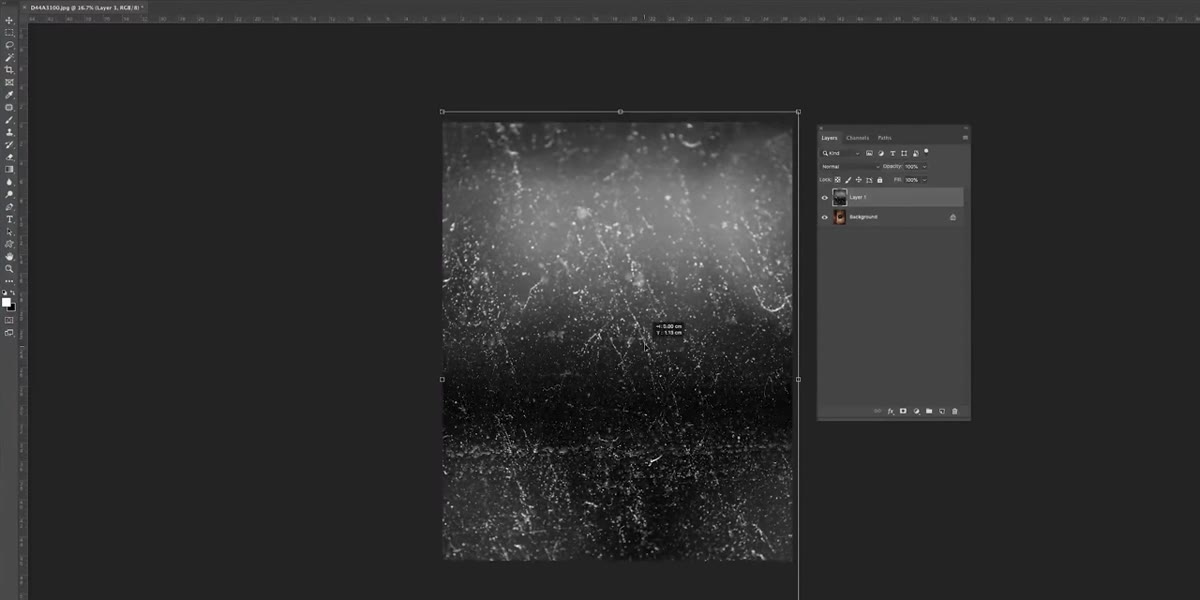
 Texture image being pasted as a top layer over the base photo in Photoshop
Open your base photo in Photoshop - this can be any image you want to give more character. Then open your converted black and white texture image and copy it. Paste it directly on top of your base photo as a new layer. Scale it to cover the entire frame if needed. At this point it will just look like your texture is blocking your photo entirely, which is fine. The blending mode change in the next step is where the magic actually happens.
Texture image being pasted as a top layer over the base photo in Photoshop
Open your base photo in Photoshop - this can be any image you want to give more character. Then open your converted black and white texture image and copy it. Paste it directly on top of your base photo as a new layer. Scale it to cover the entire frame if needed. At this point it will just look like your texture is blocking your photo entirely, which is fine. The blending mode change in the next step is where the magic actually happens.
Keep the texture as a separate layer rather than flattening it immediately. Working non-destructively means you can adjust opacity, mask areas, or swap textures later without starting over.
Step 5: Change the Blending Mode to Screen
 Blending mode dropdown in Photoshop set to Screen
This is the step everything hinges on. In the Layers panel, click the blending mode dropdown (it defaults to “Normal”) and select “Screen.” Screen mode works by essentially making the dark parts of your texture layer transparent and keeping the light parts visible. The result is that your base photo shows through fully in the shadows of the texture, while the lighter, rougher areas of the texture overlay the image and create that gritty, worn look.
Blending mode dropdown in Photoshop set to Screen
This is the step everything hinges on. In the Layers panel, click the blending mode dropdown (it defaults to “Normal”) and select “Screen.” Screen mode works by essentially making the dark parts of your texture layer transparent and keeping the light parts visible. The result is that your base photo shows through fully in the shadows of the texture, while the lighter, rougher areas of the texture overlay the image and create that gritty, worn look.
From here, pull the opacity of the texture layer down until the effect feels integrated rather than applied. Somewhere between 40% and 75% is usually a good starting range, but your eye is the real guide. You want the texture to feel like it belongs to the image, not like a filter slapped on top.
One Thing I’d Add: Shoot Textures in Multiple Light Conditions
I’ve been building a personal texture library on my Sunday photo walks - just a dedicated folder on my hard drive with texture shots organized loosely by mood. One thing I noticed early on is that the same surface shot in flat overcast light versus raking late-afternoon light produces completely different textures. The overcast version reads soft and even, good for portraits. The raking light version has hard shadows in every crack and groove, better for architectural shots or anything you want to feel more weathered.
If you shoot a few textures every week and start categorizing them even loosely, you’ll end up with a working toolkit in a few months that costs you nothing and is completely original. Nobody else has your window, your plaster wall, your parking garage. That specificity is worth something.
The single most important thing this technique teaches is that creative tools are already around you - you mostly just have to decide to look at them differently. A grimy window is just a grimy window until you decide it’s a texture asset. Once you make that mental shift, it’s hard to look at any surface without seeing potential.
Watch the full tutorial on YouTube to see McKinnon demonstrate the blending in real time and show the before-and-after on several different photos - seeing it move makes the Photoshop steps click even faster.
Comments
Leave a Comment