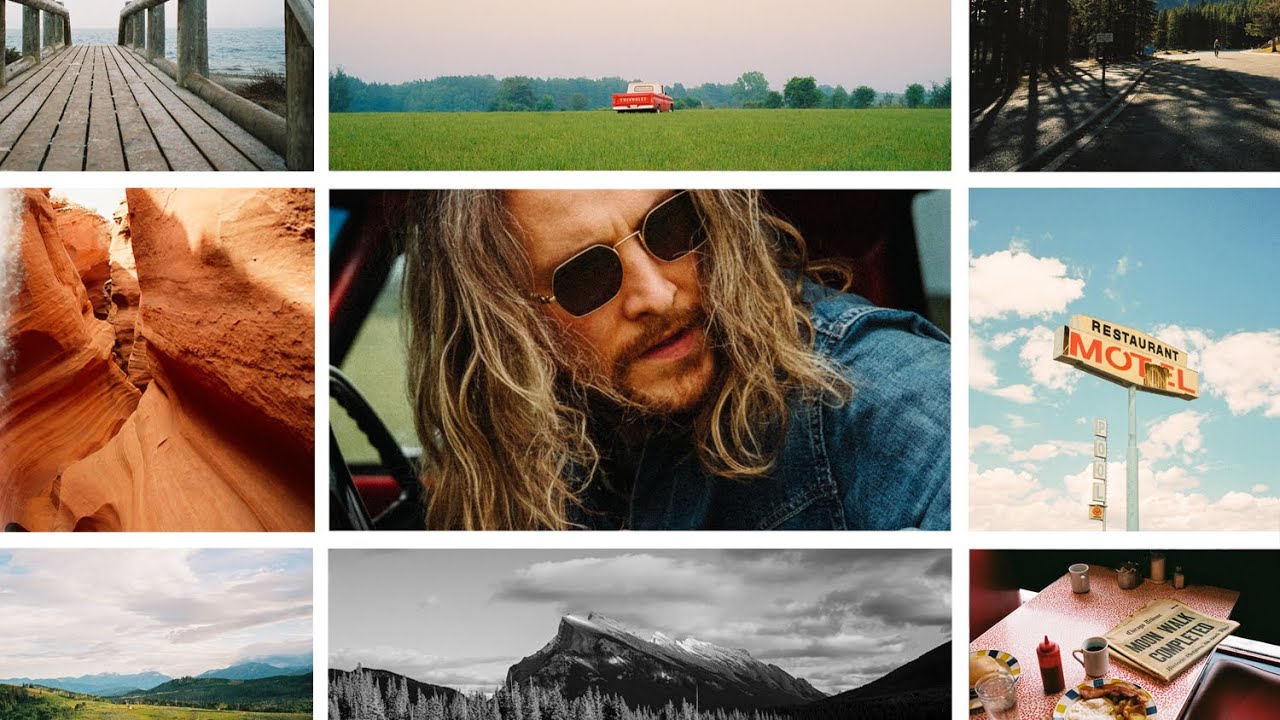
Every Sunday morning I take a photo walk around my Seattle neighborhood, and somewhere along the way I stopped worrying about which photos would perform best and started thinking about how my feed looked as a whole. That shift in mindset changed everything about how I post. So when I came across Watch the full tutorial on YouTube from Peter McKinnon on adding borders to photos, it hit on something I’d been feeling but hadn’t quite articulated: the grid is a canvas, and borders are one of the quietest tools you have for making it feel intentional.
In this Peter McKinnon tutorial, he breaks down why he adds borders to his Instagram posts, and then walks through two different mobile methods to actually do it. No Photoshop. No desktop software. Just your phone and a couple of apps you can download in minutes. His reasoning is practical and his workflow is fast, which is exactly what I want to share with you here.
The philosophy underneath all of this is worth holding onto before we get into the steps. When you add consistent borders, you create a visual buffer between photos with different tones, orientations, and subjects. Portraits don’t clash against landscapes. Dark moody shots don’t swallow bright airy ones. Everything gets a little breathing room, and the overall result looks curated rather than chaotic. That’s the goal.
Step 1: Decide Why You’re Adding Borders
 Peter explaining reasons for adding borders to photos
Before touching any app, get clear on your reason. McKinnon outlines three solid ones: aesthetic preference, a film photography influence, and Instagram’s grid behavior. On Instagram, not every photo is the same shape. A horizontal landscape and a vertical portrait sitting side by side can look jarring. Borders normalize the visual weight between different frame sizes so the grid reads as a unified body of work rather than a random collection.
Peter explaining reasons for adding borders to photos
Before touching any app, get clear on your reason. McKinnon outlines three solid ones: aesthetic preference, a film photography influence, and Instagram’s grid behavior. On Instagram, not every photo is the same shape. A horizontal landscape and a vertical portrait sitting side by side can look jarring. Borders normalize the visual weight between different frame sizes so the grid reads as a unified body of work rather than a random collection.
If you shoot a mix of orientations like I do, this reason alone is enough. You don’t need a deep artistic manifesto. If borders make your feed feel more like you, that’s sufficient justification.
Step 2: Try the Lightroom Mobile Method First
 Lightroom share menu with border options visible
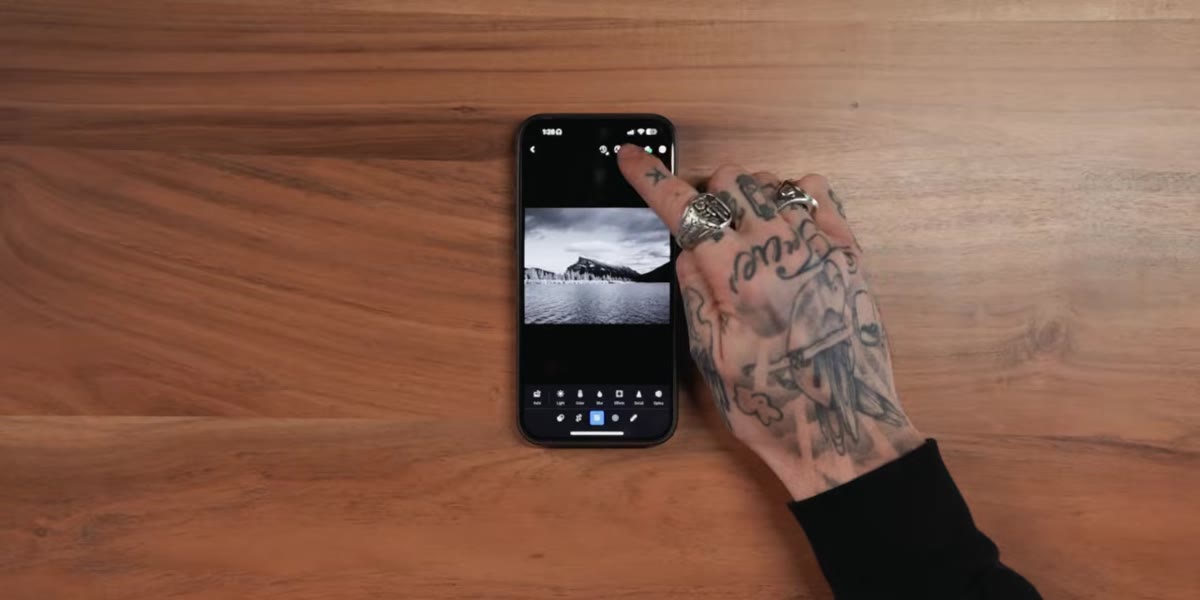
If you already edit your photos in Lightroom Mobile, this is the fastest path. Once you’ve finished editing an image, tap the share button. Inside the share menu, you’ll find a borders option with a simple slider. Drag the slider left for a thin border, right for a thicker one. The border is white by default and applies cleanly before the image exports to your camera roll.
Lightroom share menu with border options visible
If you already edit your photos in Lightroom Mobile, this is the fastest path. Once you’ve finished editing an image, tap the share button. Inside the share menu, you’ll find a borders option with a simple slider. Drag the slider left for a thin border, right for a thicker one. The border is white by default and applies cleanly before the image exports to your camera roll.
The key setting to play with here is the slider amount, which controls the visual spacing between your posts on the grid. McKinnon recommends experimenting until the spacing feels right for your specific content mix. Start somewhere in the middle and compare a few test exports side by side before committing to a value.
Step 3: Download Afterlight Photo for More Control
 Afterlight Photo app being opened on mobile
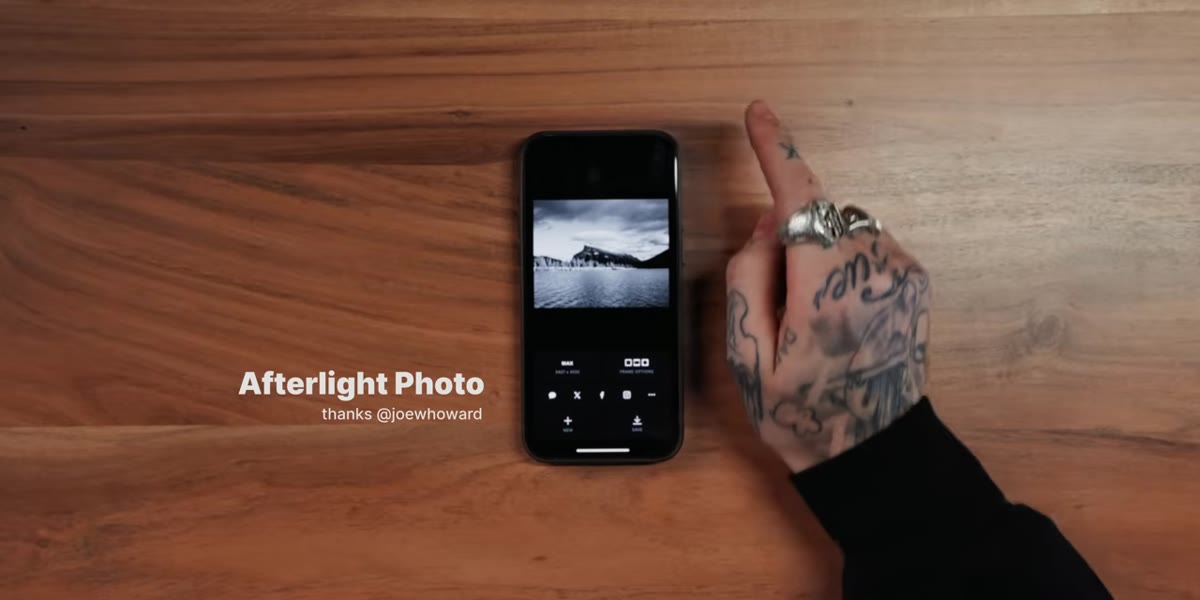
McKinnon’s preferred method uses an app called Afterlight Photo (spelled “Afterlife” in the video, but the app is Afterlight). It gives you more precise control over the border size and lets you handle horizontal and vertical shots differently, which matters more than you might expect. Download it from your app store and import your finished, edited photo into it. Don’t use Afterlight for color editing here. Bring in a photo you’ve already processed.
Afterlight Photo app being opened on mobile
McKinnon’s preferred method uses an app called Afterlight Photo (spelled “Afterlife” in the video, but the app is Afterlight). It gives you more precise control over the border size and lets you handle horizontal and vertical shots differently, which matters more than you might expect. Download it from your app store and import your finished, edited photo into it. Don’t use Afterlight for color editing here. Bring in a photo you’ve already processed.
Once the photo is imported, tap “Next” in the top right corner to move to the export options screen.
Step 4: Apply the Frame for Horizontal Photos
 Frame options screen showing horizontal photo with border slider
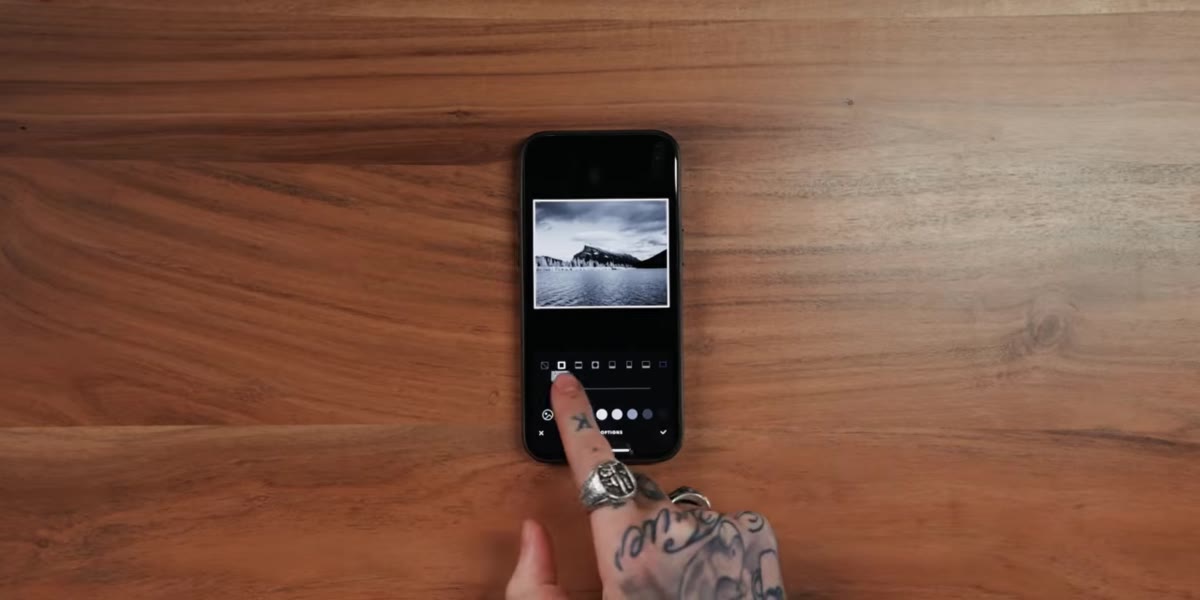
Inside Afterlight, tap “Frame Options.” For horizontal photos, McKinnon uses the second frame option and sets the border value to around 30. This creates a moderate white border that doesn’t overwhelm the image but provides enough visual separation to read clearly on the grid.
Frame options screen showing horizontal photo with border slider
Inside Afterlight, tap “Frame Options.” For horizontal photos, McKinnon uses the second frame option and sets the border value to around 30. This creates a moderate white border that doesn’t overwhelm the image but provides enough visual separation to read clearly on the grid.
You don’t have to use 30. Drag the slider and watch how the border changes in the preview. The right value depends on your personal style and how dense or spacious you want your grid to feel. Once you land on a number you like, stay consistent with it across all your horizontal posts. Consistency is where the magic happens.
Step 5: Crank the Border Up for Vertical Photos
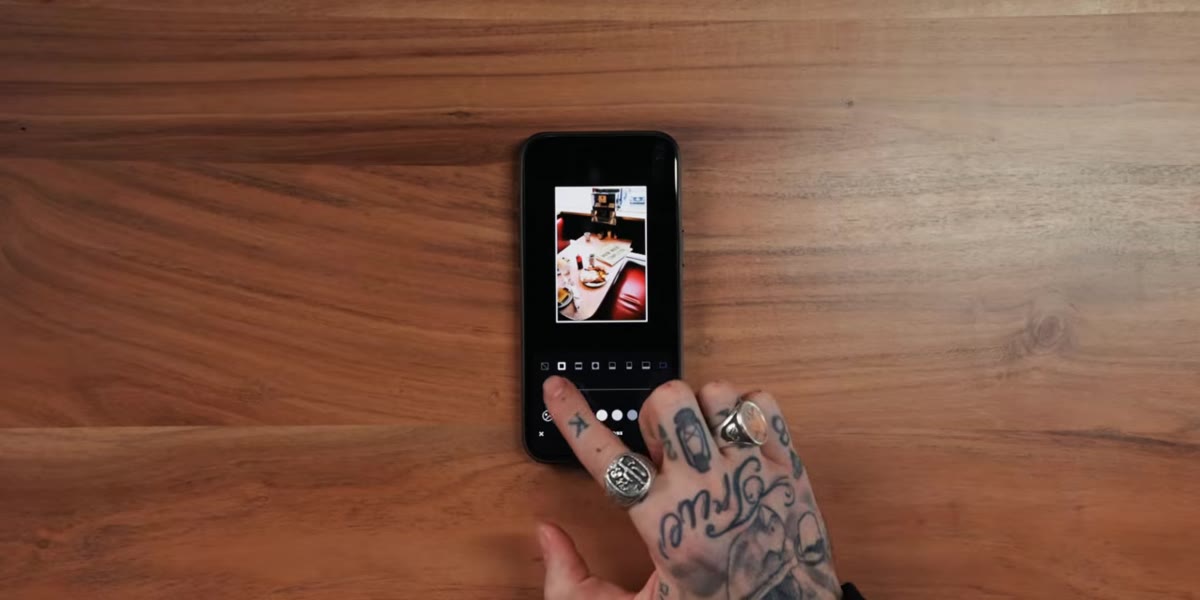 Vertical photo in Afterlight with border slider at maximum
Vertical photos get different treatment. McKinnon pushes the slider all the way to 100 for verticals. The reason is proportional: a vertical image already takes up more visual space on the grid, and a heavier border helps it sit more comfortably alongside horizontal shots without dominating everything around it.
Vertical photo in Afterlight with border slider at maximum
Vertical photos get different treatment. McKinnon pushes the slider all the way to 100 for verticals. The reason is proportional: a vertical image already takes up more visual space on the grid, and a heavier border helps it sit more comfortably alongside horizontal shots without dominating everything around it.
Export from Afterlight and the image saves directly to your camera roll. Simple as that. Now you have two different border values to remember: roughly 30 for horizontals, 100 for verticals. Write them down somewhere until they become habit.
Step 6: Use a Preview App to Check Your Grid Before Posting
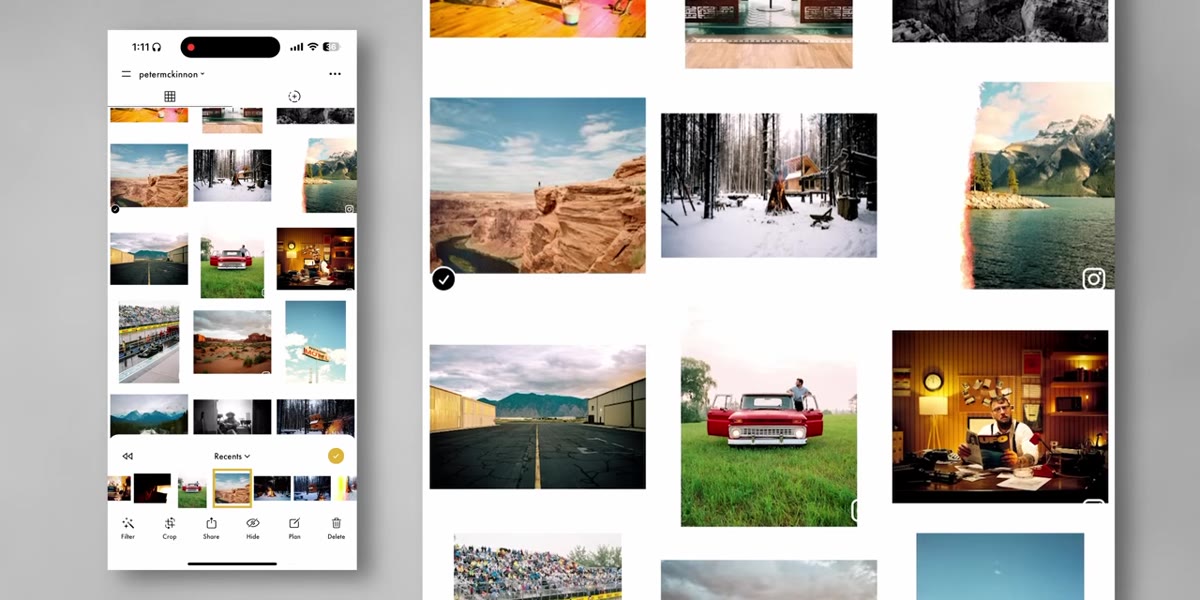 Preview app showing upcoming Instagram grid layout
This step is the one people skip, and it’s the one that matters most. Before posting anything, drop your newly bordered image into a grid preview app (UNUM, Preview, and Planoly all do this). Arrange your upcoming posts and look at how the shapes interact with each other.
Preview app showing upcoming Instagram grid layout
This step is the one people skip, and it’s the one that matters most. Before posting anything, drop your newly bordered image into a grid preview app (UNUM, Preview, and Planoly all do this). Arrange your upcoming posts and look at how the shapes interact with each other.
McKinnon points out that this is less about matching tones now and more about how frame shapes “Tetris together.” A medium format crop is a different ratio than a 35mm crop, and those differences show up on the grid. The preview app lets you catch awkward pairings before they go live, not after.
What I’d Add From My Own Experience
After testing this workflow myself, the one thing I’d emphasize is to pick one border value per orientation and never deviate from it. I made the mistake early on of adjusting the border thickness based on the photo, thinking I was being flexible. What I was actually doing was creating subtle inconsistencies that made the grid feel slightly off even when I couldn’t immediately name why.
I also recommend applying borders as your very last step, after all color editing is complete. Editing an image after adding a border can shift how the white balance reads against that white frame, and you’ll spend time correcting something that didn’t need to happen in the first place.
The single most important takeaway here is that borders are a compositional tool for your grid, not just a stylistic flourish. Used consistently, they give you more creative freedom in what you shoot because they handle the visual cohesion for you. That’s the trade Peter McKinnon makes, and after building this into my own workflow, I understand exactly why.
Watch the full tutorial on YouTube to see McKinnon’s hands-on walkthrough of both methods in action.
Comments
Leave a Comment