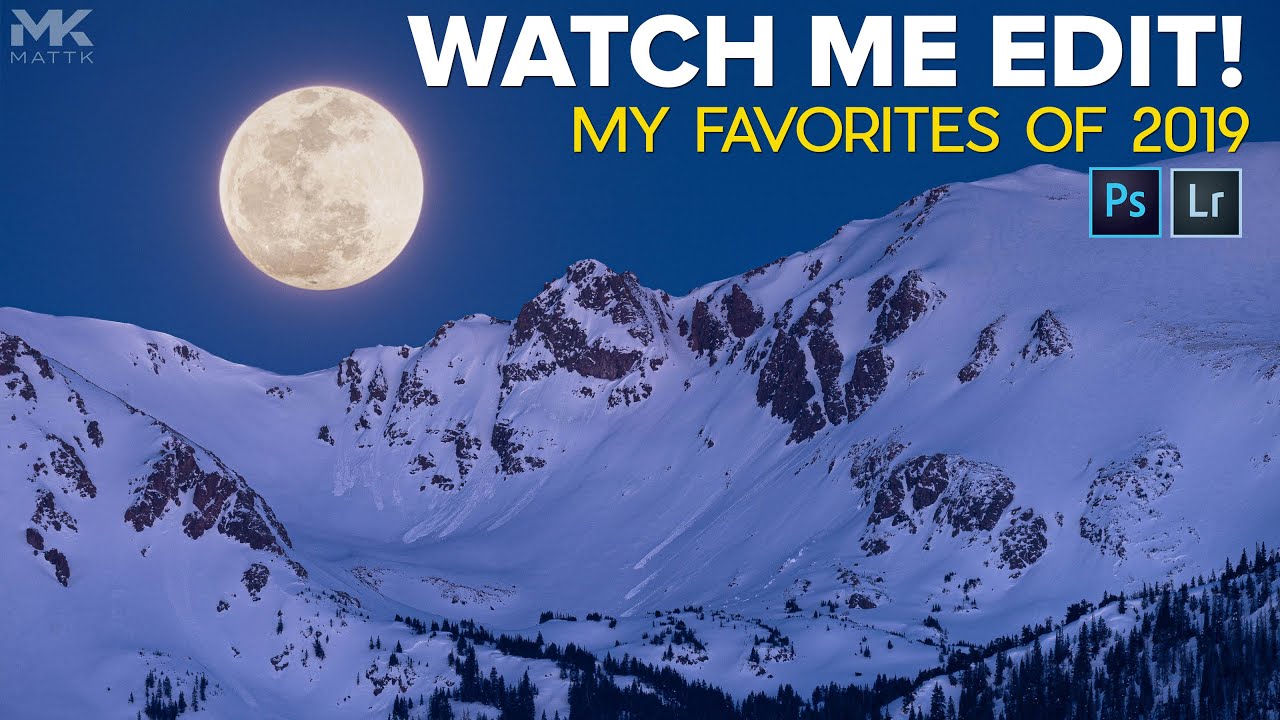
Every January I do a little ritual: I go back through the previous year’s photos and force myself to look at the ones I skipped over. It’s uncomfortable, honestly. Some of them turn out to be better than I remembered, and some of them remind me of what I was trying to do before I gave up and moved on. What I’ve learned is that the gap between a forgotten photo and a favorite one is usually just a thoughtful edit.
That’s why I keep coming back to this kind of content. In this Matt Kloskowski tutorial, Watch the full tutorial on YouTube, Matt walks through the editing process on his best shots from 2019, one by one, inside Lightroom. It’s not a slow-paced beginner walkthrough. It’s a working photographer moving at working speed, and that’s exactly what makes it so useful. You get to see how decisions stack on top of each other, not just what each slider does in isolation.
What I pulled from watching this is a repeatable editing order that keeps you from chasing your own tail. If you’ve ever bumped up your exposure, then fixed your whites, then realized your shadows look muddy, then gone back to exposure again, this workflow is for you.
Step 1: Crop First, Ask Questions Later
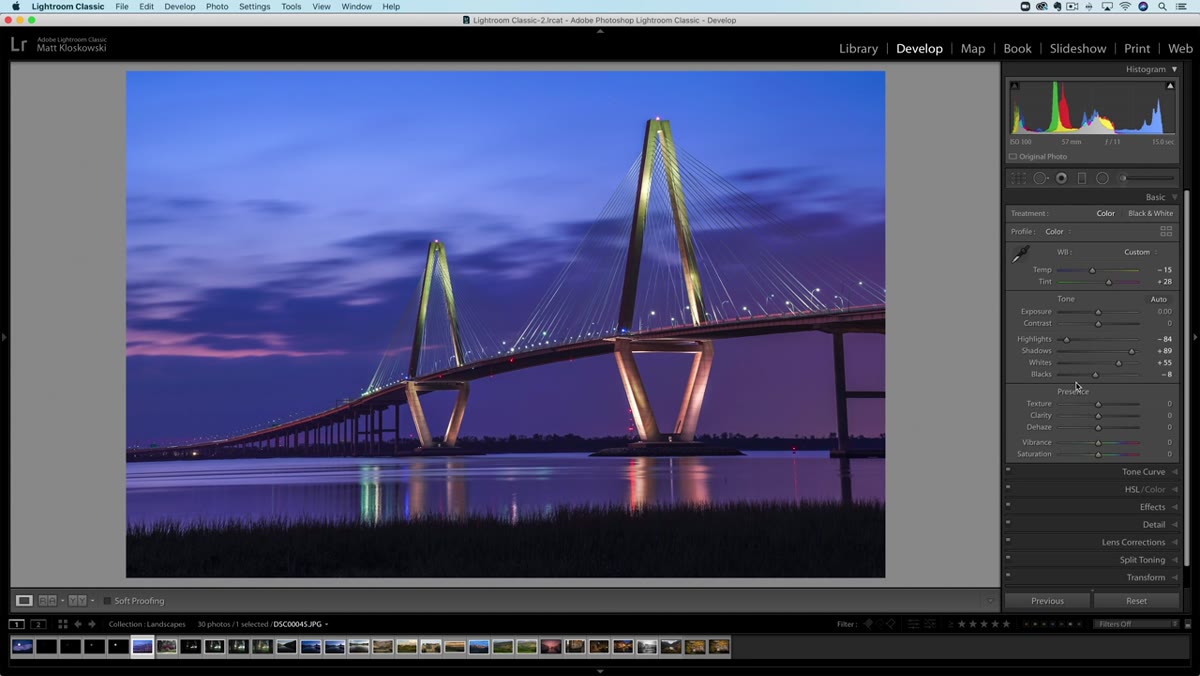 Lightroom crop tool applied to Charleston bridge photo
Before touching a single tone slider, Matt crops the image. This isn’t about trimming edges for the sake of it. It’s about deciding what the photo is actually about. In the Charleston bridge example, a tighter crop pushes the bridge forward visually and removes dead space that was diluting the impact of the scene.
Lightroom crop tool applied to Charleston bridge photo
Before touching a single tone slider, Matt crops the image. This isn’t about trimming edges for the sake of it. It’s about deciding what the photo is actually about. In the Charleston bridge example, a tighter crop pushes the bridge forward visually and removes dead space that was diluting the impact of the scene.
I used to crop at the end of my edits. The problem is that you spend time perfecting tones in parts of the image you’re about to delete. Crop first, commit to your composition, then edit what remains. It saves time and it keeps your eye focused on the actual subject.
Step 2: Balance Highlights and Shadows Before Anything Else
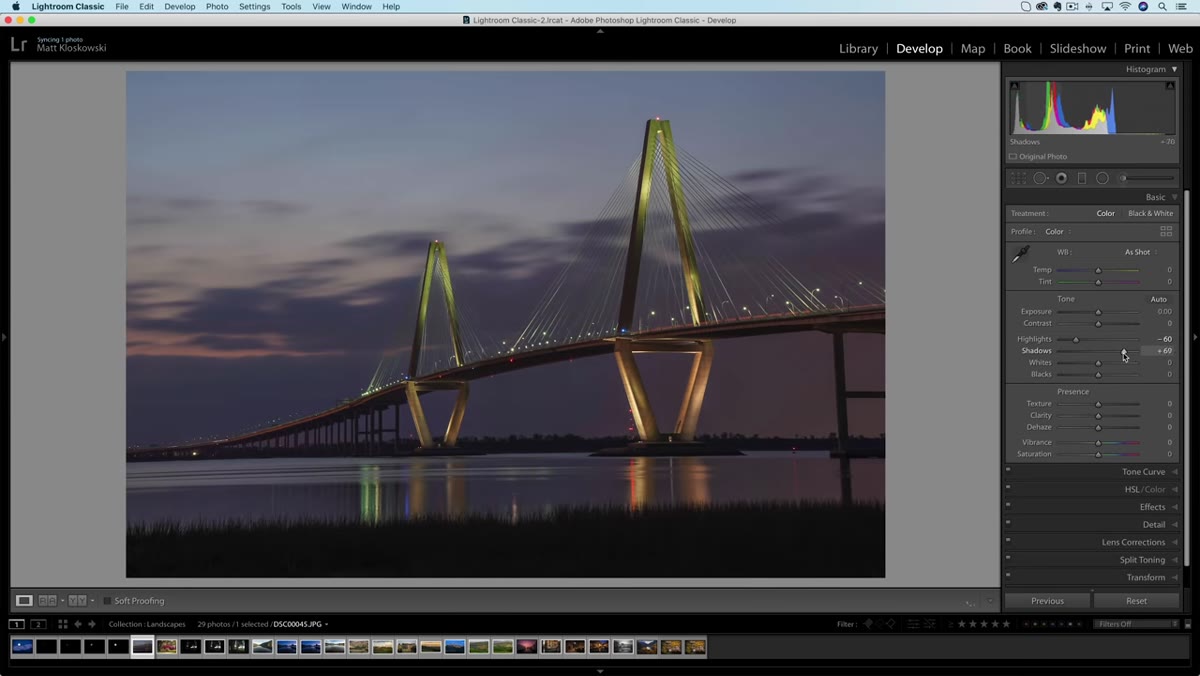 Highlights and shadows sliders being adjusted in Lightroom
Once the crop is set, Matt pulls the highlights down and lifts the shadows. This is the classic RAW editing move that recovers detail in the bright areas while opening up the darker parts of the frame. The values aren’t dramatic, just enough to bring the image closer to what the scene actually looked like.
Highlights and shadows sliders being adjusted in Lightroom
Once the crop is set, Matt pulls the highlights down and lifts the shadows. This is the classic RAW editing move that recovers detail in the bright areas while opening up the darker parts of the frame. The values aren’t dramatic, just enough to bring the image closer to what the scene actually looked like.
Think of this step as resetting the image to a neutral starting point. RAW files often come out of camera looking flat or slightly overexposed in the highlights. Reining those in before you touch anything else means every adjustment you make afterward is working from a more accurate base.
Step 3: Set Your White and Black Points with the Option/Alt Key
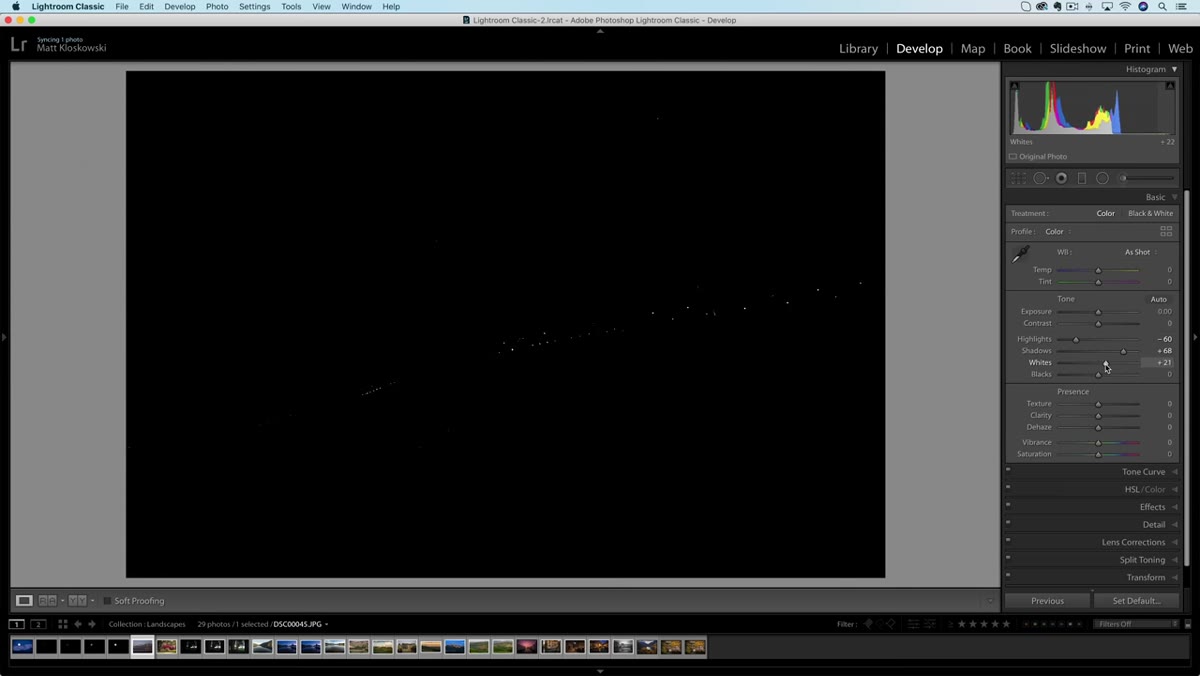 Whites slider adjusted with Alt key showing clipping overlay
This is a small technique detail that pays off every single time. Hold down the Option key on Mac (or Alt on Windows) while dragging the Whites slider to the right. The screen will go black and show you small white specks as highlights begin to clip. Stop just before those specks appear consistently. Then do the same with the Blacks slider, dragging left until you see the first hints of pure black showing up.
Whites slider adjusted with Alt key showing clipping overlay
This is a small technique detail that pays off every single time. Hold down the Option key on Mac (or Alt on Windows) while dragging the Whites slider to the right. The screen will go black and show you small white specks as highlights begin to clip. Stop just before those specks appear consistently. Then do the same with the Blacks slider, dragging left until you see the first hints of pure black showing up.
What this does is give your image a full tonal range without guessing. You’re not picking arbitrary numbers. You’re letting the image tell you where the endpoints should be. Matt uses this on every photo in the video, and once you start doing it, you’ll wonder how you edited without it.
Step 4: Color Grade to Set the Mood
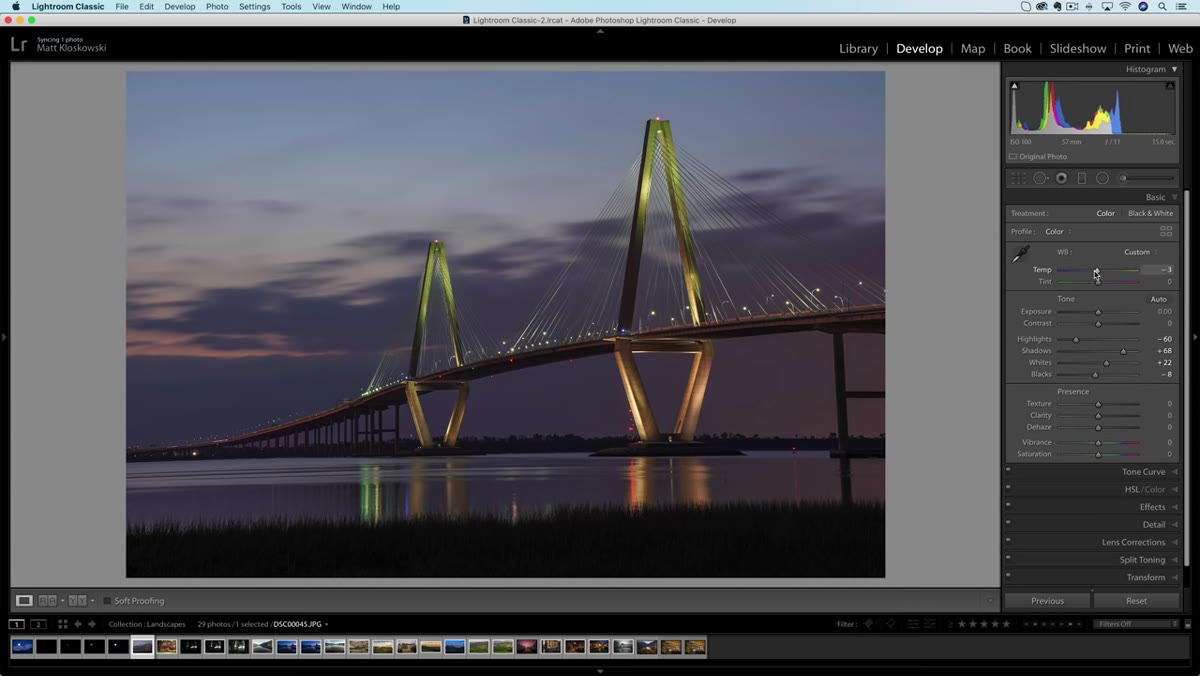 Temperature and tint sliders shifted toward blue and magenta
After the tones are balanced, Matt shifts into color. For the bridge photo, he pushes the temperature cooler (more blue) and adds a touch of magenta. This isn’t about making the photo look unnatural. It’s about reinforcing the mood that was already in the scene at the time of shooting.
Temperature and tint sliders shifted toward blue and magenta
After the tones are balanced, Matt shifts into color. For the bridge photo, he pushes the temperature cooler (more blue) and adds a touch of magenta. This isn’t about making the photo look unnatural. It’s about reinforcing the mood that was already in the scene at the time of shooting.
Color grading in Lightroom is where a photo stops looking like a competent exposure and starts looking like a photograph with a point of view. Small moves matter here. A 200-point shift on the temperature slider looks garish. A 20-point shift in the right direction can make a photo feel completely intentional. Start subtle and pull back if it looks overdone.
Step 5: Use a Graduated Filter to Target a Specific Area
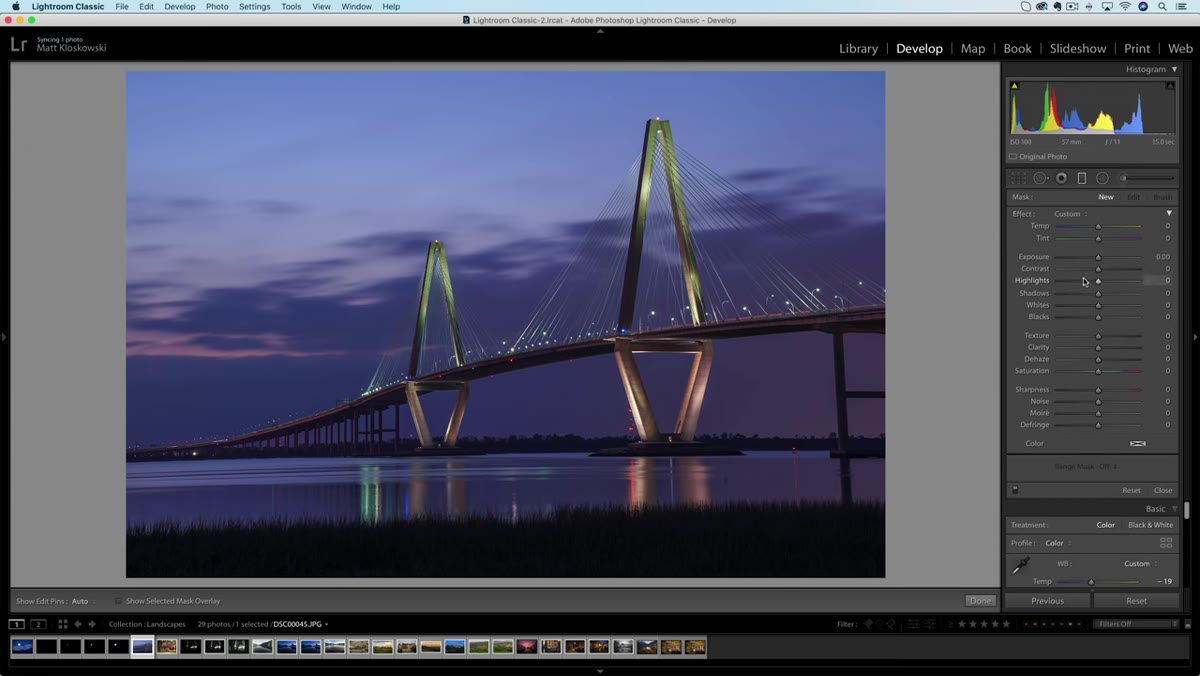 Graduated filter dragged over sky of bridge image
This is where the workflow gets more specific. Matt adds a graduated filter over the sky and pulls the highlights down within that filter. The goal is to darken the sky without touching the bridge or the foreground. A basic exposure adjustment would affect the whole image. The graduated filter lets him be precise.
Graduated filter dragged over sky of bridge image
This is where the workflow gets more specific. Matt adds a graduated filter over the sky and pulls the highlights down within that filter. The goal is to darken the sky without touching the bridge or the foreground. A basic exposure adjustment would affect the whole image. The graduated filter lets him be precise.
If you haven’t used graduated filters much, think of them as a mask that fades from full effect to zero effect across the image. Drag from the top down to apply it to the sky, and whatever adjustments you make only affect that portion of the frame.
Step 6: Refine the Mask with Color Range
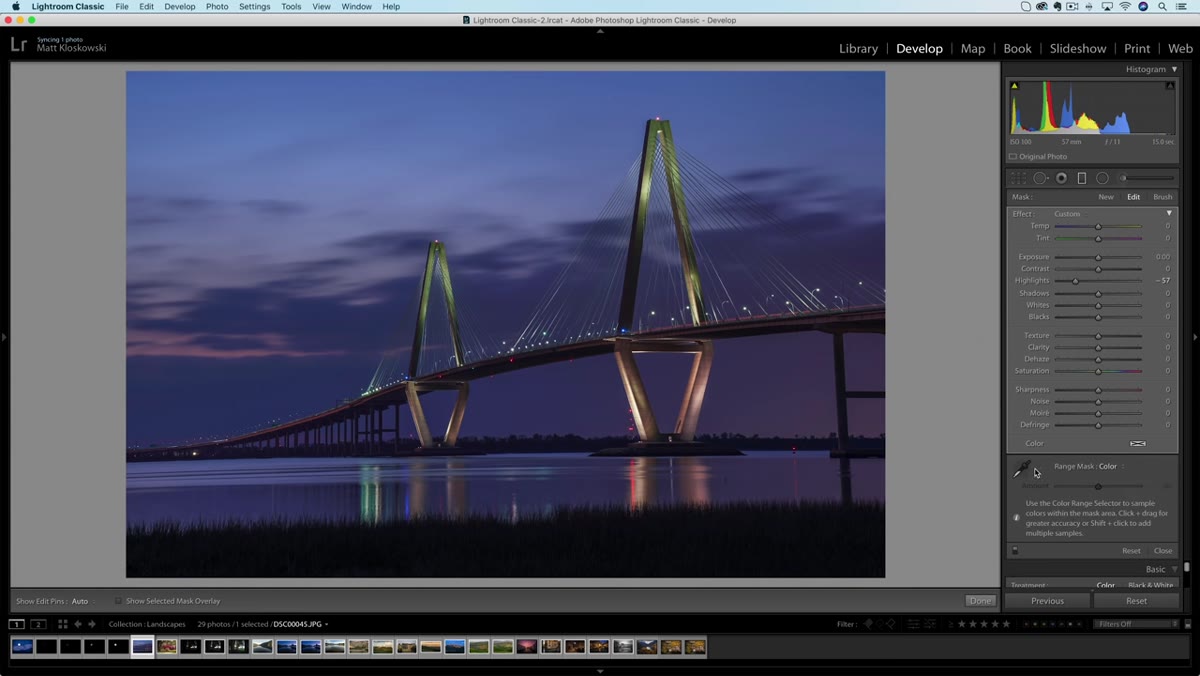 Color range mask eyedropper sampling the sky area
Here’s where it gets clever. After placing the graduated filter, Matt uses the Range Mask tool set to Color, then uses the eyedropper to lasso the sky tones. This tells Lightroom: only apply this filter where these colors exist. The result is that the darkening effect stays in the sky and doesn’t bleed into the bridge below.
Color range mask eyedropper sampling the sky area
Here’s where it gets clever. After placing the graduated filter, Matt uses the Range Mask tool set to Color, then uses the eyedropper to lasso the sky tones. This tells Lightroom: only apply this filter where these colors exist. The result is that the darkening effect stays in the sky and doesn’t bleed into the bridge below.
You can verify it’s working by pressing the letter O on your keyboard to toggle the overlay view. A red tint will show you exactly where the mask is active. If you see red on areas you don’t want affected, go back and adjust the color range selection. This is the difference between an edit that looks professional and one that looks like it was done with a sledgehammer.
A Note From My Own Editing Desk
The thing Matt doesn’t say explicitly but demonstrates repeatedly is that editing order matters as much as the edits themselves. I used to jump around, pulling color before fixing tones, adding masks before committing to a crop. The result was always edits that felt patched together rather than cohesive.
What I do now is close to what Matt shows here: composition first, tones next, color after, then selective adjustments to specific areas. It mirrors the way you’d approach a darkroom print, working from the broad to the specific. And if something looks off at the end, I go back to step one rather than piling on more adjustments. Usually the problem started earlier than I think.
The single most important thing I took from this tutorial is that a great edit is mostly restraint. Matt isn’t applying extreme adjustments to any of these photos. He’s making a series of small, purposeful moves in a consistent order, and the results speak for themselves. If you want to watch him work through an entire year’s worth of images at real editing speed, including a two-exposure moon-and-mountains composite he saves for the very end, Watch the full tutorial on YouTube. It’s worth the full runtime.
Comments
Leave a Comment