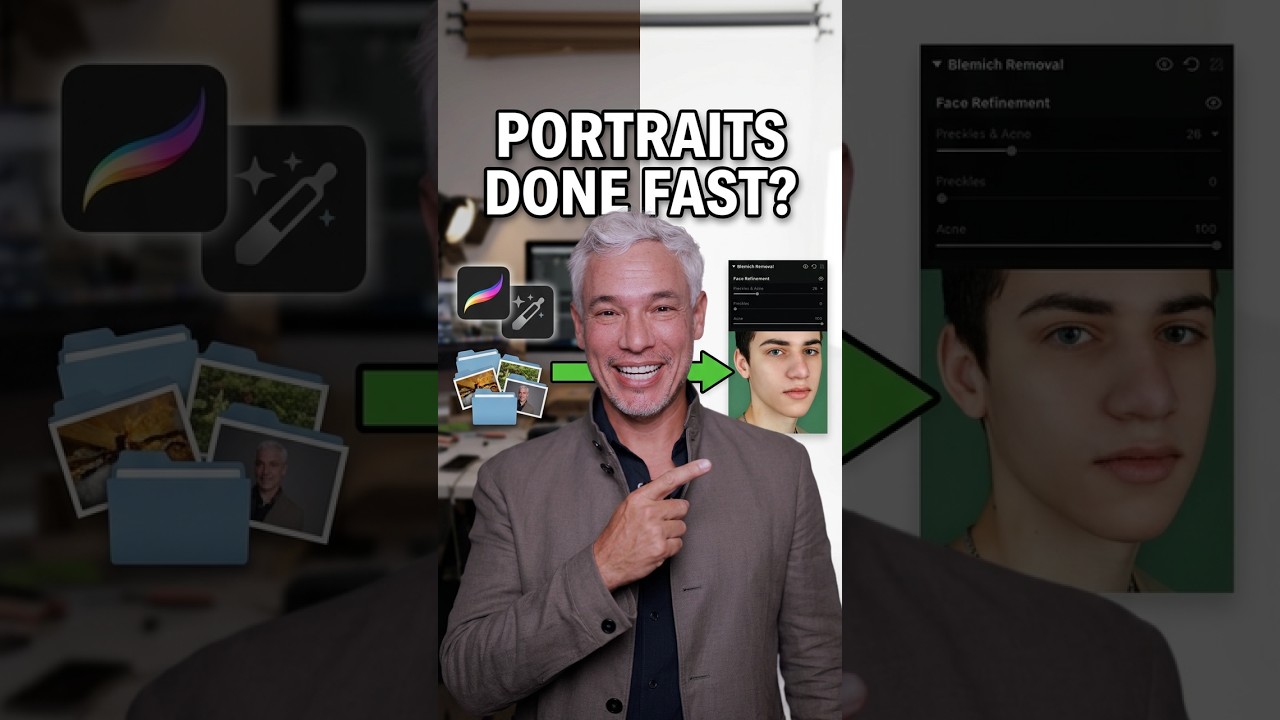
Portrait editing used to be the part of my job I dreaded most. Not because I don’t care about the final image — I care deeply — but because the gap between a great shot and a deliverable image used to mean hours of tedious skin retouching, shadow cleanup, and trying to reshape a subject without making the fence behind them look like it melted in the sun. If you’ve done any serious portrait work, you know exactly what I mean.
So when I came across Watch the full tutorial on YouTube from Tony and Chelsea Northrup breaking down why Tony switched to Evoto for every single portrait on his feed, I watched it twice. Tony is not the kind of photographer who hypes tools for the sake of it, and the fact that he mentions this is sponsored only after saying he already loved the app before the deal came through — that landed differently for me. The features he walks through are specific, practical, and honestly address problems I’ve been working around for years.
Here’s what the tutorial actually covers, and how each piece fits into a real portrait workflow.
Step 1: Skin Retouching with Noticeably Better Quality
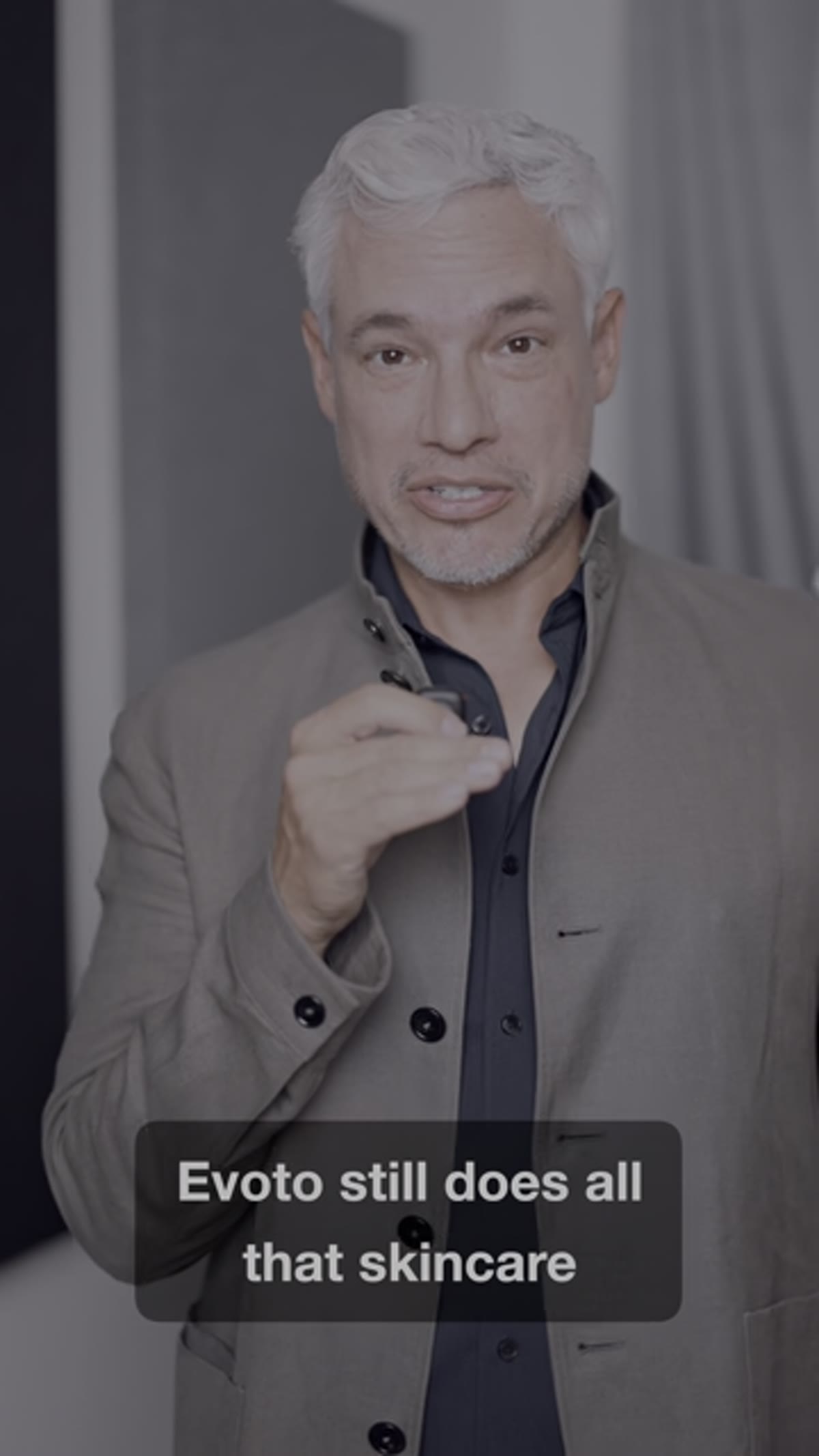 Evoto skin retouching panel showing blemish removal on portrait
Evoto has offered AI-powered skin care tools for a while now, but the tutorial opens by pointing out that the quality of those results has taken a real leap forward. The blemish removal isn’t just erasing spots anymore — the underlying skin texture is being preserved and reconstructed more naturally, so you’re not left with that telltale plastic look that used to be the giveaway for heavy retouching.
Evoto skin retouching panel showing blemish removal on portrait
Evoto has offered AI-powered skin care tools for a while now, but the tutorial opens by pointing out that the quality of those results has taken a real leap forward. The blemish removal isn’t just erasing spots anymore — the underlying skin texture is being preserved and reconstructed more naturally, so you’re not left with that telltale plastic look that used to be the giveaway for heavy retouching.
If you’re new to AI retouching, the key thing to watch for is whether the tool blends the corrected area into the surrounding skin tone and pore structure. The older generation of these tools often got the color right but lost the texture. Better texture preservation means less time going back in with a brush to manually add grain or detail.
Step 2: Removing Sweat, Glare, and Odd Shadows
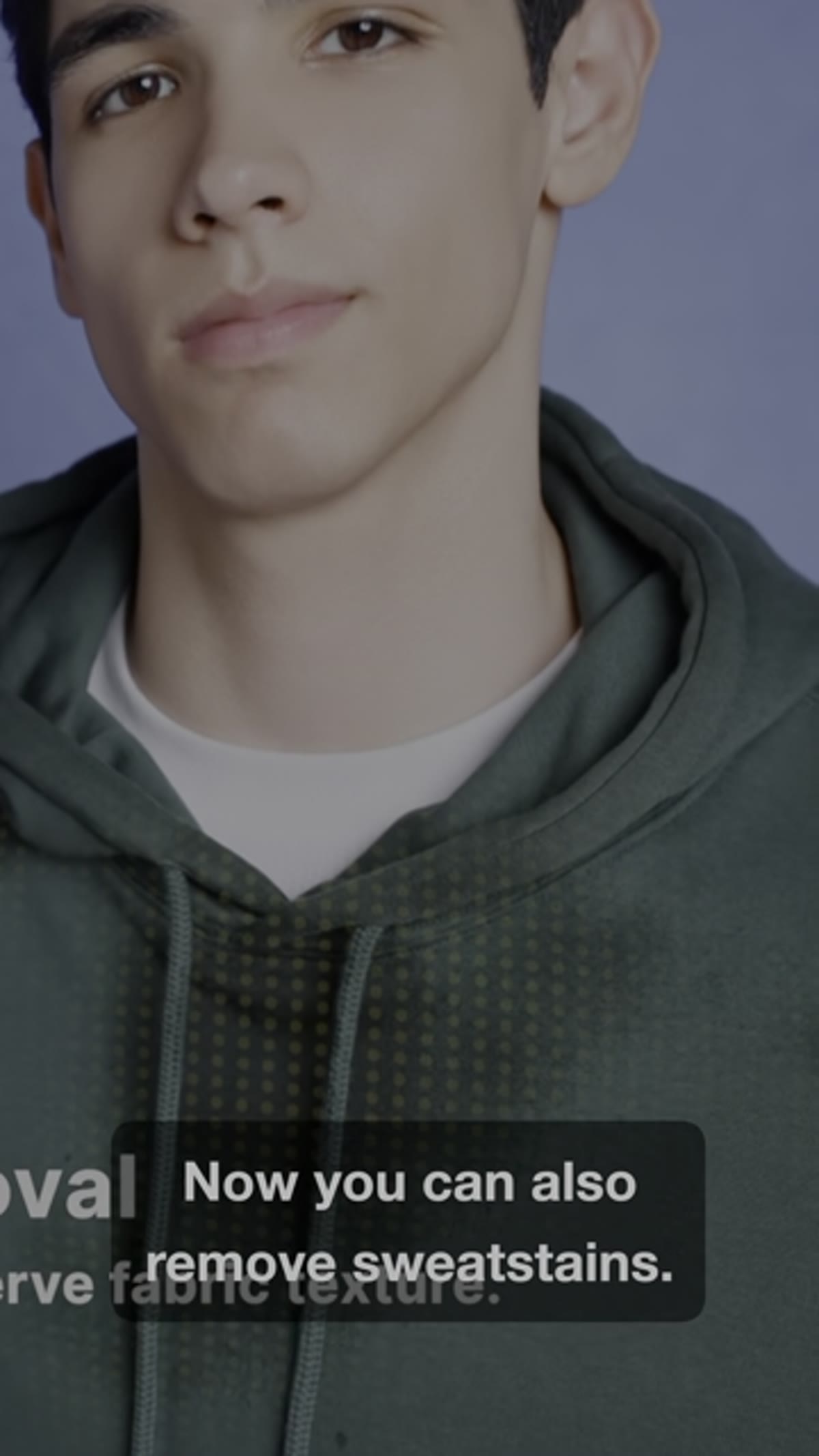 Editing interface highlighting sweat and glare removal on clothing
This one got my attention immediately, because it’s a problem that comes up constantly on outdoor shoots and in studio work with bright strobes. Tony highlights that Evoto can now tackle sweat stains on clothing, glare on fabric, and those strange, unflattering shadows that fall across a subject’s face at awkward angles.
Editing interface highlighting sweat and glare removal on clothing
This one got my attention immediately, because it’s a problem that comes up constantly on outdoor shoots and in studio work with bright strobes. Tony highlights that Evoto can now tackle sweat stains on clothing, glare on fabric, and those strange, unflattering shadows that fall across a subject’s face at awkward angles.
These are all things that used to send me to Photoshop’s healing brush or clone stamp for a frustrating stretch of manual work. The way to think about it: glare on a dark shirt and a shadow under someone’s chin are technically different problems, but they share the same root issue — light information that doesn’t match what we wanted. Evoto’s approach to handling these together, rather than as separate correction tasks, is a smarter way to build the workflow.
Step 3: Generative Enhancement for Incomplete Edges
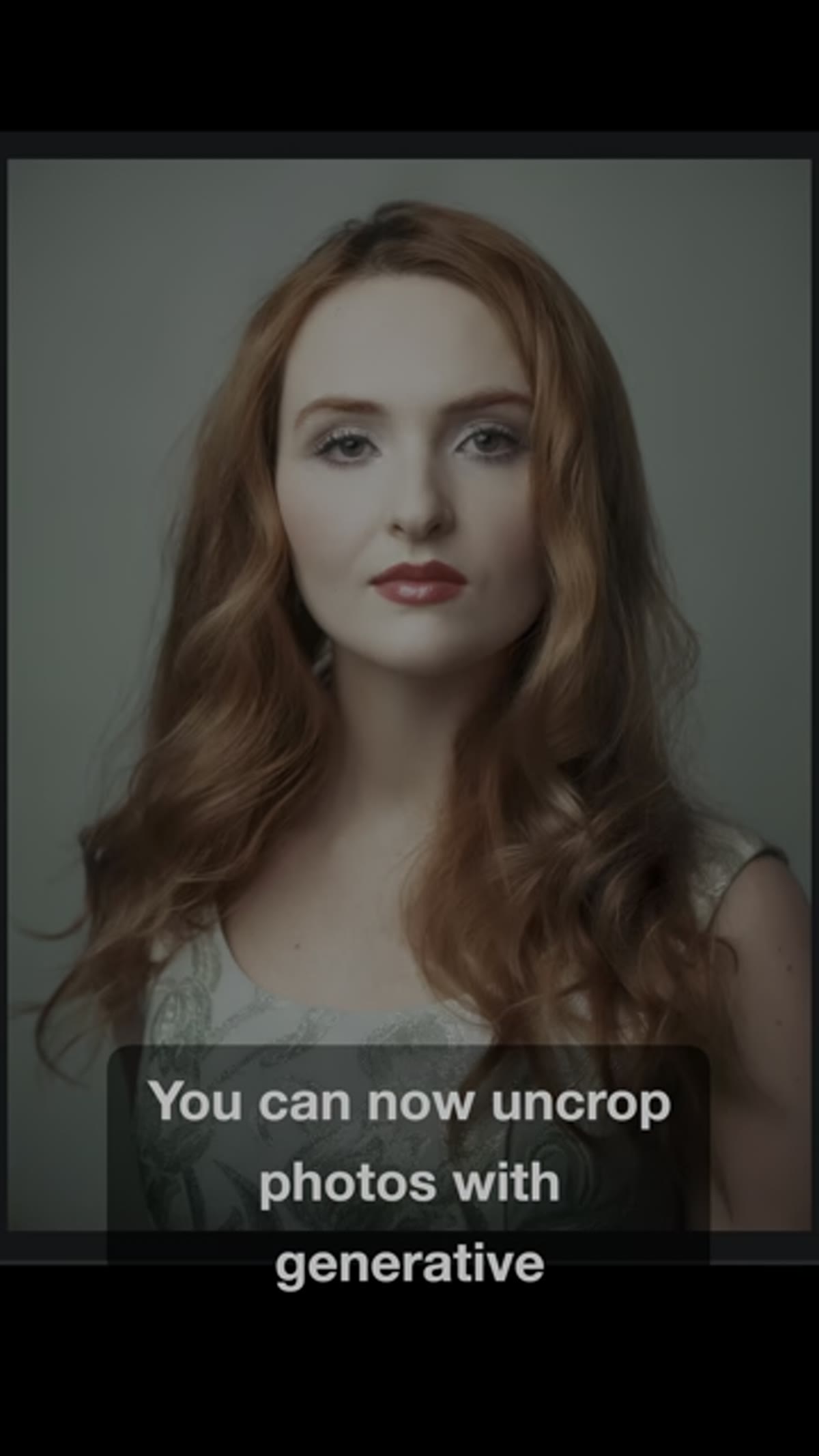 Generative fill expanding photo edges on a portrait crop
If you’ve ever slightly misjudged your framing in the field — cut off the top of a head by a centimeter, or cropped too tight on one side — this feature is the fix. Evoto now uses generative enhancement to complete the edges of a photo, extending the background or subject naturally into the space that was never captured.
Generative fill expanding photo edges on a portrait crop
If you’ve ever slightly misjudged your framing in the field — cut off the top of a head by a centimeter, or cropped too tight on one side — this feature is the fix. Evoto now uses generative enhancement to complete the edges of a photo, extending the background or subject naturally into the space that was never captured.
This is the same category of tool as Photoshop’s Generative Fill, and the key to using it well is the same: it works best when the area being extended is relatively consistent. A plain sky, a simple studio background, a solid-color wall — these extend convincingly. A complex architectural detail right at the edge is trickier. Start with low-complexity edges and you’ll get results you can actually use.
Step 4: Body Reshaping Without Distorting the Background
 Body reshaping tool applied near brick wall background without warping
This is the feature that made me stop and rewind. When a client asks for body reshaping adjustments — slimming, repositioning — the classic problem is that whatever is directly behind them in the frame warps along with the body. Bricks curve. Fence posts lean. It looks fake immediately.
Body reshaping tool applied near brick wall background without warping
This is the feature that made me stop and rewind. When a client asks for body reshaping adjustments — slimming, repositioning — the classic problem is that whatever is directly behind them in the frame warps along with the body. Bricks curve. Fence posts lean. It looks fake immediately.
Tony points out that Evoto has addressed this directly: reshaping the subject no longer pulls and distorts the background elements nearby. The software is treating the subject and background as separate layers, which is the right approach conceptually. For portrait photographers who frequently shoot near architectural backgrounds or in structured environments, this is a meaningful upgrade over older liquify-style tools.
Step 5: Workflow and Storytelling Tools for Events
 Wedding photos being automatically sorted into ceremony and reception groups
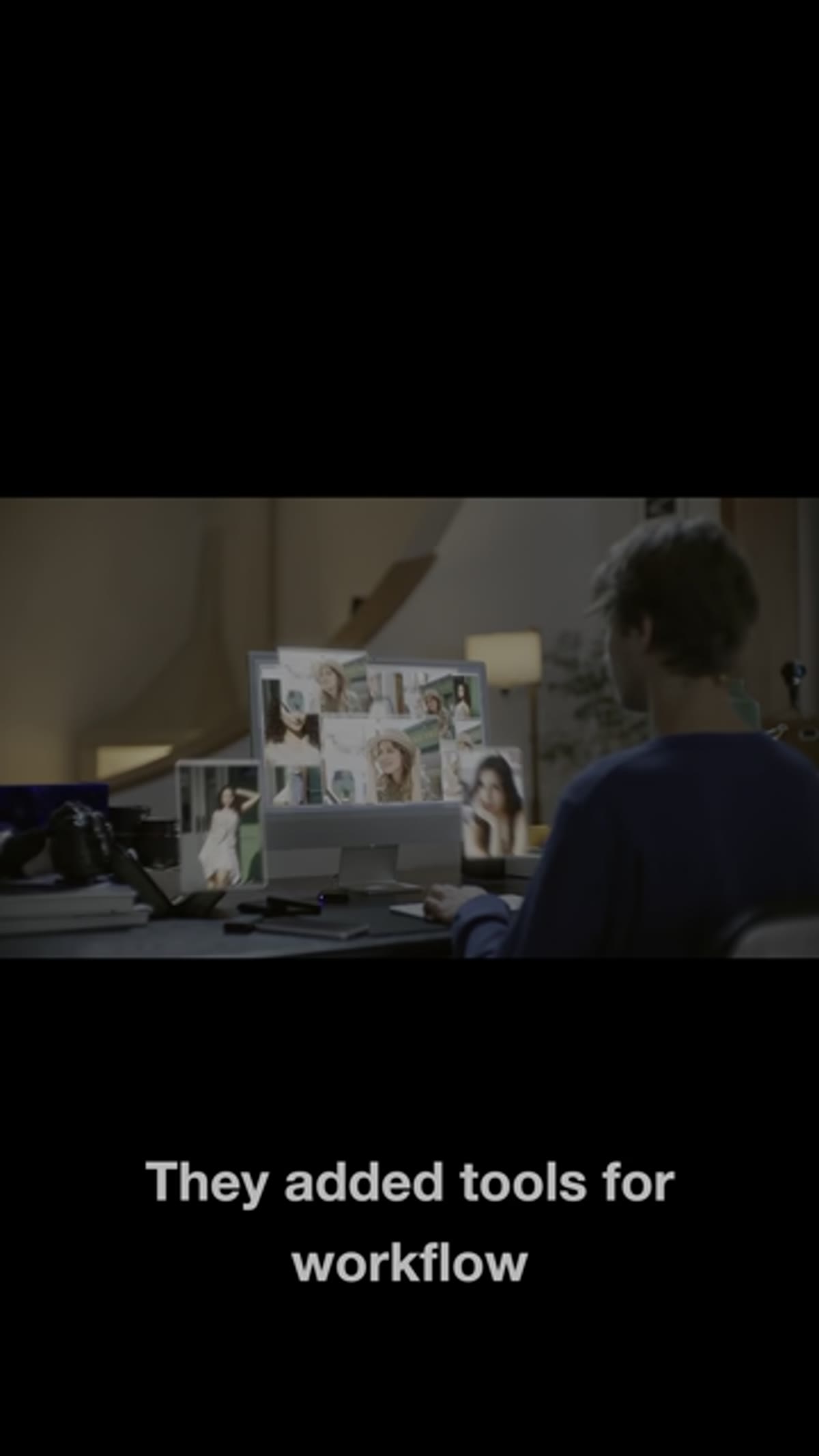
This one is aimed squarely at event photographers, and it’s clever. For wedding work specifically, Evoto can now automatically sort a full shoot into its component stages: getting ready, ceremony, reception. Rather than manually culling and grouping hundreds of images yourself, the program reads the visual and contextual cues and does the organizational work for you.
Wedding photos being automatically sorted into ceremony and reception groups
This one is aimed squarely at event photographers, and it’s clever. For wedding work specifically, Evoto can now automatically sort a full shoot into its component stages: getting ready, ceremony, reception. Rather than manually culling and grouping hundreds of images yourself, the program reads the visual and contextual cues and does the organizational work for you.
Even if you shoot occasional events rather than making it your specialty, the time savings here are real. Culling and organizing is often underestimated as a time cost. Automating even part of that process means more time for the editing decisions that actually require your eye and your taste.
Step 6: Smart Structuring for Portrait Series
 Multiple portrait variants automatically grouped into a carousel series
The last feature Tony covers is one I immediately thought about in terms of my own Instagram work. He mentions that when shooting for a carousel — where you want a cohesive set of images from a single session rather than one standalone photo — he now shoots eight frames instead of one. Evoto automatically recognizes that those images are a series and structures them together for selection and editing.
Multiple portrait variants automatically grouped into a carousel series
The last feature Tony covers is one I immediately thought about in terms of my own Instagram work. He mentions that when shooting for a carousel — where you want a cohesive set of images from a single session rather than one standalone photo — he now shoots eight frames instead of one. Evoto automatically recognizes that those images are a series and structures them together for selection and editing.
For anyone doing content creation alongside client work, this is worth paying attention to. A portrait carousel performs differently than a single image, and building the habit of shooting with that format in mind (more angles, more expressions, slight compositional variations) gives you better material to work with. Having the software recognize and group that material automatically removes one more friction point.
One Thing I’d Add from My Own Experience
AI editing tools like Evoto are genuinely impressive at the macro level — the reshaping, the sorting, the generative fills — but I still do a final pass on every portrait with my own eyes before anything goes to a client. Not because I don’t trust the AI results, but because my clients hired me specifically. They want my read on which frame is right, which retouch is too heavy, which shadow actually adds something interesting to the image.
Think of these tools as a very capable first editor. They handle the volume and the technical problems. You handle the intention.
The single most important thing I took from this tutorial is that AI editing tools have moved past being novelty features and into genuinely solving workflow problems that used to require significant manual skill or significant time. If you shoot portraits with any regularity, whether that’s client sessions, event work, or content creation, the combination of smarter retouching, background-aware reshaping, and automatic series organization represents real hours back in your week.
Watch the full breakdown here and see the before-and-after results for yourself: Watch the full tutorial on YouTube
If you decide to try Evoto, Tony’s promo code TONY15 gets you up to 20% off.
Comments (2)
I've been looking for exactly this kind of tutorial. Perfect timing.
This is going in my reference folder. Incredibly useful.
Leave a Comment