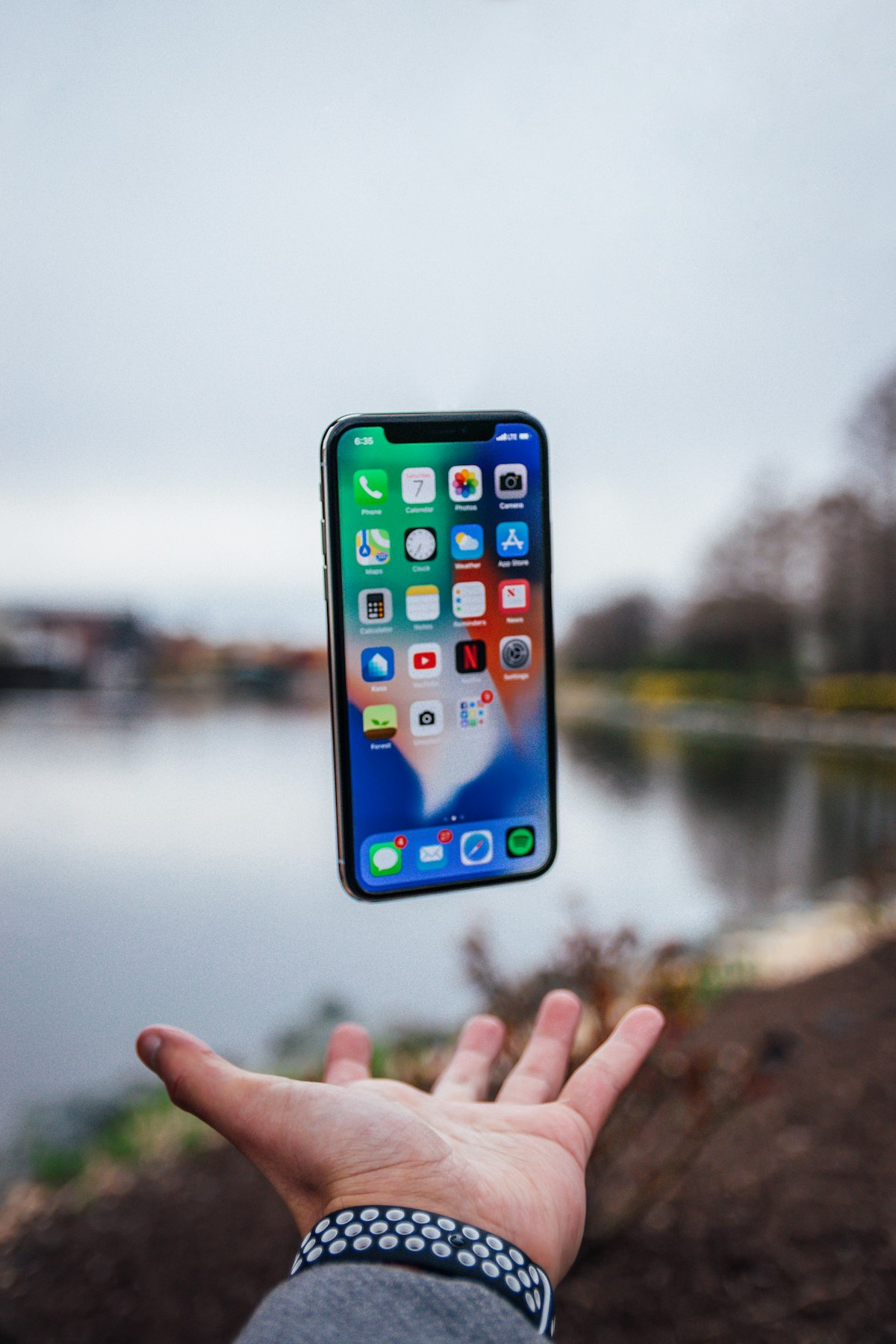
You don’t need a computer to edit photos well. Mobile editing apps have become powerful enough for serious work, and for social media output, editing on your phone makes sense — the photos are already there and the output destination is on the same device.
Here are the apps worth using and the techniques that matter most.
The Best Apps
Lightroom Mobile (Free / Premium)
Adobe’s mobile version of Lightroom is the most capable photo editor on any phone. The free version gives you powerful adjustment tools, presets, and a solid camera app. The premium version (included with a Creative Cloud Photography subscription) adds masking, healing, and raw file support.
Best for: Serious editing with precise control over exposure, color, and selective adjustments. The masking tools (sky detection, subject detection, linear and radial gradients) bring desktop-level editing to your phone.
Snapseed (Free)
Google’s editing app is completely free with no ads or in-app purchases. It has an excellent selection of tools, good selective editing, and a unique “stacks” system that keeps every edit non-destructive.
Best for: Quick, effective edits without a subscription. The “Selective” tool lets you tap on a specific area and adjust brightness, contrast, and saturation just for that spot.
VSCO (Free / Premium)
VSCO’s strength is its film-inspired presets. They’re tasteful and consistent — much better than Instagram’s built-in filters. The editing tools are capable but secondary to the preset system.
Best for: Achieving a consistent visual style across your feed. If you find a VSCO preset you love, applying it to every photo creates a cohesive look.
The Editing Workflow
Regardless of which app you use, follow this order:
Step 1: Crop and Straighten
Fix the composition first. Straighten the horizon, crop out distracting edges, and choose your aspect ratio for the intended platform (1:1 for Instagram feed, 4:5 for portrait, 16:9 for stories).
Step 2: Exposure and Contrast
- Exposure: Adjust overall brightness. Most phone photos benefit from a slight increase.
- Contrast: A small boost (+10 to +20) adds punch. Too much looks harsh.
- Highlights: Reduce if the sky or bright areas are blown out.
- Shadows: Lift slightly to recover detail in dark areas.
Step 3: White Balance
If the photo looks too warm (orange) or too cool (blue), adjust the temperature slider. The goal is natural-looking tones, especially in skin and neutral colors like white walls or gray concrete.
Step 4: Color
- Vibrance is safer than Saturation — it boosts muted colors without over-saturating strong ones.
- For specific color control, use the HSL (Hue, Saturation, Luminance) sliders to target individual colors.
Step 5: Sharpening and Noise
Apply light sharpening to add crispness. Phone photos often need it because small sensors produce softer images. But don’t over-sharpen — halos and crunchy textures look terrible.
If you shot in low light, use noise reduction sparingly. A little grain is better than the smeared, waxy look of heavy noise reduction.
Common Mobile Editing Mistakes
Over-editing. The most common mistake. A photo with heavy saturation, extreme contrast, heavy vignetting, and maxed-out clarity looks processed and cheap. Subtle adjustments produce professional results.
Inconsistent style. If your photos are going to Instagram, they’ll appear as a grid. Random editing styles make the grid look chaotic. Pick an approach and stick with it.
Editing in bad light. Your phone screen’s appearance changes dramatically based on ambient lighting. Edit in consistent indoor lighting, and consider reducing your phone’s auto-brightness so the screen looks the same every time.
Ignoring the crop. Many photographers spend time on color and exposure but deliver a photo with a crooked horizon and distracting elements at the edges. Crop first, always.
Presets and Consistency
For a consistent look across your photos, create or purchase a preset that matches your style and use it as a starting point for every edit. In Lightroom Mobile, you can save your own presets. In VSCO, save your favorite recipe.
The key word is “starting point.” Apply the preset, then fine-tune exposure and white balance for each individual photo. A preset that looks great on a sunset won’t necessarily look great on an indoor portrait without adjustment.