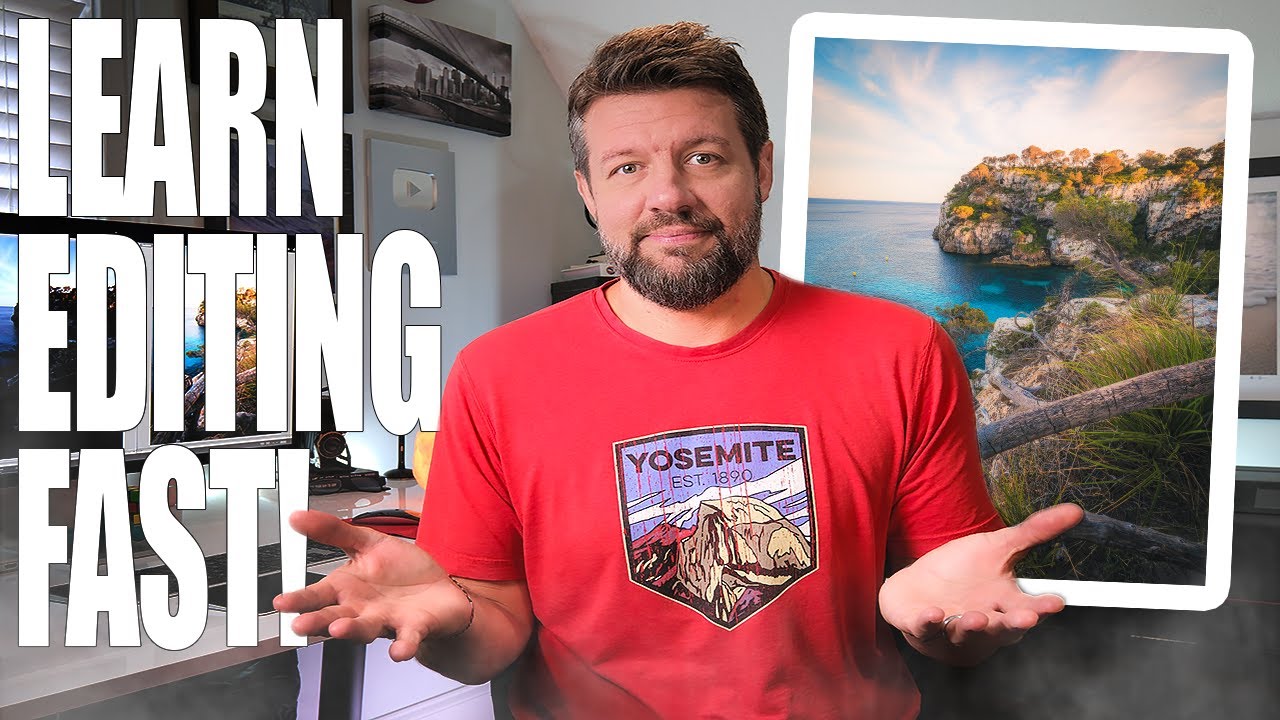
For a long time, my editing sessions looked like this: open Lightroom, poke at the exposure slider, get distracted by the color grading panel, overcook the saturation, undo everything, stare at the histogram, and eventually export something I felt lukewarm about. I didn’t have a system. I had habits, and most of them were bad. What changed things for me was watching educators who treat editing as a deliberate, repeatable process rather than an improvised scramble across every panel Lightroom has to offer.
In this Mark Denney tutorial, he walks through his complete editing workflow in just 15 minutes, and the core argument he makes is one I fully agree with: the basics aren’t just the starting point, they’re where most of the real work happens. Everything else is refinement. Once I started thinking about editing that way, my results got more consistent and my time in front of the screen got shorter. Here’s how to follow along with what he teaches.
Step 1: Customize Your Develop Panel Order
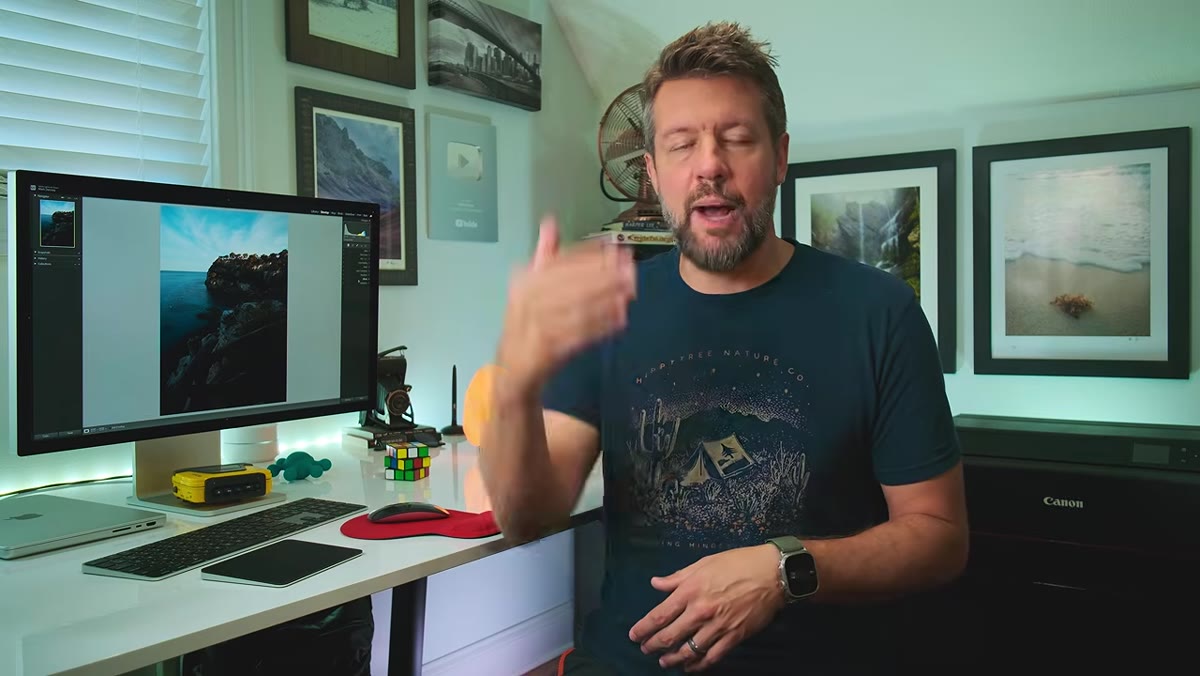 Lightroom’s Develop panel being right-clicked to customize
Before you touch a single slider, set your workspace up so your panel order mirrors your workflow. In Lightroom’s Develop module, right-click on any panel heading and choose “Customize Develop Panel.” Mark arranges his panels so that the ones he uses most appear at the top, and the ones he uses least sit at the bottom. His order runs roughly: Basic, Tone Curve, Calibration, Color Grading, HSL, Detail, Effects, with Lens Corrections and Transform at the bottom.
Lightroom’s Develop panel being right-clicked to customize
Before you touch a single slider, set your workspace up so your panel order mirrors your workflow. In Lightroom’s Develop module, right-click on any panel heading and choose “Customize Develop Panel.” Mark arranges his panels so that the ones he uses most appear at the top, and the ones he uses least sit at the bottom. His order runs roughly: Basic, Tone Curve, Calibration, Color Grading, HSL, Detail, Effects, with Lens Corrections and Transform at the bottom.
The reason this matters is simple: if your panels match your editing sequence, you start at the top and work straight down without hunting around or backtracking. It sounds like a tiny organizational thing, but after a few hundred edits it becomes an enormous time-saver. Set this up once, save it, and your editing brain has a reliable map from that point forward.
Step 2: Correct the Basic Exposure First
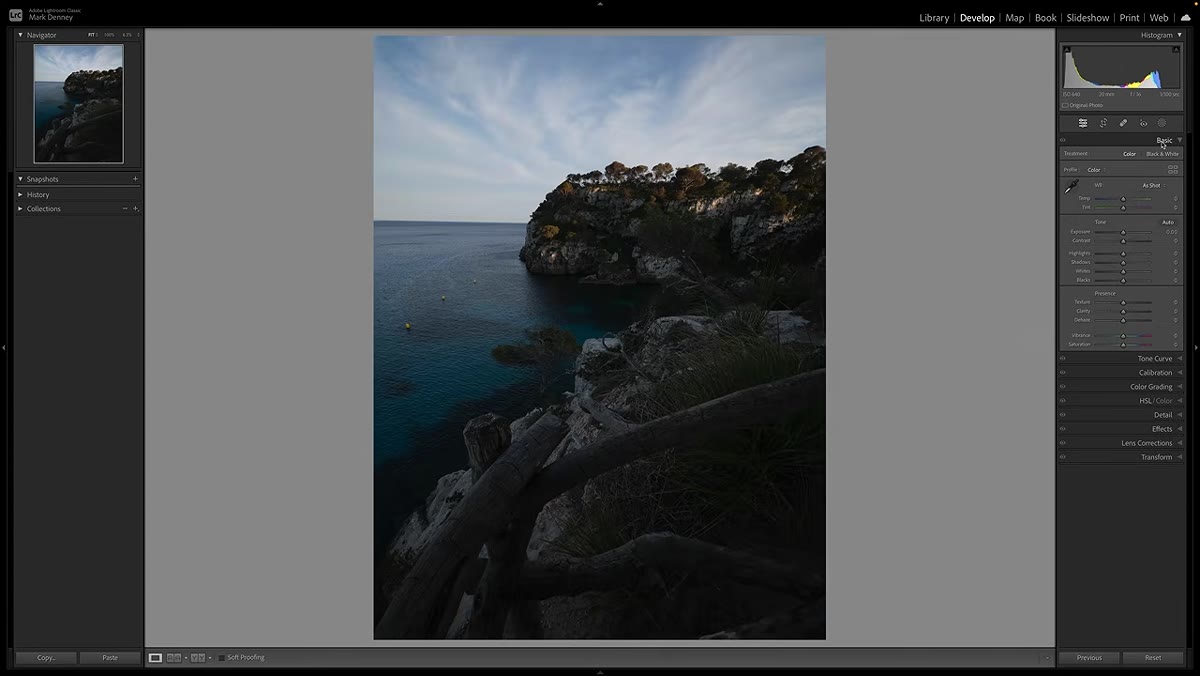 Basic panel open, Exposure slider being adjusted upward
With the panel order set, jump into the Basic panel and do a first-pass exposure correction. If your image is underexposed, bring the Exposure slider up to get the scene to a workable brightness. Don’t try to get it perfect yet. You’re just getting yourself to a place where you can evaluate everything else clearly.
Basic panel open, Exposure slider being adjusted upward
With the panel order set, jump into the Basic panel and do a first-pass exposure correction. If your image is underexposed, bring the Exposure slider up to get the scene to a workable brightness. Don’t try to get it perfect yet. You’re just getting yourself to a place where you can evaluate everything else clearly.
Think of this step as turning the lights on in a dark room before you start rearranging the furniture. You need to see what you’re working with.
Step 3: Shape the Tonal Range with Highlights, Shadows, Whites, and Blacks
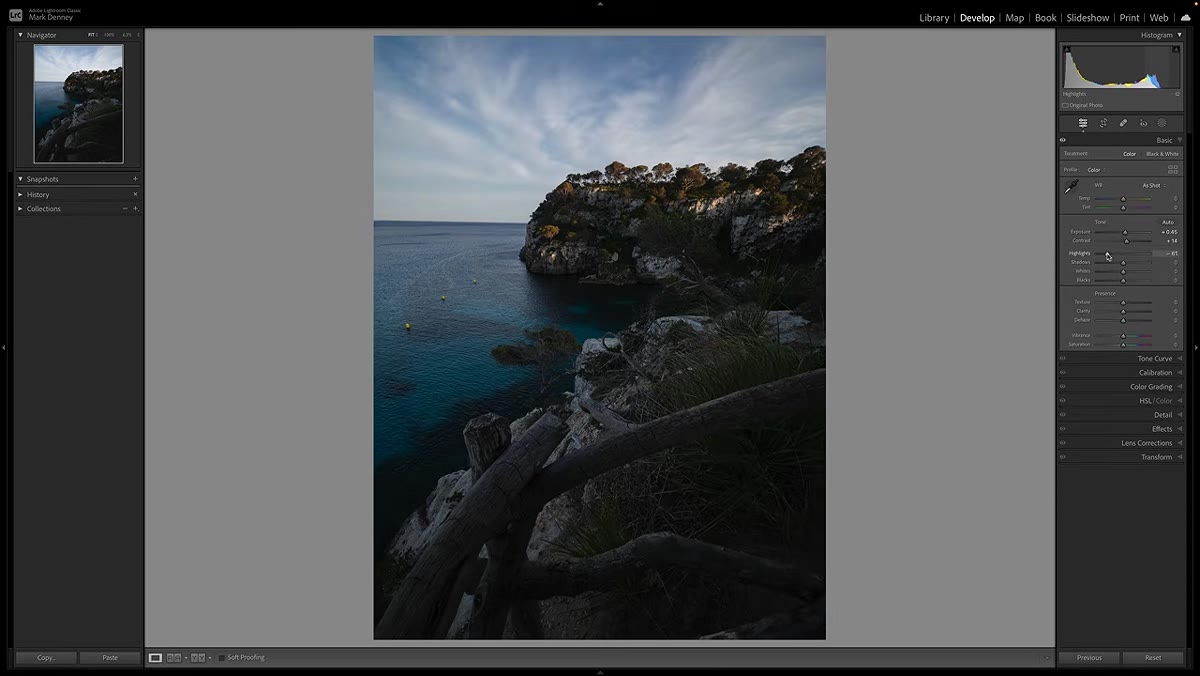 Highlights and Shadows sliders being pulled in opposite directions
This is where the real tonal sculpting happens inside the Basic panel. Work your way down through Highlights, Shadows, Whites, and Blacks in that order. Mark’s approach is to pull Highlights down to recover sky and bright detail, lift Shadows to reveal texture in darker areas, push Whites up to set a clean bright point, and nudge Blacks down slightly to add depth without crushing the shadows.
Highlights and Shadows sliders being pulled in opposite directions
This is where the real tonal sculpting happens inside the Basic panel. Work your way down through Highlights, Shadows, Whites, and Blacks in that order. Mark’s approach is to pull Highlights down to recover sky and bright detail, lift Shadows to reveal texture in darker areas, push Whites up to set a clean bright point, and nudge Blacks down slightly to add depth without crushing the shadows.
The values he uses on any given image vary based on the scene, but the logic stays the same every time. You’re not just boosting or dimming the whole image. You’re adjusting the different tonal zones independently so the final image holds detail across the full range. A coastal scene shot in bright midday light needs more aggressive Highlights recovery than a foggy forest shot. Learn to read what your specific image needs rather than defaulting to the same numbers every time.
Step 4: Use Texture, Clarity, and Dehaze to Control Detail Presence
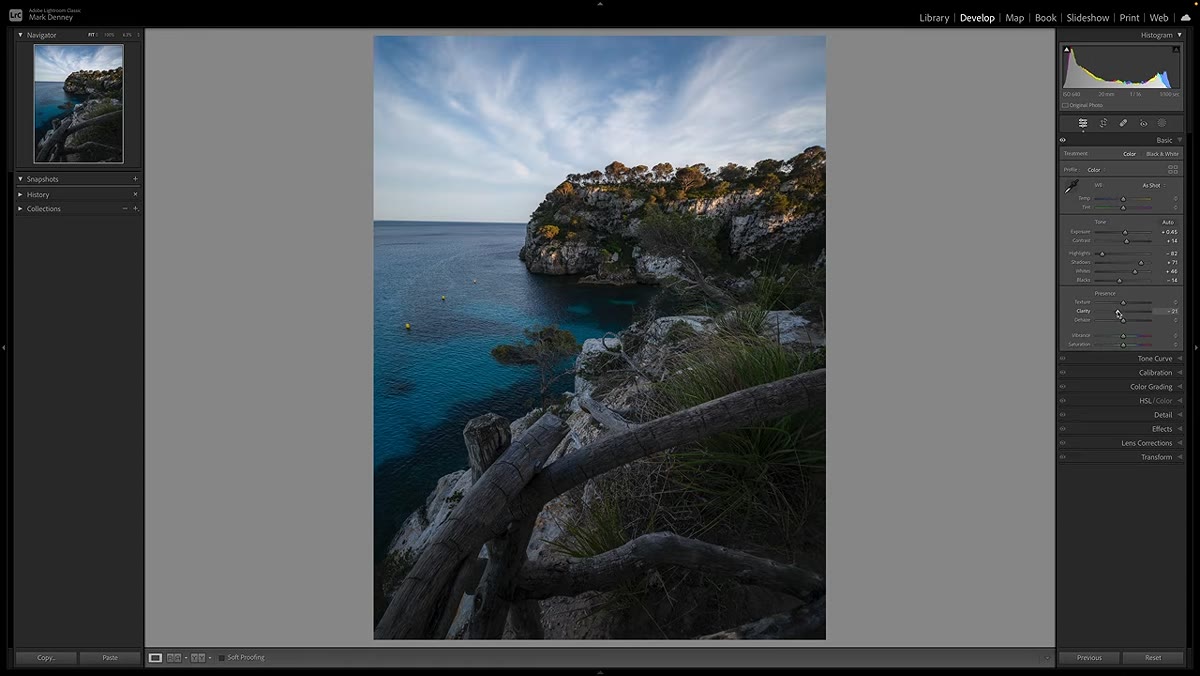 Clarity pulled to negative 20, Texture slightly increased
Once the tones are balanced, Mark moves to the three detail-feel controls at the bottom of the Basic panel. He typically brings Clarity down to around negative 20 to soften midtone contrast and give the image a slightly more atmospheric quality. He nudges Texture up a little to preserve surface detail like rock faces or fabric. And he adds a small amount of negative Dehaze to gently haze the image back without flattening it.
Clarity pulled to negative 20, Texture slightly increased
Once the tones are balanced, Mark moves to the three detail-feel controls at the bottom of the Basic panel. He typically brings Clarity down to around negative 20 to soften midtone contrast and give the image a slightly more atmospheric quality. He nudges Texture up a little to preserve surface detail like rock faces or fabric. And he adds a small amount of negative Dehaze to gently haze the image back without flattening it.
These three sliders are easy to abuse. A lot of beginners crank Clarity and Texture up because it makes images feel “sharp” or “punchy,” but that look ages quickly. Used with restraint, they let you control how tactile and present the image feels without pushing it into over-processed territory. If you’re editing portraits, you’ll likely push Clarity even lower. Landscapes can handle a touch more Texture.
Step 5: Refine Contrast with the Tone Curve
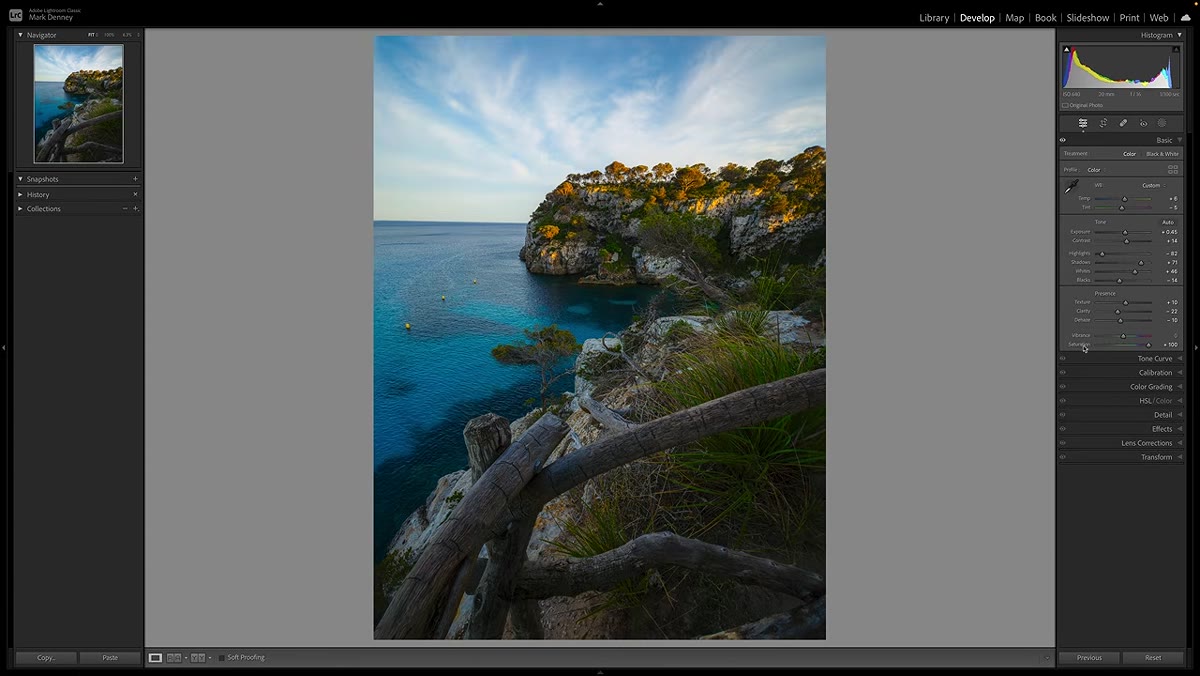 Tone Curve panel open, gentle S-curve being shaped
After the Basic panel, move down to the Tone Curve. This is where you add (or remove) contrast with much more control than the single Contrast slider in Basic gives you. A gentle S-curve, where you slightly lift the upper midtones and slightly deepen the lower midtones, is a classic starting point that works well for most images.
Tone Curve panel open, gentle S-curve being shaped
After the Basic panel, move down to the Tone Curve. This is where you add (or remove) contrast with much more control than the single Contrast slider in Basic gives you. A gentle S-curve, where you slightly lift the upper midtones and slightly deepen the lower midtones, is a classic starting point that works well for most images.
The power of the Tone Curve is that you can target specific tonal ranges independently. If your shadows are getting too dark from the S-curve, grab the shadow point and bring it back up. If your highlights feel a bit washed, pull the top of the curve down slightly. This panel rewards patience, and small adjustments go a long way.
Step 6: Fine-Tune Color with HSL and Color Grading
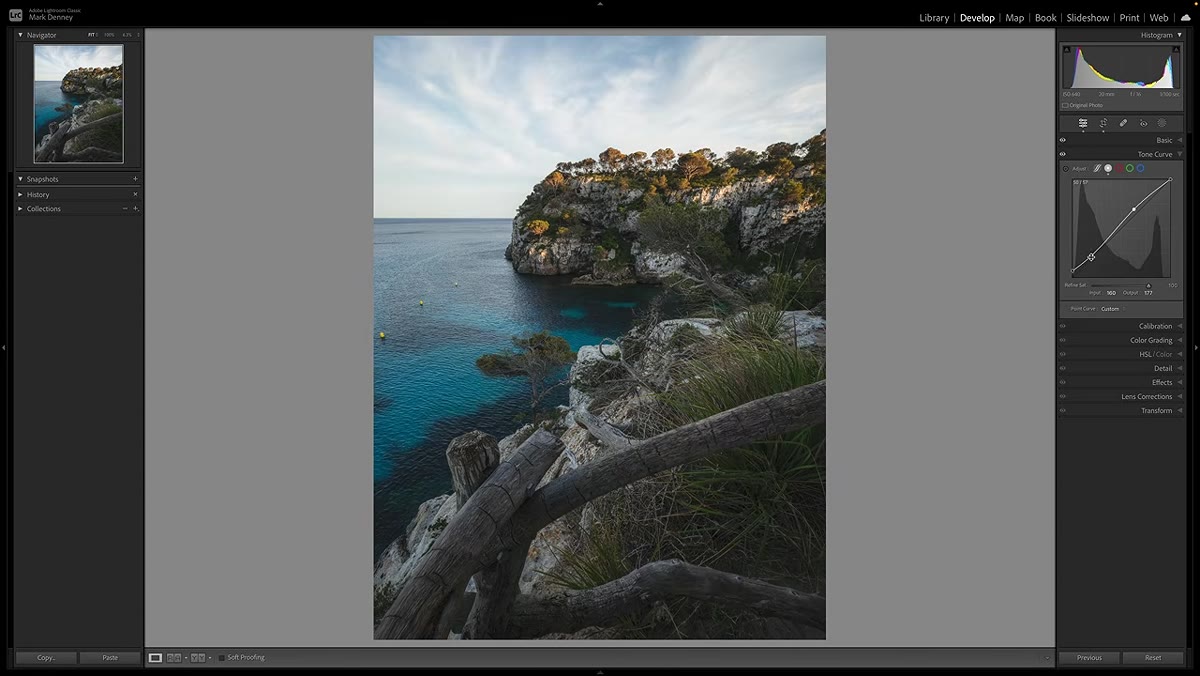 HSL panel open, individual color hue and saturation sliders visible
With the light sorted, shift your focus to color. The HSL panel lets you adjust the Hue, Saturation, and Luminance of individual colors. If the sky looks too teal, bring the Aqua Hue slider toward blue. If the grass is oversaturated, pull down Green Saturation. This level of specificity is what separates a color-graded image from one that just has the Vibrance cranked up.
HSL panel open, individual color hue and saturation sliders visible
With the light sorted, shift your focus to color. The HSL panel lets you adjust the Hue, Saturation, and Luminance of individual colors. If the sky looks too teal, bring the Aqua Hue slider toward blue. If the grass is oversaturated, pull down Green Saturation. This level of specificity is what separates a color-graded image from one that just has the Vibrance cranked up.
Color Grading sits nearby in the workflow and handles the split-toning side of things. Adding a subtle warm tone to the highlights and a slightly cooler tone to the shadows is a time-tested way to give an image cohesion and mood. Go easy here. A little color grading reads as intentional; a lot reads as a filter.
My Take: The Workflow Matters More Than the Values
I want to add one thing I’ve learned shooting everything from Sunday morning phone photos to travel work in places where I’ve stayed out too long chasing light. The specific slider values Mark uses are less important than the sequence he uses them in.
When you work from exposure to tone to detail to color, each decision builds on a stable foundation. When you skip around, you end up compensating for earlier choices in later panels and the edit gets muddy. Clients have noticed a consistency in my work since I locked in a top-to-bottom routine, and I think it’s largely because I stopped second-guessing my sequence halfway through every edit.
The single biggest takeaway here is this: a repeatable editing workflow is a skill in itself, and it pays dividends on every single image you process. You don’t need to match Mark’s exact settings. You need to borrow his structure, then adjust the details until it fits how you see your own images.
Watch the full tutorial on YouTube to see the entire workflow applied to a real image from start to finish.
Comments
Leave a Comment